Shipping Notice (Customer Portal)
This module allows you to efficiently manage your ASNs (Advanced Shipping Notices). The customer portal provides this tool so you can notify G Global warehouses in advance about incoming packages.
The main purpose of this notice is to allow the G Global team to properly prepare for the incoming shipment, plan its storage, and manage inventory more efficiently.
Additionally, this module offers several benefits for you as a client, including:
- Ensuring accuracy and integrity of deliveries.
- Anticipating and resolving discrepancies or logistical issues promptly.
- Providing a complete monitoring system for your shipments via the portal.
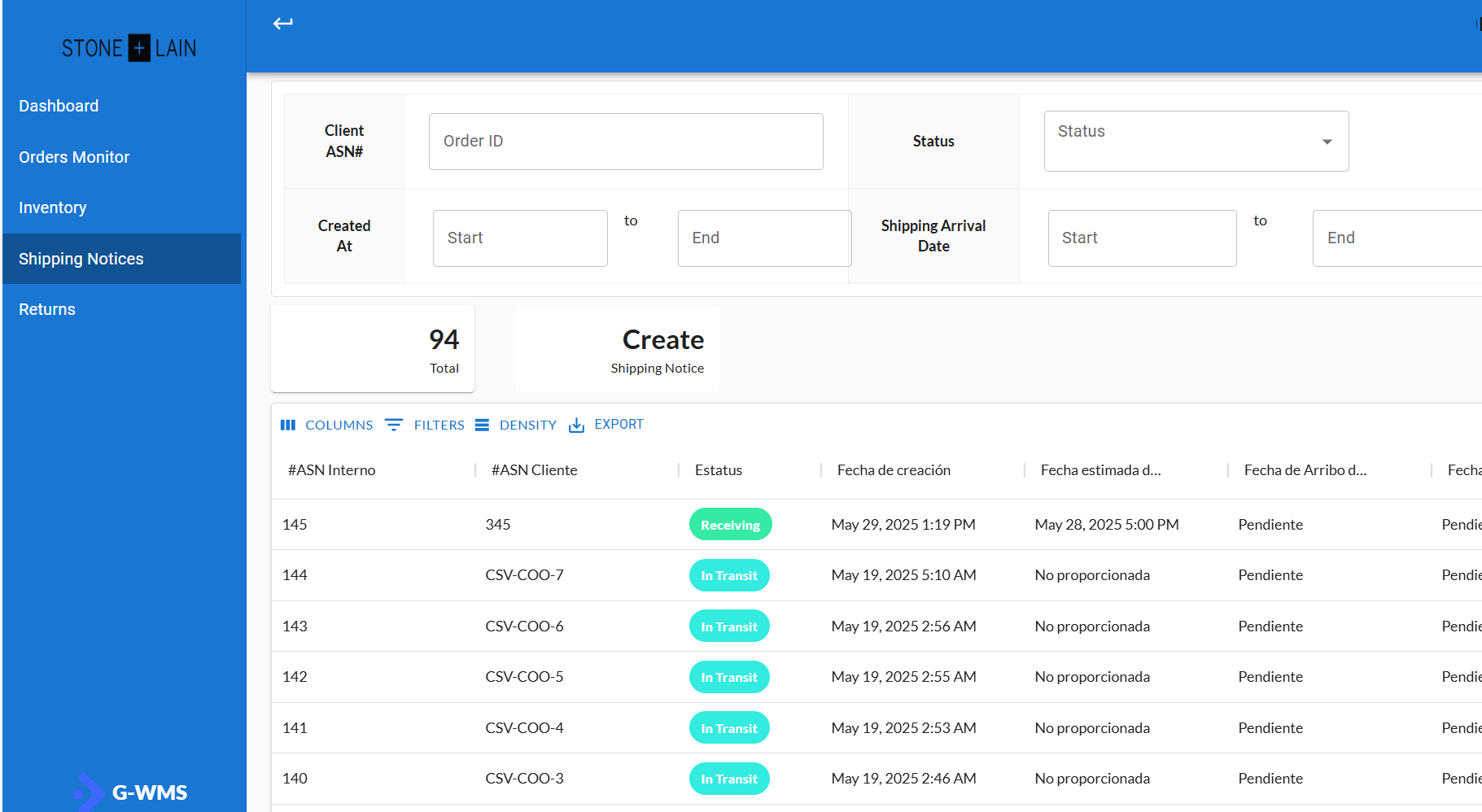
If you'd like to learn how to manage your ASNs correctly through the portal, keep reading this section. Below is an image of the module’s main interface:
How to create an ASN from Customer portal?
To create an ASN (Advanced Shipping Notice) from the portal, follow these steps:
-
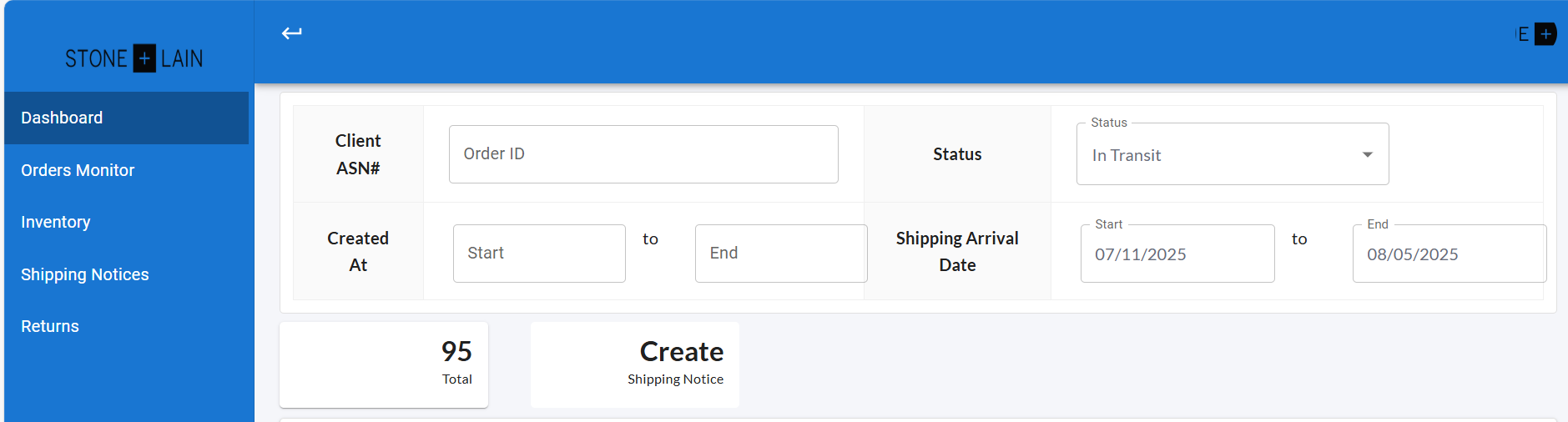
Click the Create Shipping Notice button.
-
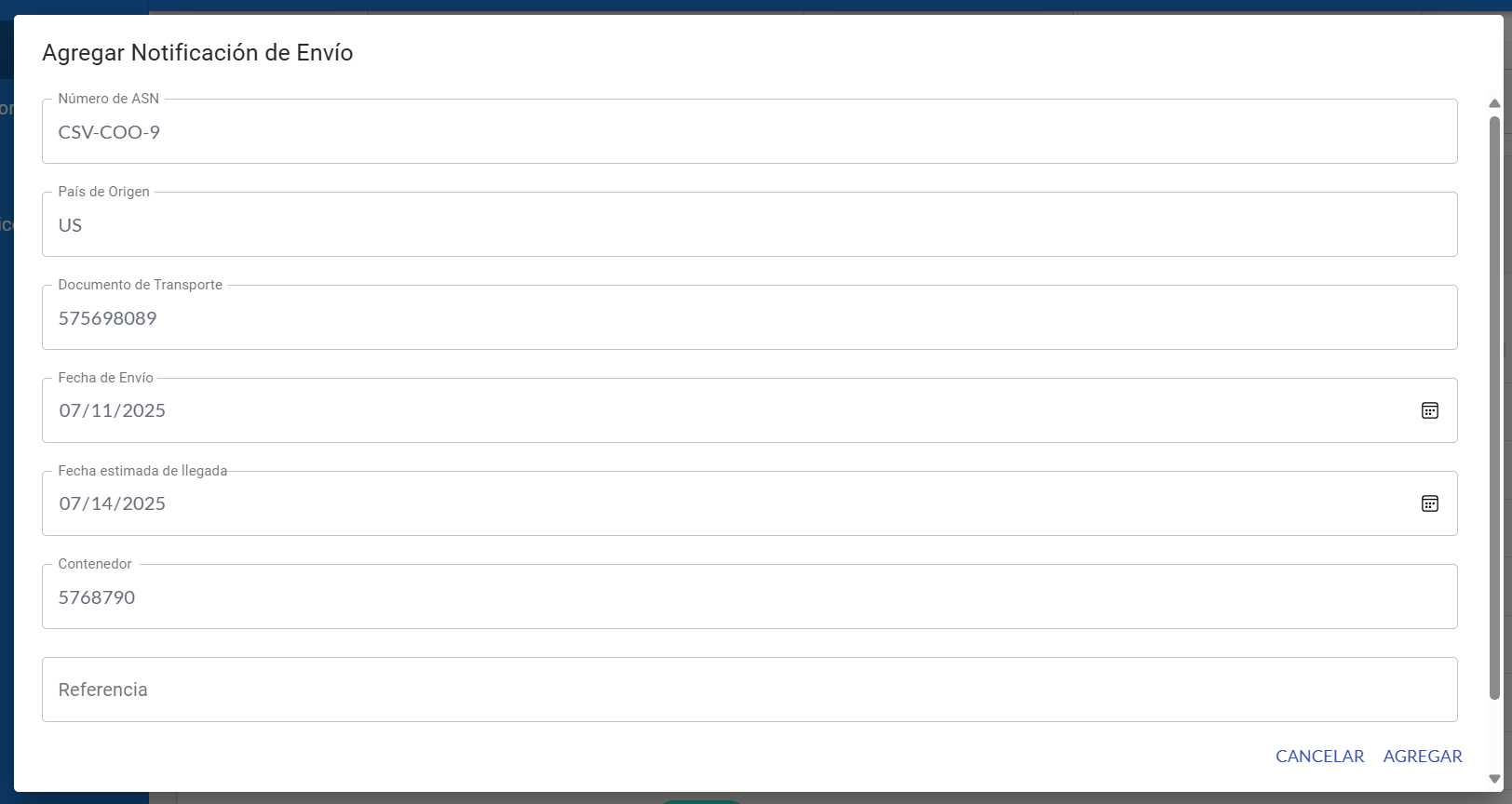
A form will be displayed where you must fill in the following fields:
-
ASN Number: A unique identifier to differentiate each shipping notice. This value must be unique and cannot be repeated.
-
Country of Origin: Enter the country from which the shipment originates.
-
Transport Document: The number or code of the transport document. This field is optional.
-
Shipping Date: The date the shipment was sent. This is optional and can be left blank if unknown.
-
Estimated Arrival Date: The expected date the shipment will arrive at the warehouse. This is also optional.
-
Container: The identification number of the container carrying the shipment.
-
Reference: An optional field for additional information to help track or identify the ASN. You may enter a PO number, internal code, cross-reference, or other relevant ID. You can leave this field blank if not needed.
-
-
After filling out the form, verify the information and click the Add button.
-
If the process is successful, the system will display a green message confirming the ASN was created. The new record will automatically appear in the main table.
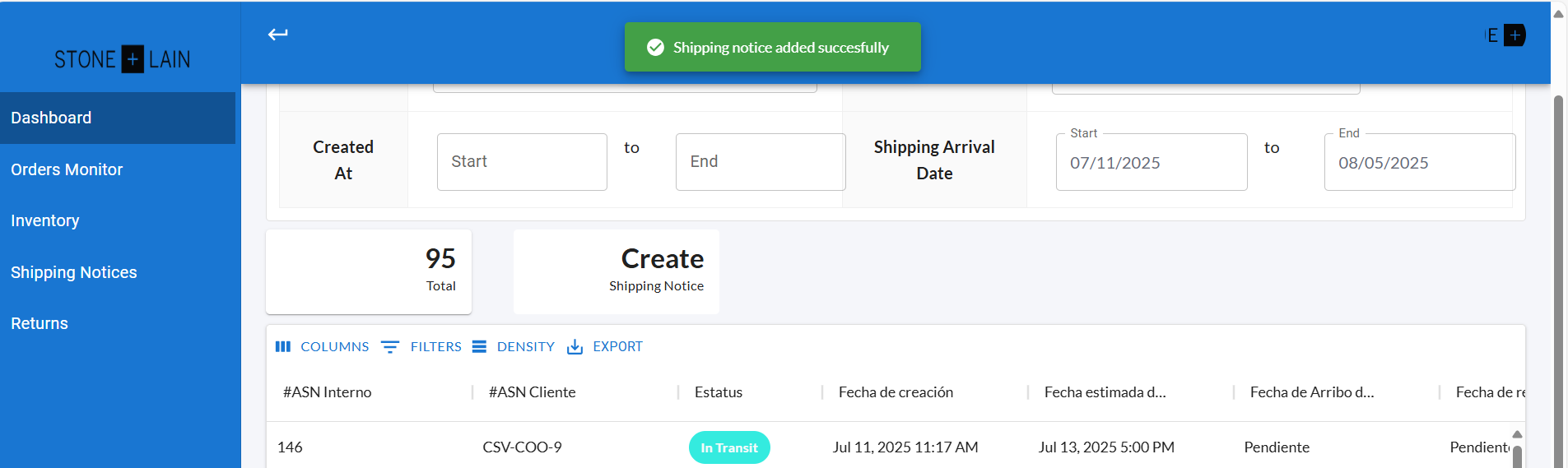
What data from your ASN is shown in Shipping notice?
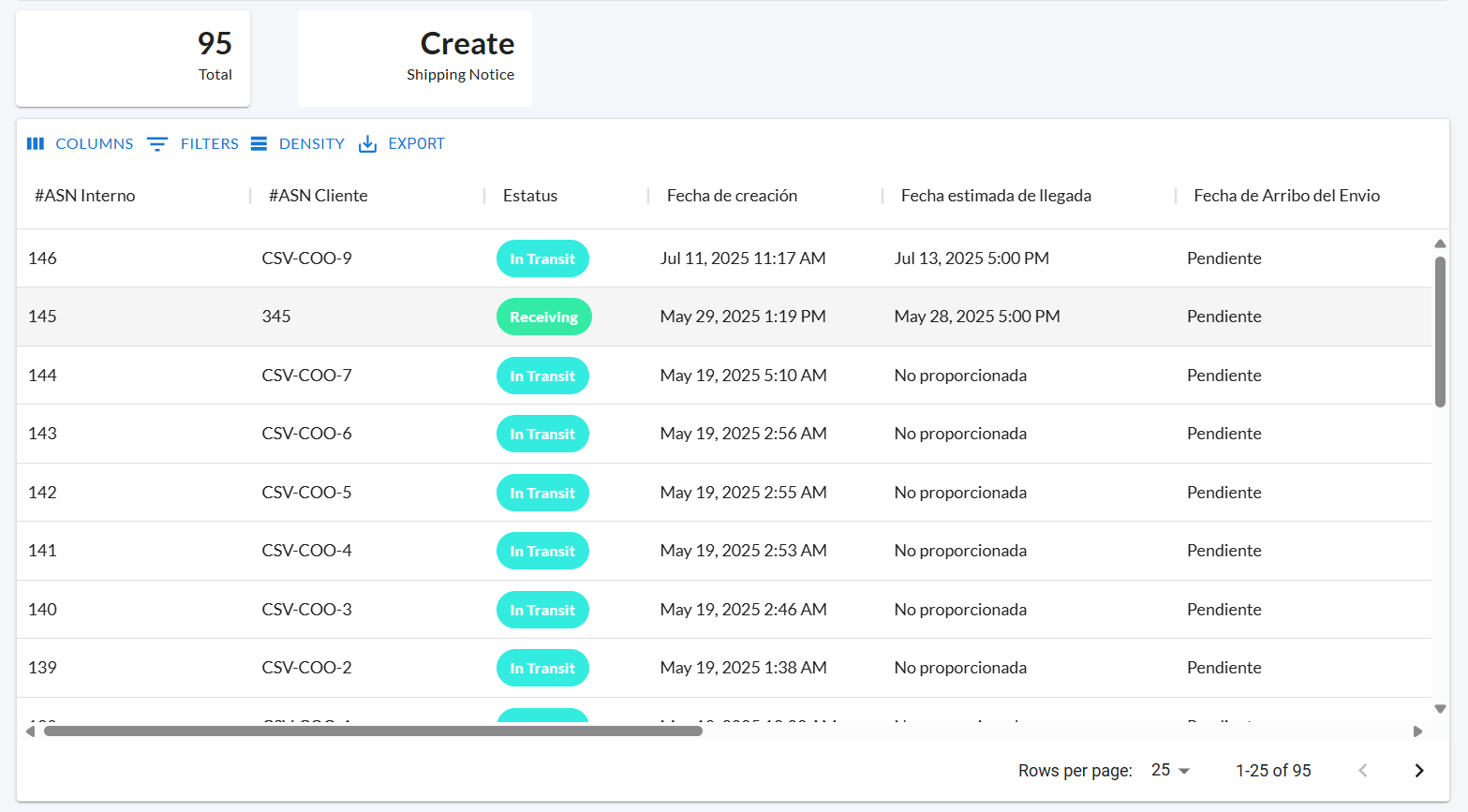
Each time you register an ASN in the portal, it will appear in a table showing the following information:
-
Internal ASN #: Internal numeric identifier used by the system. Relevant for internal operations within G Global.
-
Client ASN #: Numeric identifier assigned by you to track your ASN in the portal.
-
Status: Current status of the ASN. Possible values:
- In Transit: The shipment is en route.
- Receiving: The shipment is in the process of being received.
-
Creation Date: The date the ASN was registered in the system.
-
Estimated Arrival Date: The expected arrival date of the shipment at the warehouse.
-
Shipment Arrival Date: The actual date the shipment arrived at the warehouse.
-
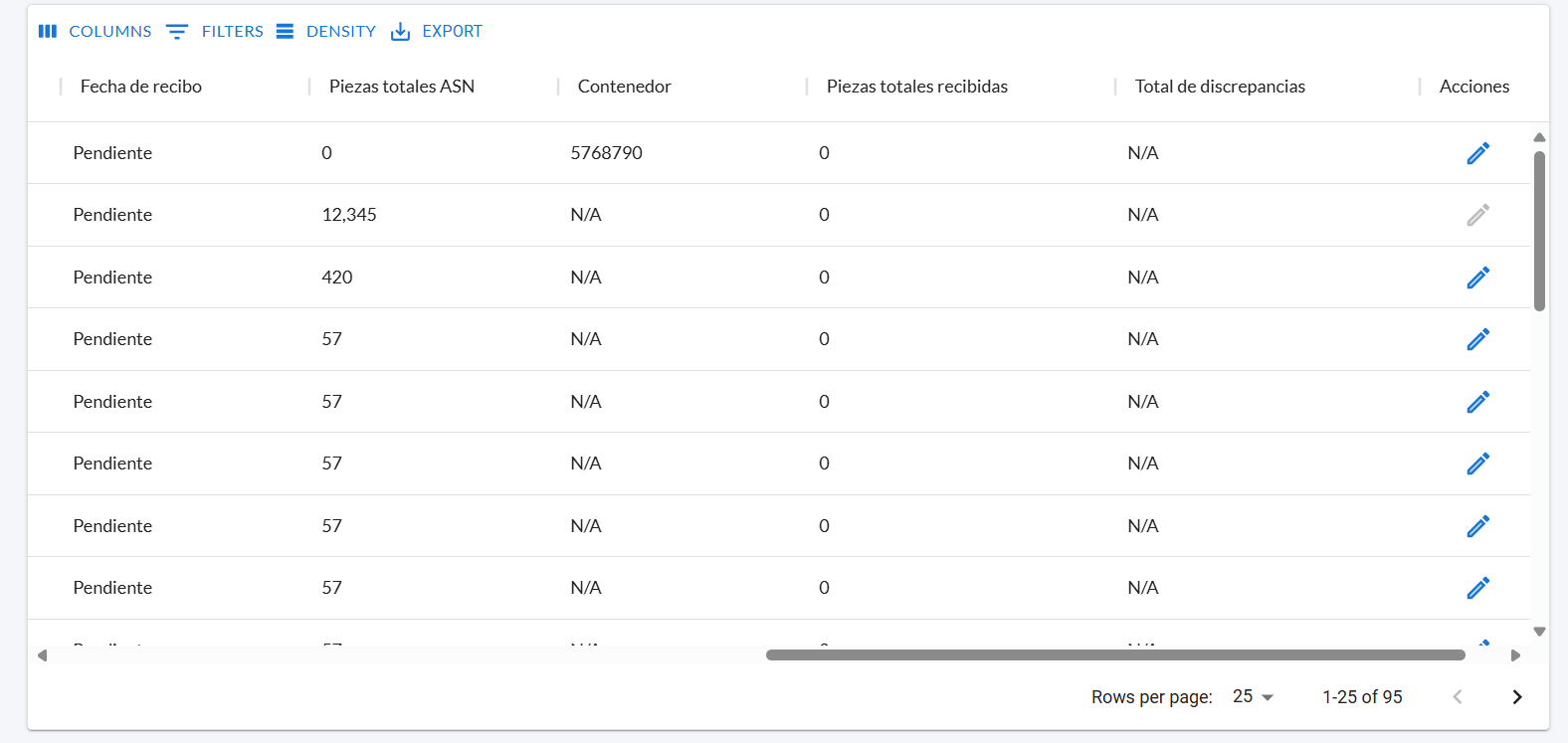
Received Date: The date the shipment was processed as received in the system.
-
Total ASN Pieces: Total number of items declared in the ASN.
-
Container: The container number transporting the shipment.
-
Total Pieces Received: Number of pieces actually received.
-
Total Discrepancies: The difference between what was declared in the ASN and what was actually received. This reflects potential delivery errors or inconsistencies.
How to add information of your packages in an ASN from the customer portal?
Once an ASN is created, the next step is to register the packages it includes. Follow these steps:
-
Click the row of the ASN to which you want to add packages.
-
The portal will redirect you to a detailed view of the selected ASN.
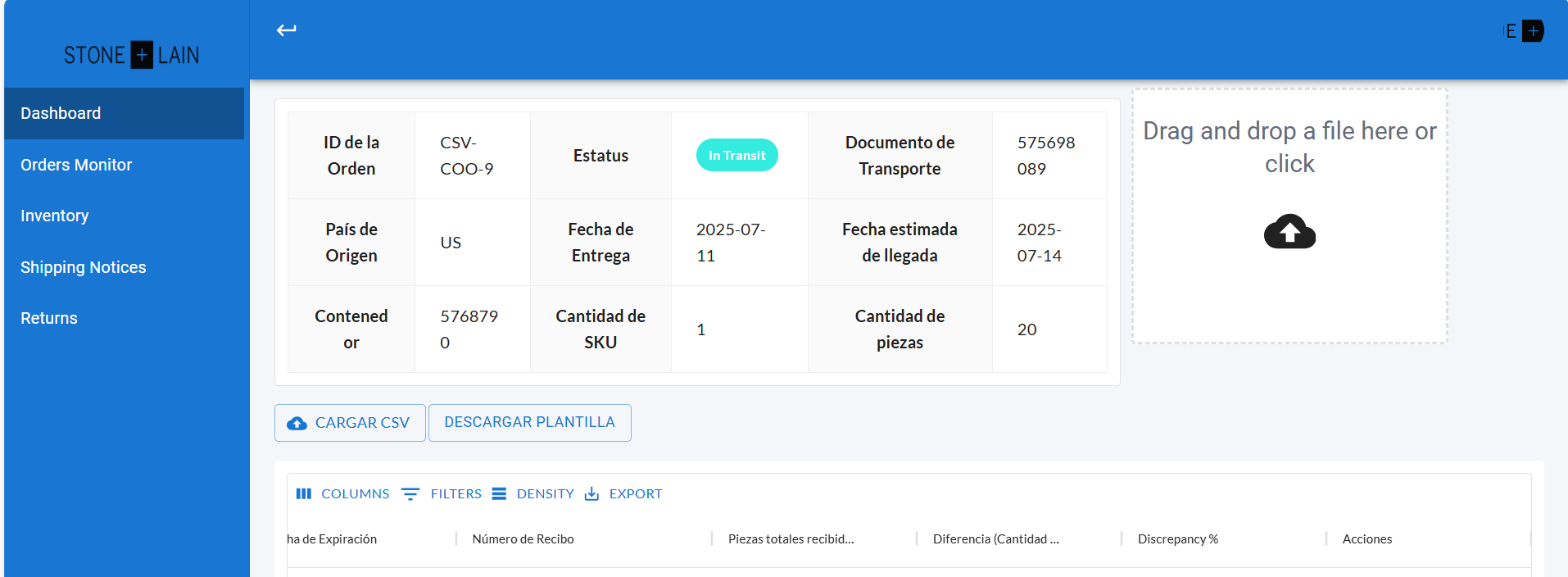
- Then click the Add Line option.

-
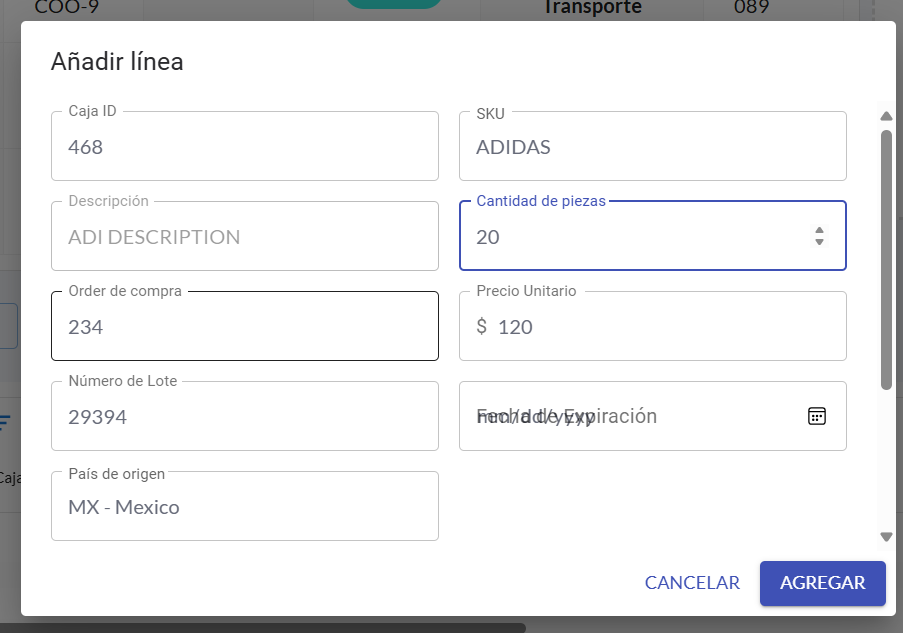
A form will appear where you need to provide the following data:
- Box ID: Unique code to identify the package within the ASN.
- SKU: Product identifier to be included in the package.
- Description: Product description. Auto-filled upon entering the SKU.
- Quantity: Number of units contained in the package.
- Purchase Order (PO): The purchase order associated with the package.
- Lot Number: Batch number of the products in the package.
- Country of Origin: The country from which the package is being sent.
- Unit Price: Unit cost of the product.
- Expiration Date: Expiry date of the product, if applicable. Leave blank if not needed.
-
Once completed, click Add.
-
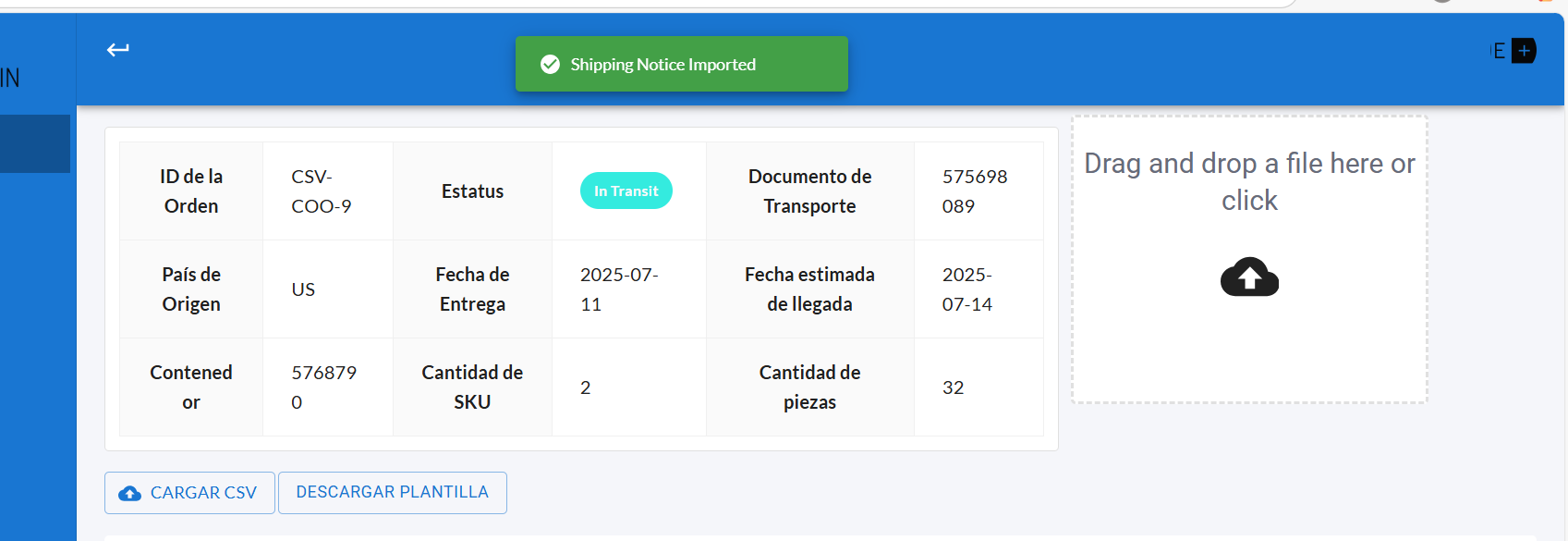
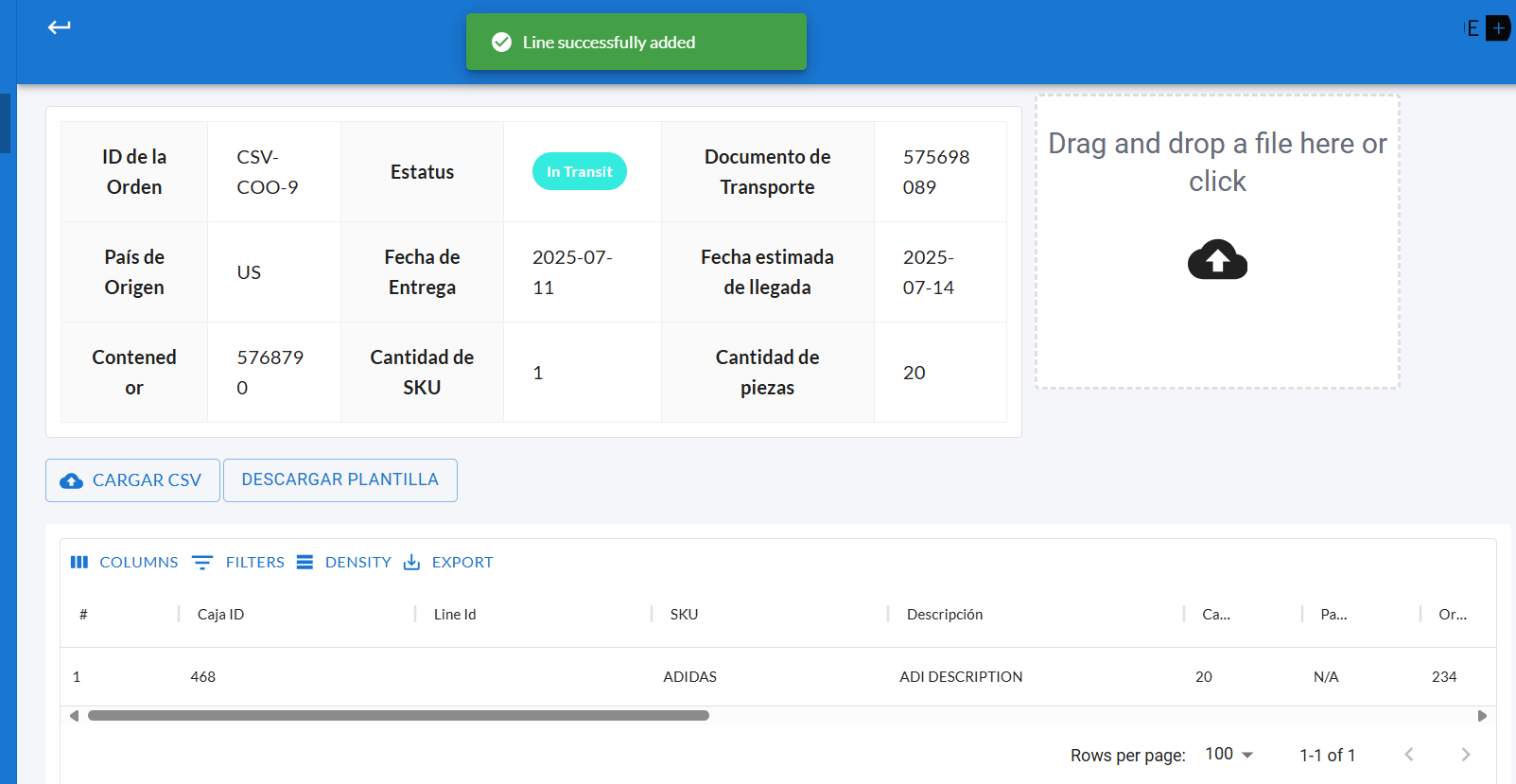
If successful, the system will display a green confirmation message, and the package will appear in a table as shown below:
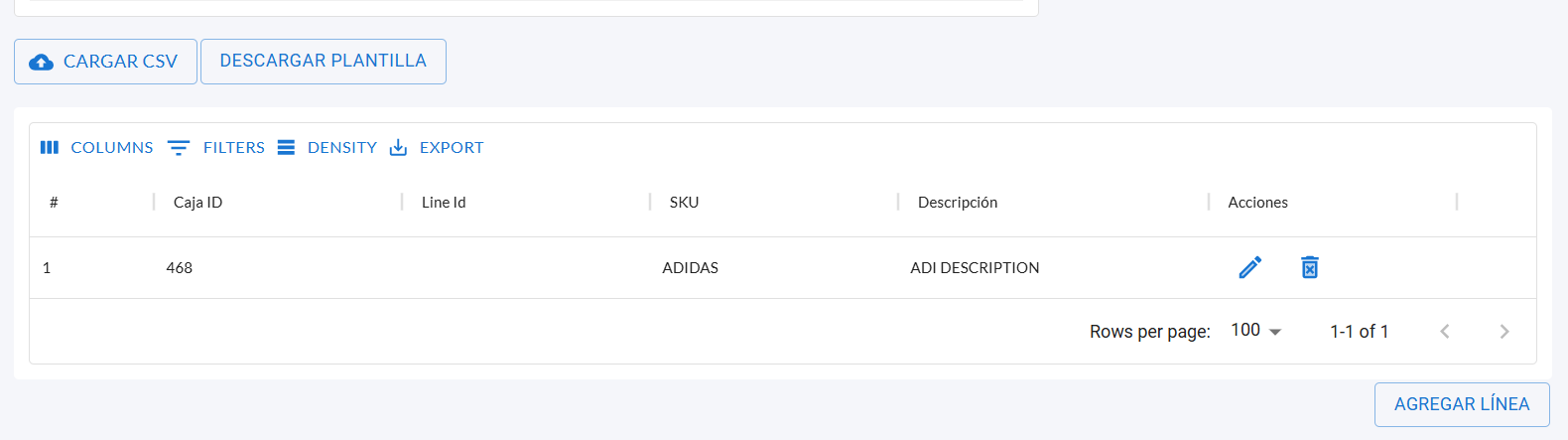
If you want to edit or delete a package, go to the table where the registered packages are listed.
In the Actions column, you’ll see two icons:
- The pencil icon allows you to edit package details.
- The trash icon allows you to delete the package from the ASN.
Click the appropriate icon depending on the action you want to take.

How to register your packages in an ASN using a .csv file?
The portal also provides an option to add packages in bulk by uploading a CSV file.
Here’s how to proceed:
- Click on the Download Template button. This will download a
.csvfile that defines the structure required for proper processing by the system.
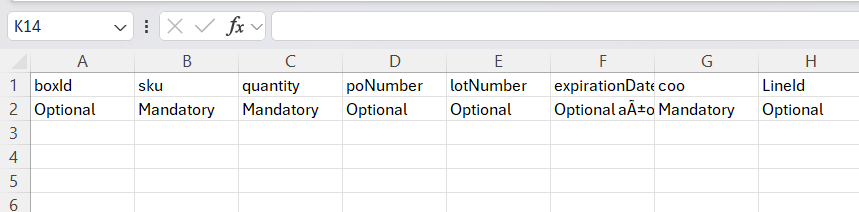
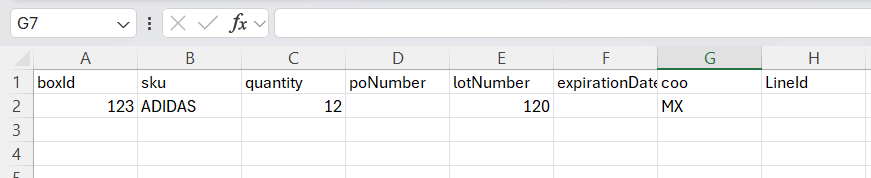
- Open the file in Excel. You’ll notice:
- The first row contains the column headers used by the system to register package data.
- The second row includes labels indicating which fields are required and which are optional. You may leave optional fields blank if not needed.
- Complete the file with the following data:
- SKU (required)
- Quantity (required)
- COO (Country of Origin, using country codes) (required)
If you don’t know the valid codes, refer to the country dropdown in the package registration form. - poNumber (Purchase Order) (optional)
- lotNumber (Lot Number) (optional)
- expirationDate (optional)
- lineId (Package Code) (optional)
- Once the file is filled out and saved, upload it to the system using the designated CSV upload option. Then click Proceed to continue.
- If the file contains no discrepancies, the system will display a green message indicating the upload was successful.