Inventory (Client Portal)
The Inventory module in the G-WMS client portal allows you to view, in real-time, the distribution and availability of stock for each item stored across the warehouses managed by G Global.
This module acts as a visual monitoring tool that simplifies inventory control, providing detailed information on the SKU, description, country of origin, available quantity, and other relevant data.
It also offers powerful filtering and search options, making it easy to locate products or segment information according to specific needs. Whether you want to check availability, export data, or generate reports, this module includes multiple features to support those tasks.
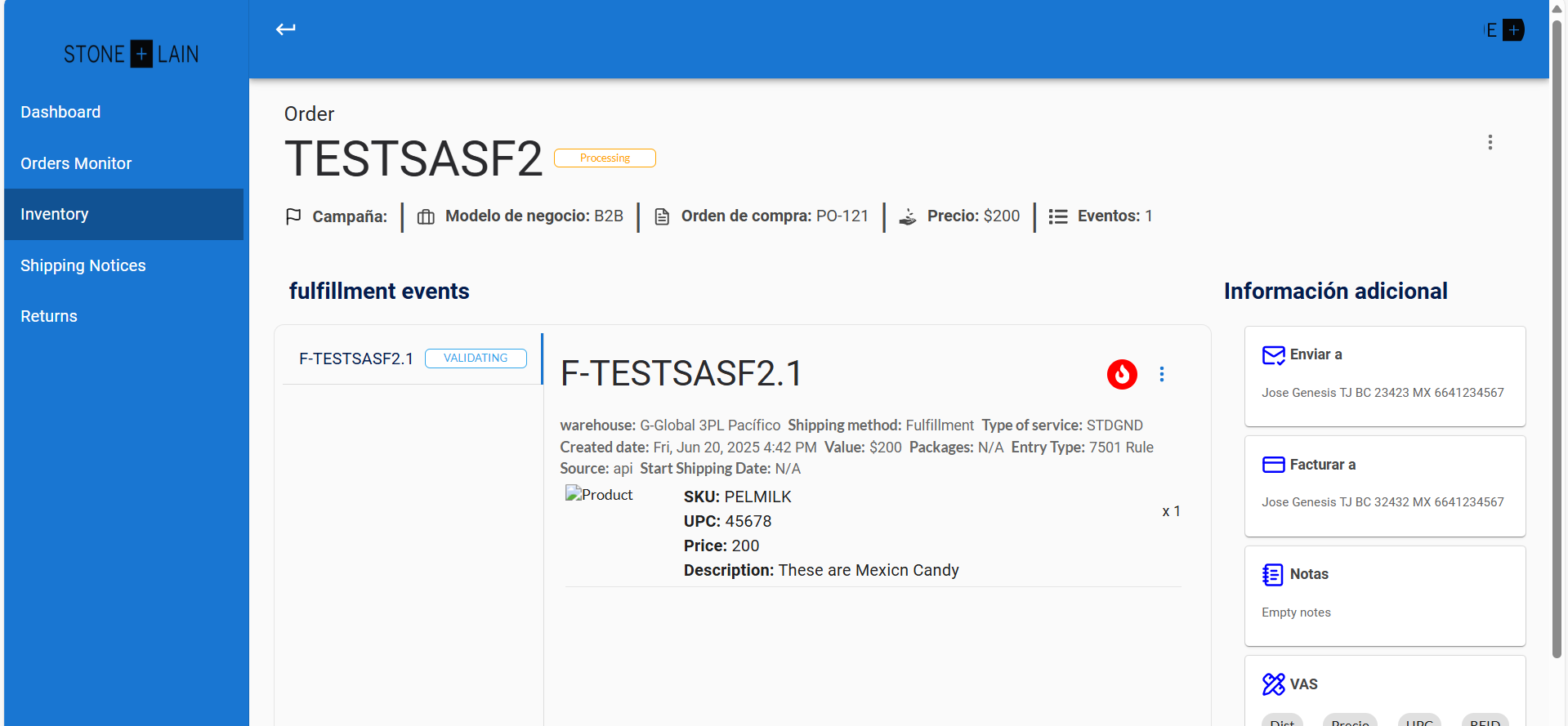
Here is an illustrative image of the module interface:
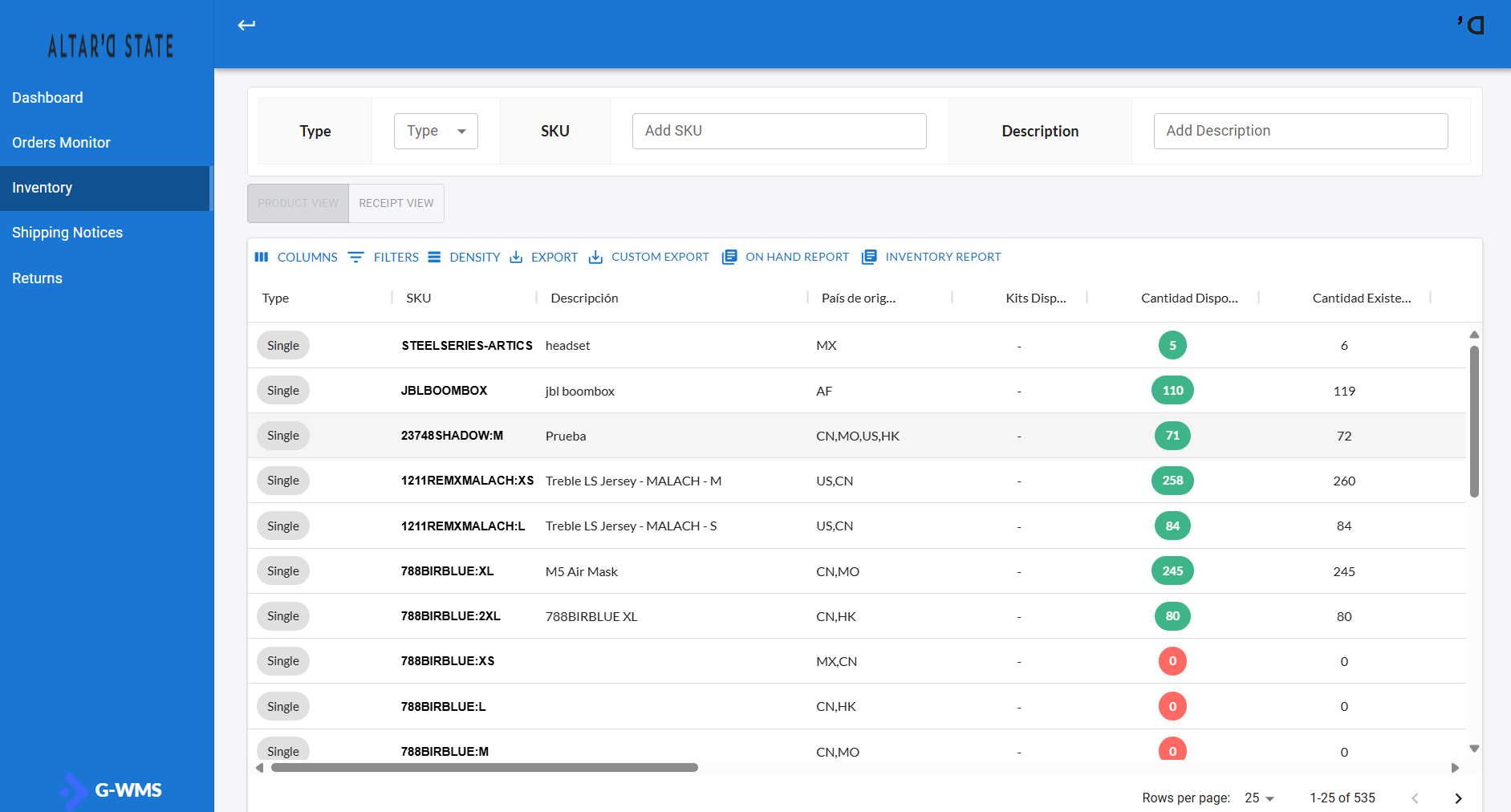
Understanding the table information
When you access this section, you will find a table that displays a general breakdown of all your inventory items.
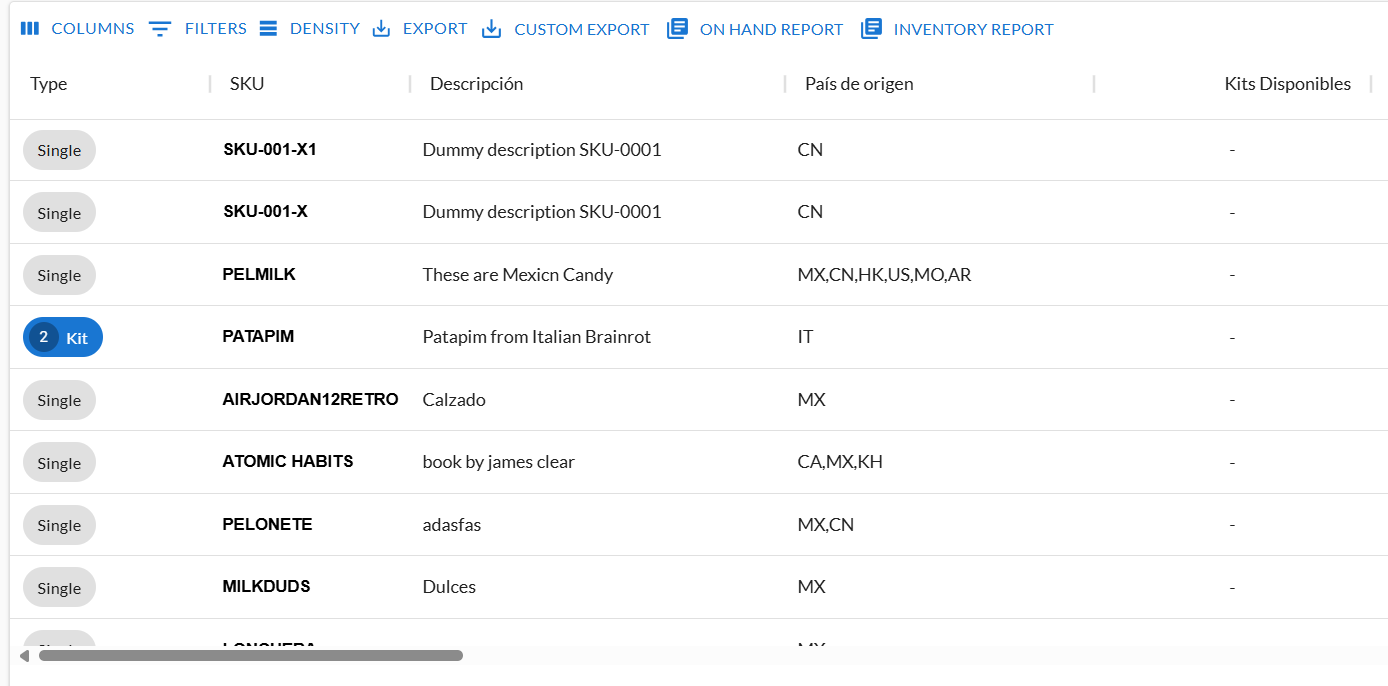
The first four columns provide key information for each item:
- Type: Indicates whether the item is a single unit (Single Item) or a product bundle (Kit).
- SKU: Internal unique identifier of the product.
- Description: A short description to easily identify the product.
- Country of Origin: Country of origin of the product (shown via country codes).
- Available Kits: Displays the number of kits, if the item is a kit.
The following columns show how each item’s total quantity is distributed among various system states:
- Available Quantity: Number of units ready to be assigned to an order.
- On-Hand Quantity: Total physical inventory currently recorded in the system.
- Committed Quantity: Quantity reserved for active orders.
- Put Away Quantity: Items received at the warehouse but not yet assigned a specific location.
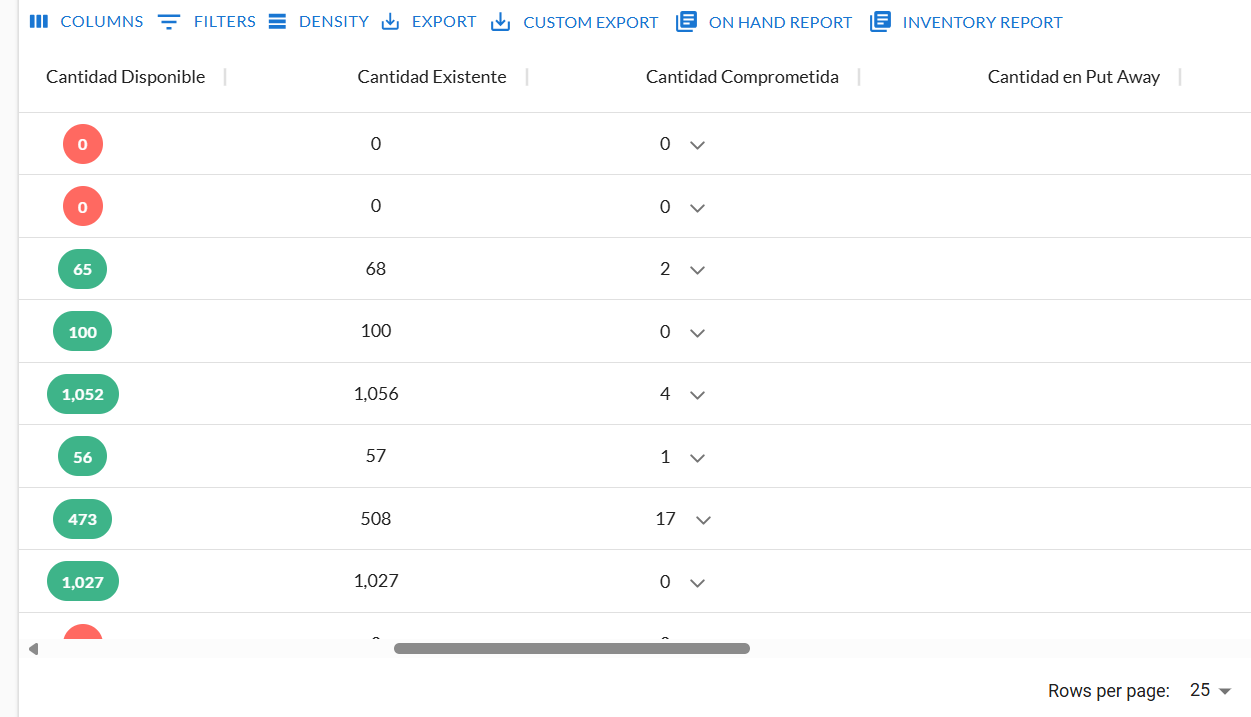
- In Process Quantity: Items currently undergoing movement within the warehouse.
- Pickable Quantity: Units ready and available to be picked for orders.
- Receiving Quantity: Items that have been received but are pending verification or final location assignment.
- Overstock Quantity: Items stored in temporary locations.
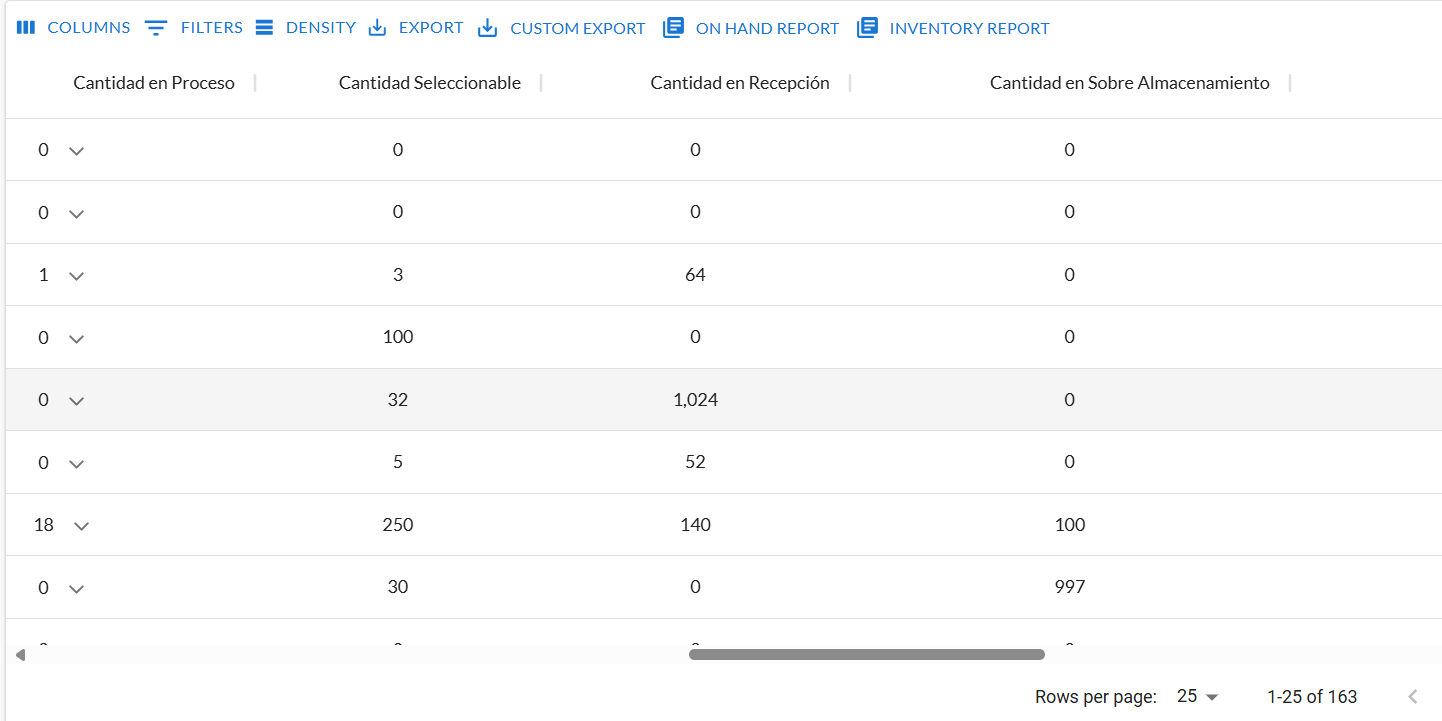
- Quarantine Quantity: Units temporarily set aside for inspection, quality checks, or validation.
- Delayed Quantity: Items that are delayed in arrival or processing.
- In Transit Quantity: Units that have been shipped or are being received, but not yet physically registered in the warehouse.
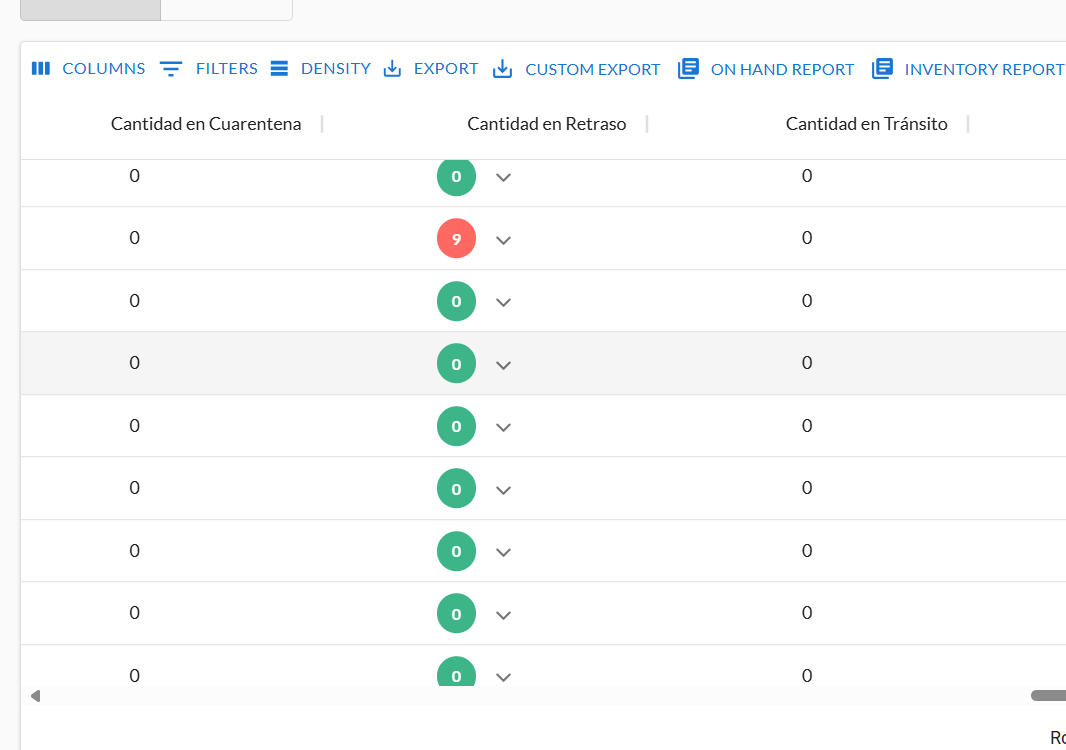
- If a column shows an arrow next to the number, it means that quantity is linked to one or more active orders.

- Clicking the arrow icon reveals a list of the orders associated with that quantity.
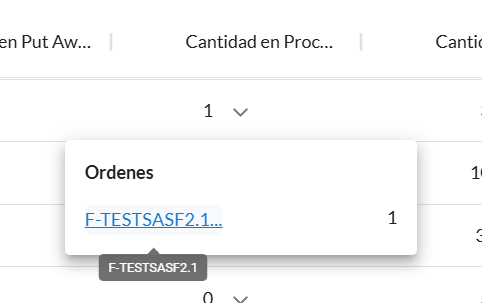
- Clicking on an order in the list redirects you to the Order Monitor module to view full order details.
How to apply filters?
At the top of the main view of the Inventory module, you’ll find several fields designed for quick filtering, allowing you to refine the data shown in the inventory table.
Available filter types
-
Type: Filter by item type:
- Single: Single-piece items.
- Kit: Items made up of multiple components.
-
SKU: Search for a product by entering its unique SKU.
-
Description: Enter a partial or full product name to get matching results.
These filters are especially useful when working with large catalogs or searching for specific items quickly.
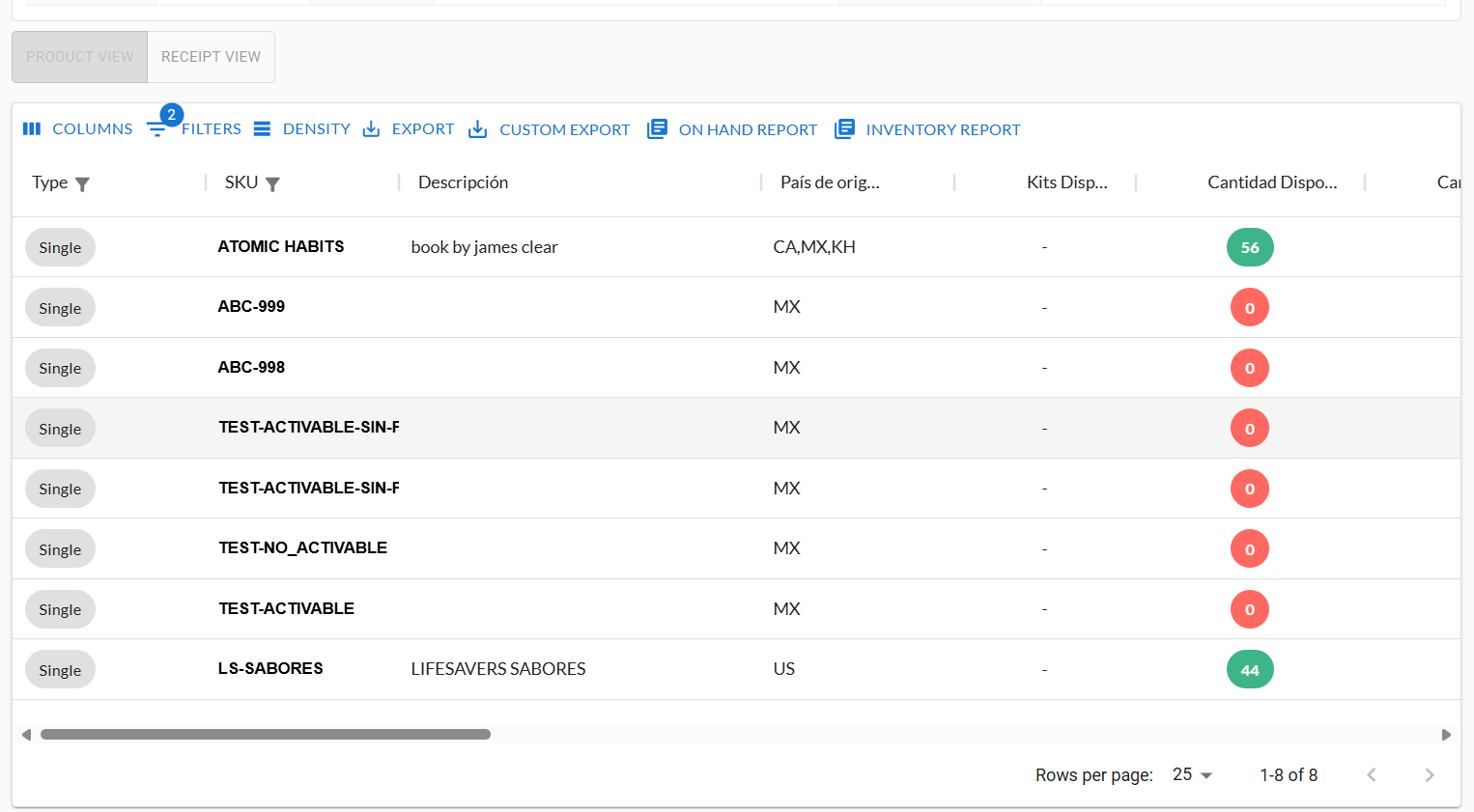
- Here's an image showing the filter fields:

- Example of filters in use:
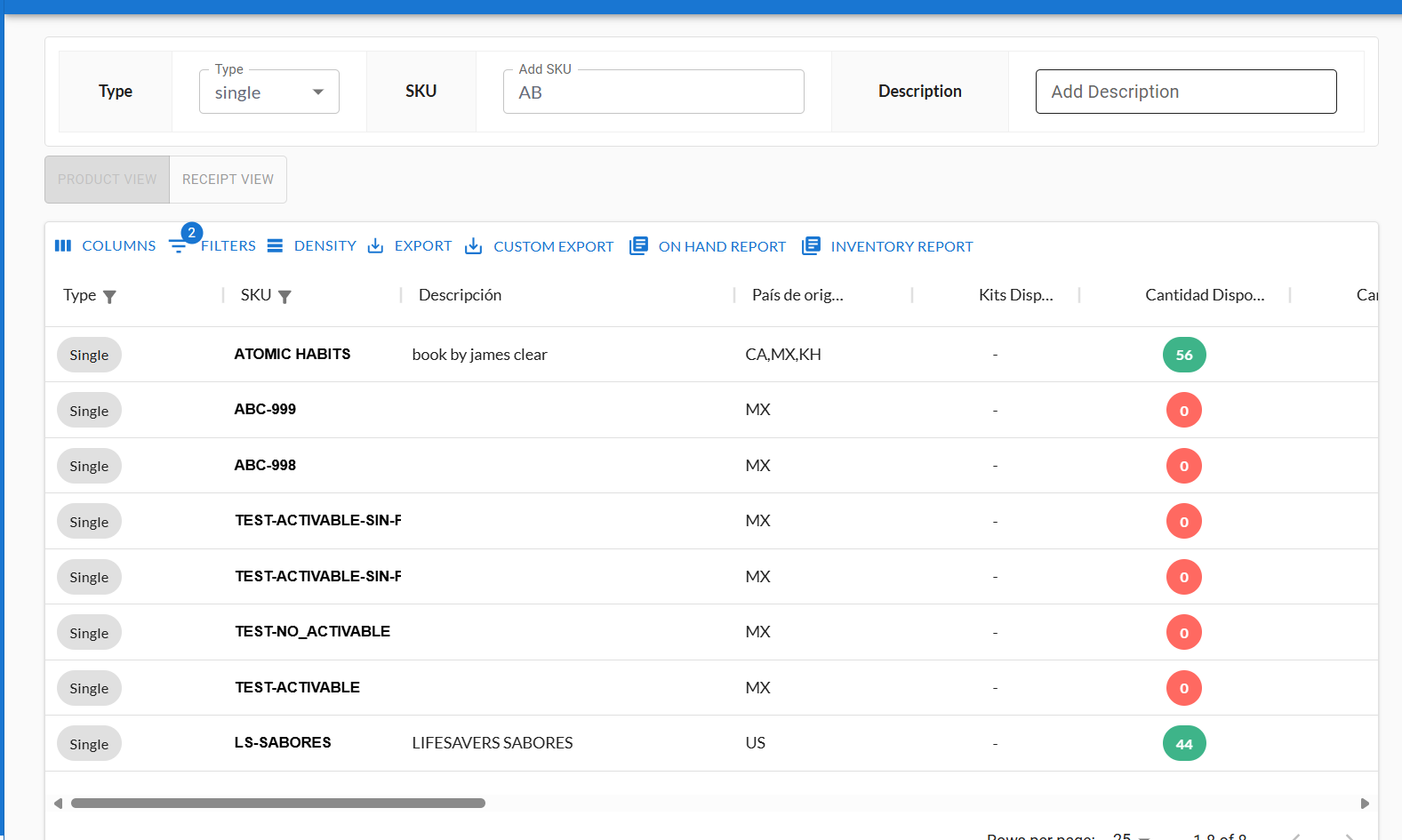
If you use multiple filters simultaneously, the system applies a nested filter, combining all selected conditions.
The FILTERS Option
If quick filters are not sufficient or you need more advanced search capabilities, the system provides an additional FILTERS option, located above the results table.
This option allows you to:
- Apply additional filters not available in the main panel.
- View a numeric indicator showing how many filters are currently active.
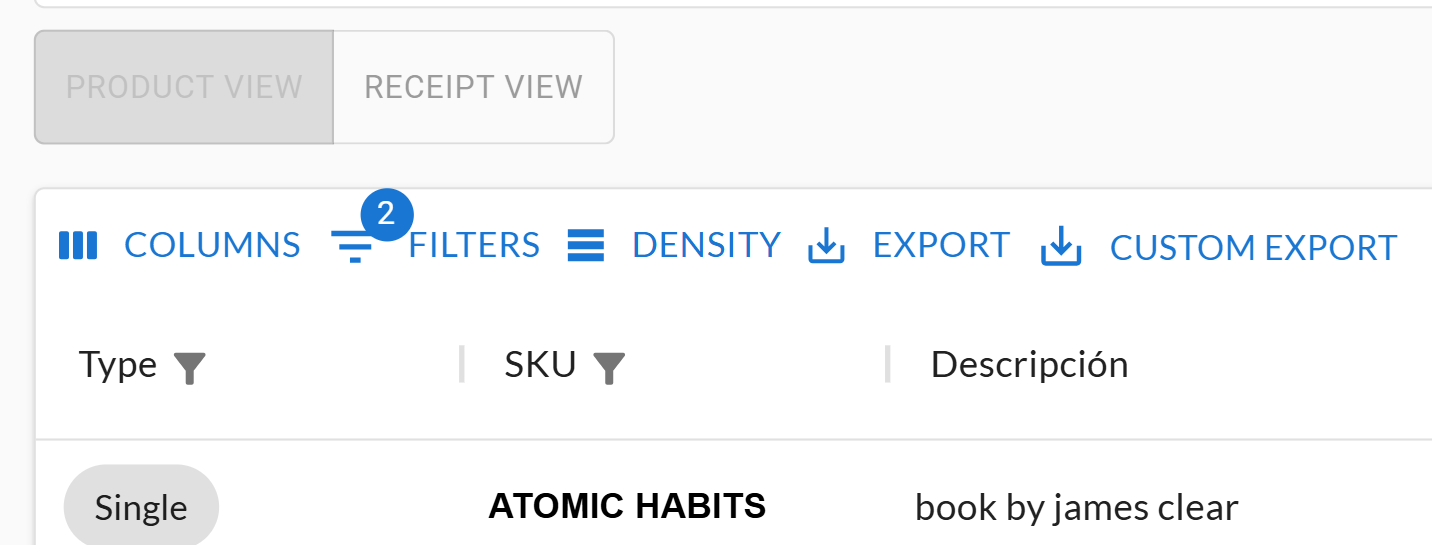
Clicking this option opens an advanced filter bar. If filters are already applied, they will appear in an editable list so you can modify or add criteria.
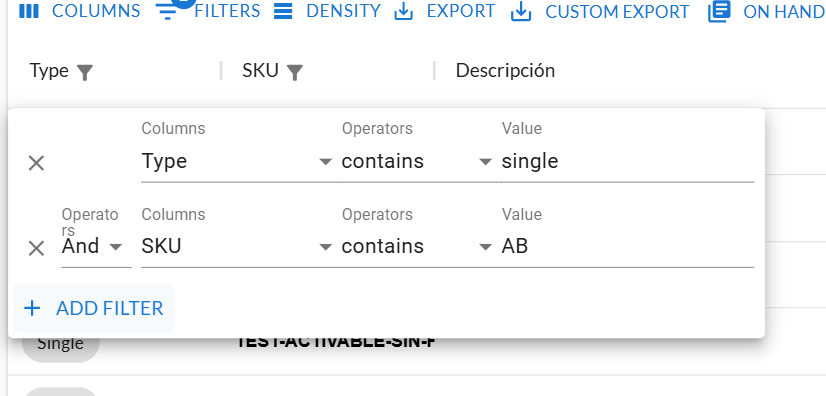
Advanced filter fields
-
Columns: Select the column to which you want to apply the filter.
-
Operators: Logical operation to apply. Available options:
Contains: Value partially matches the column content.Equals: Exact match required.Starts with: Column content must begin with the value.Ends with: Column content must end with the value.Is empty: Filter only rows with empty values.Is not empty: Filter rows with non-empty values.
-
Value: Enter the value to filter by (unless using
Is emptyorIs not empty, in which case this field is disabled).
To add a new filter, click ADD FILTER.
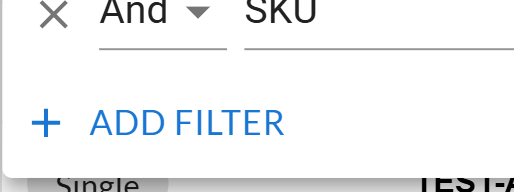
A new row will be added with Column, Operator, and Value fields ready to customize.
To delete a filter, click the X icon next to the respective filter row.
Viewing inventory details for a specific item
To view detailed inventory for a specific item, click on its row in the main inventory table.
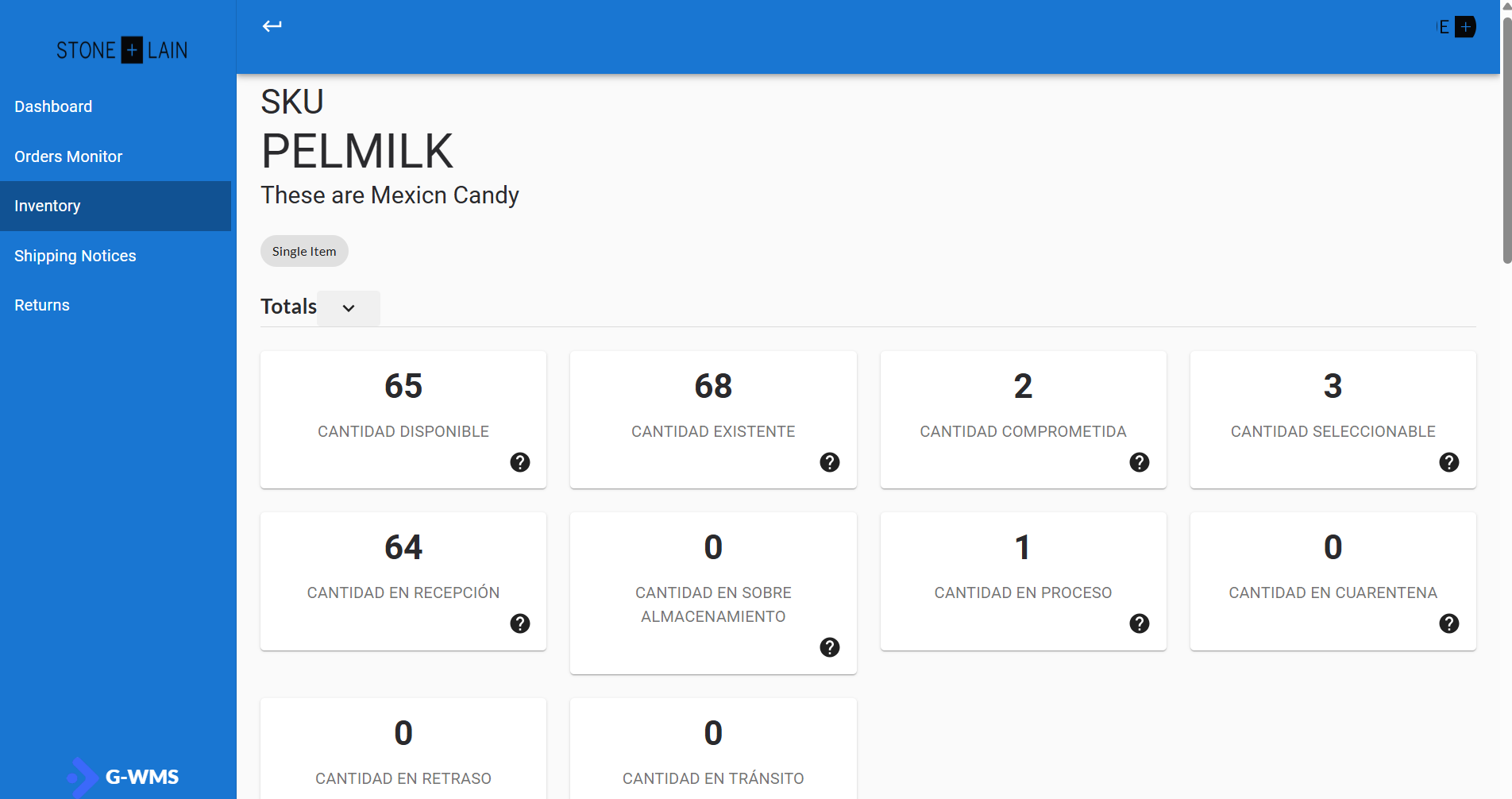
A detailed view will open, showing summary cards and tables with relevant metrics such as availability and warehouse distribution.
Here’s an example of the inventory detail interface:
General item information
At the top of the view, you'll see key details like SKU, Description, and Item Type.

Inventory summary cards
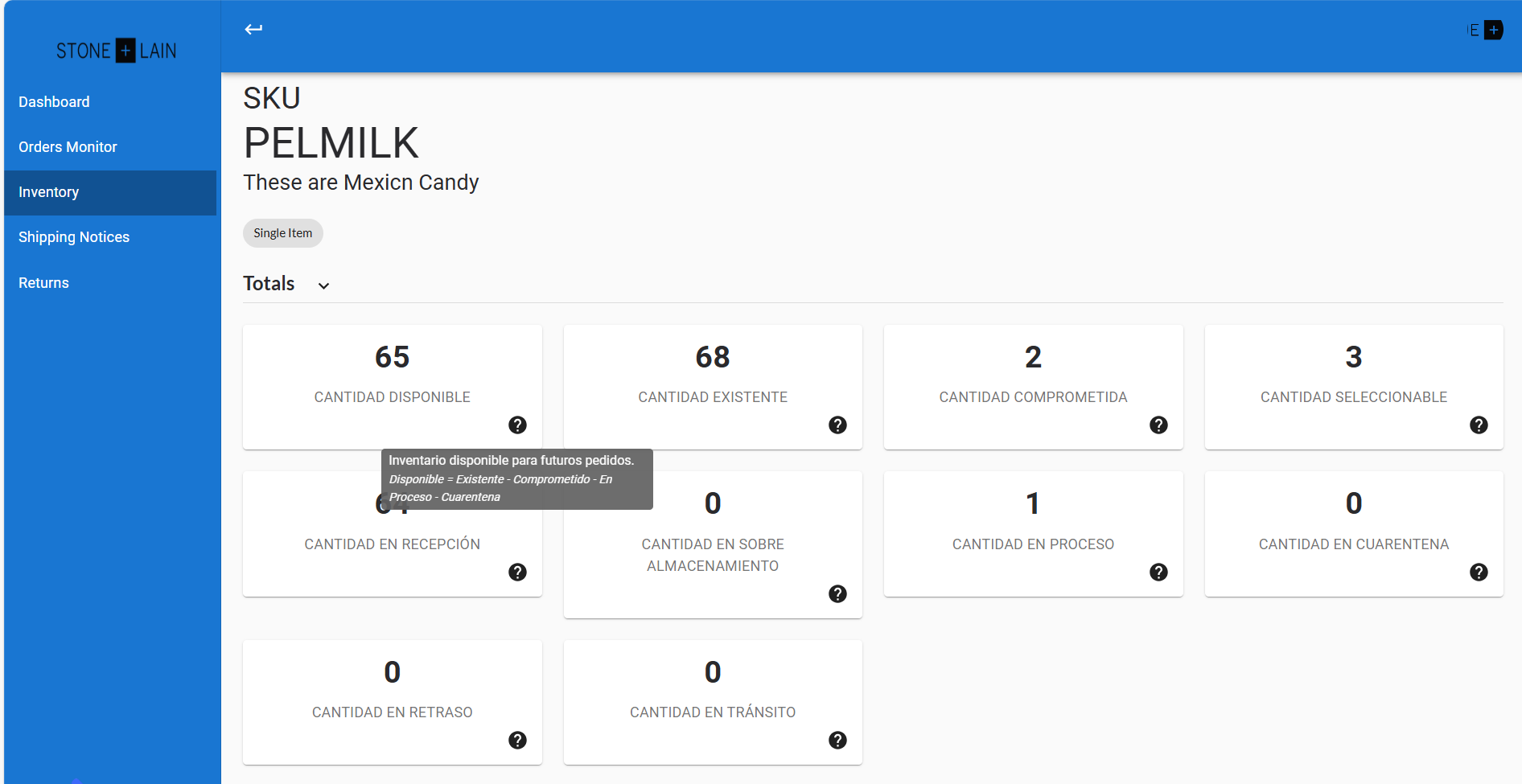
Below the general info, summary cards show how the item’s inventory is distributed. This information is also detailed in the table below.
Each card includes a help icon (?), which displays a brief explanation when hovered over.
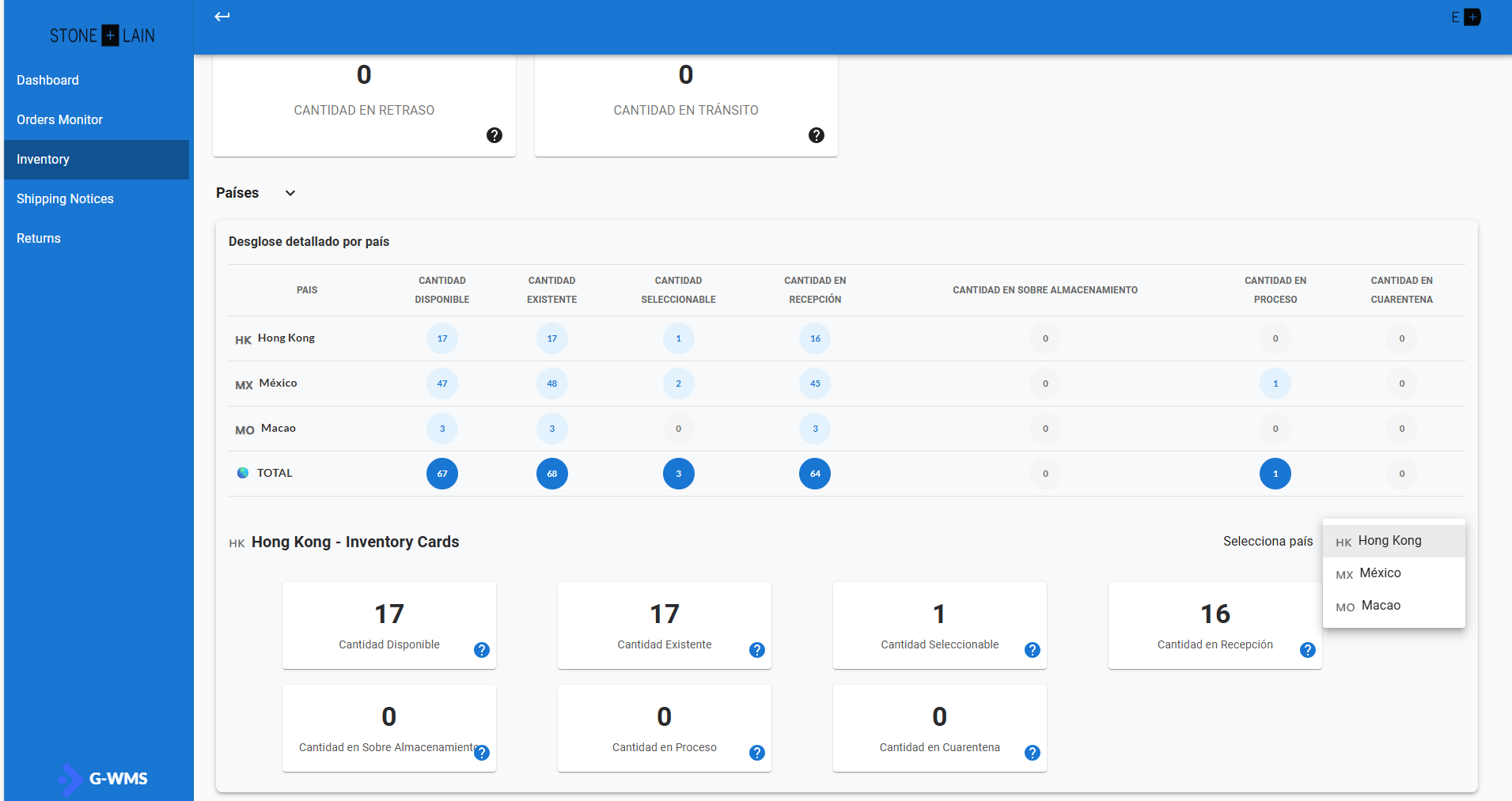
Inventory by Country of Origin (COO)
This section organizes total inventory by country of origin. A dropdown lets you select a country, and the related metrics are updated accordingly.
Inventory by Warehouse
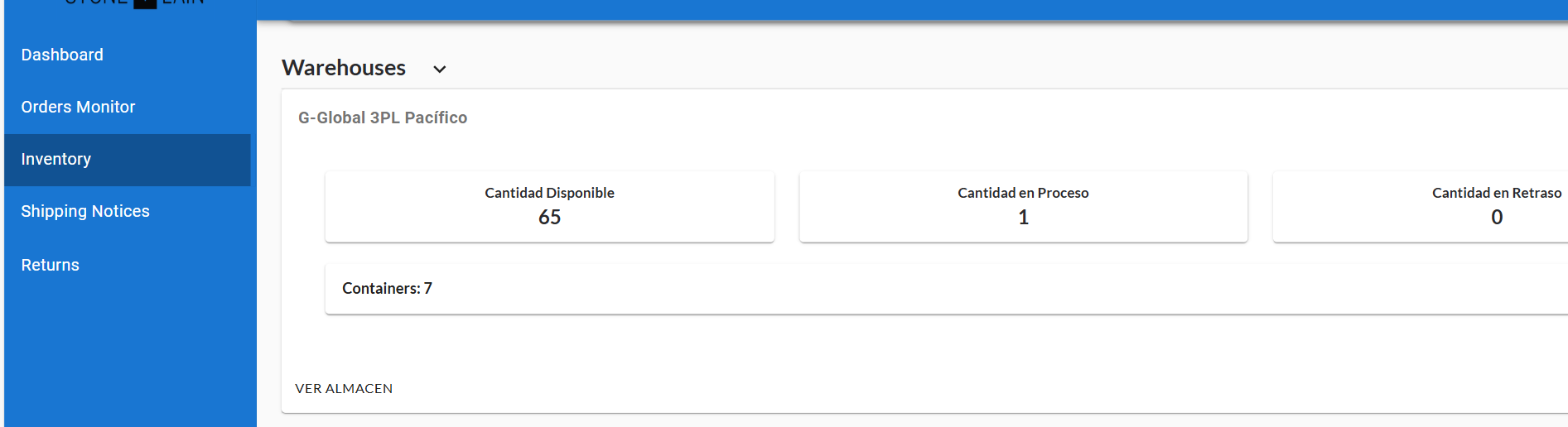
Below the COO section is the Warehouses section, displaying metrics for each warehouse and showing how inventory is stored, including the number of containers per warehouse.
Movement history
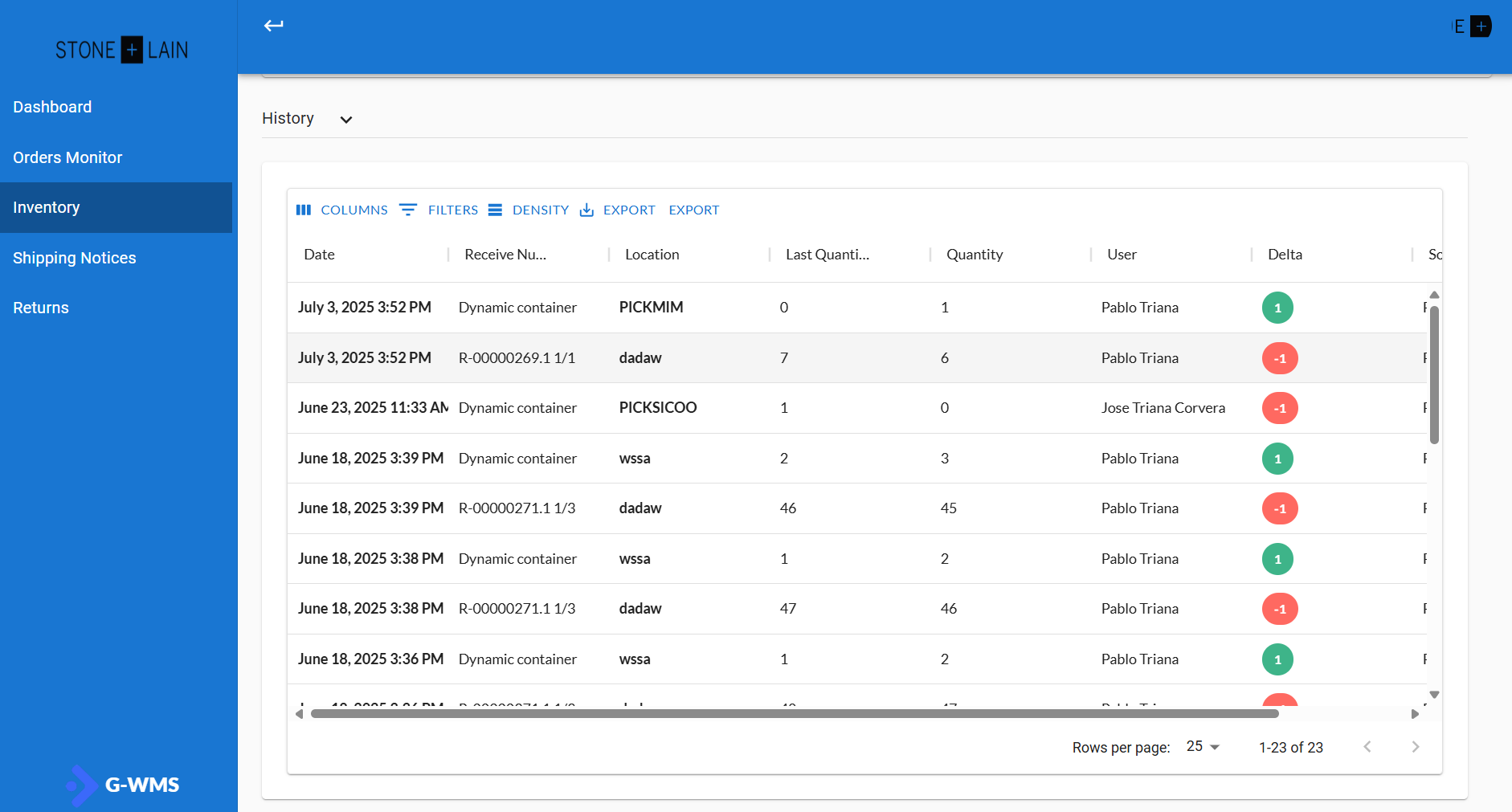
This table shows historical inventory movements, including:
- Location where the movement occurred.
- User who performed the action.
- Date of the movement.
- Color indicator:
- Red = Outbound inventory
- Green = Inbound inventory
Inventory by Lot
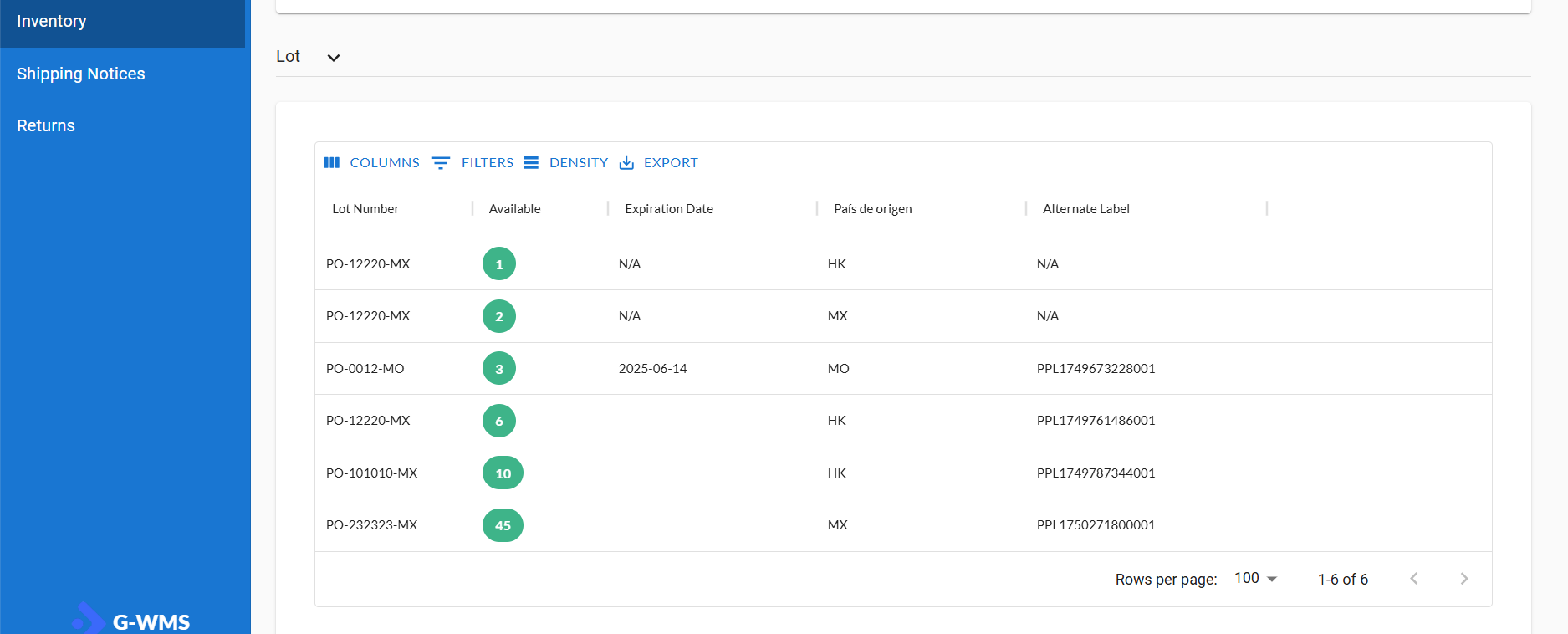
Finally, the Lot Inventory section shows how inventory is organized by lot number. Key fields include:
- Lot number
- Available quantity
- Expiration date (if applicable)
- Country of origin
- Assigned PPL label (if available)