Shipping
Create a Shipping Order
- Click on the Create Shipping option.
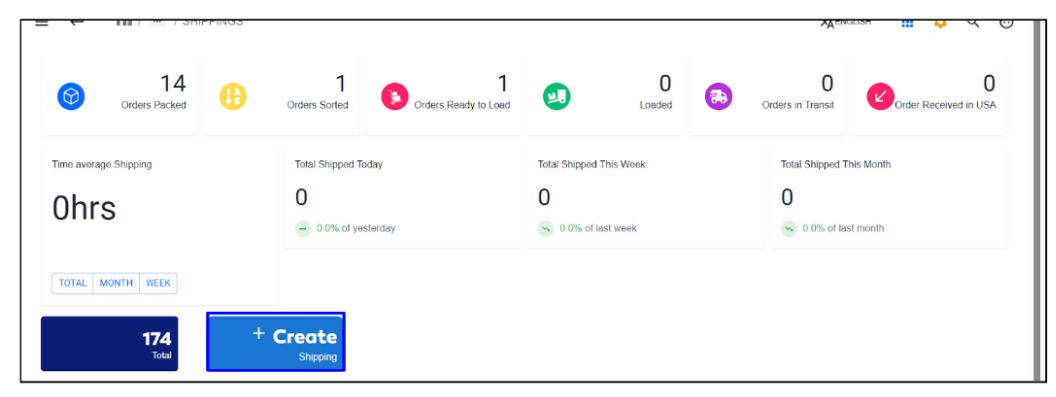
- A form will be displayed requesting information for the following fields.
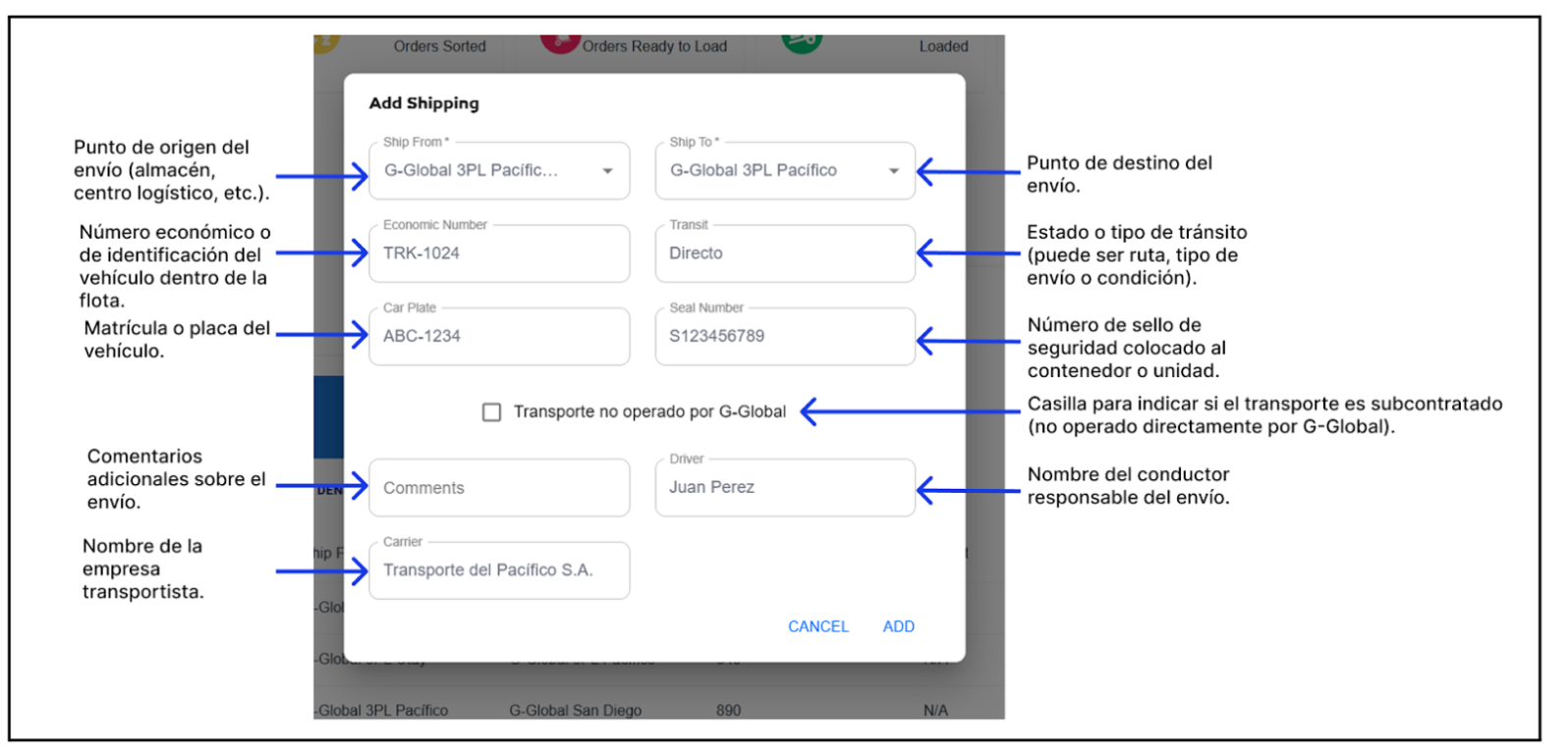
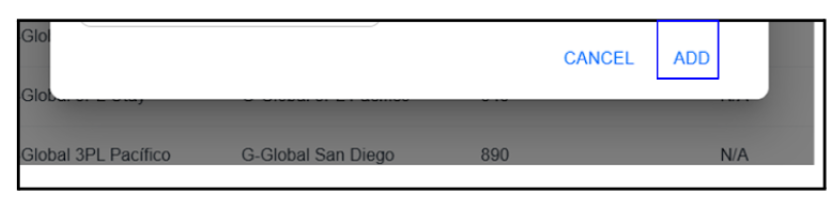
- Once the fields are filled out, click ADD to generate the shipping order.
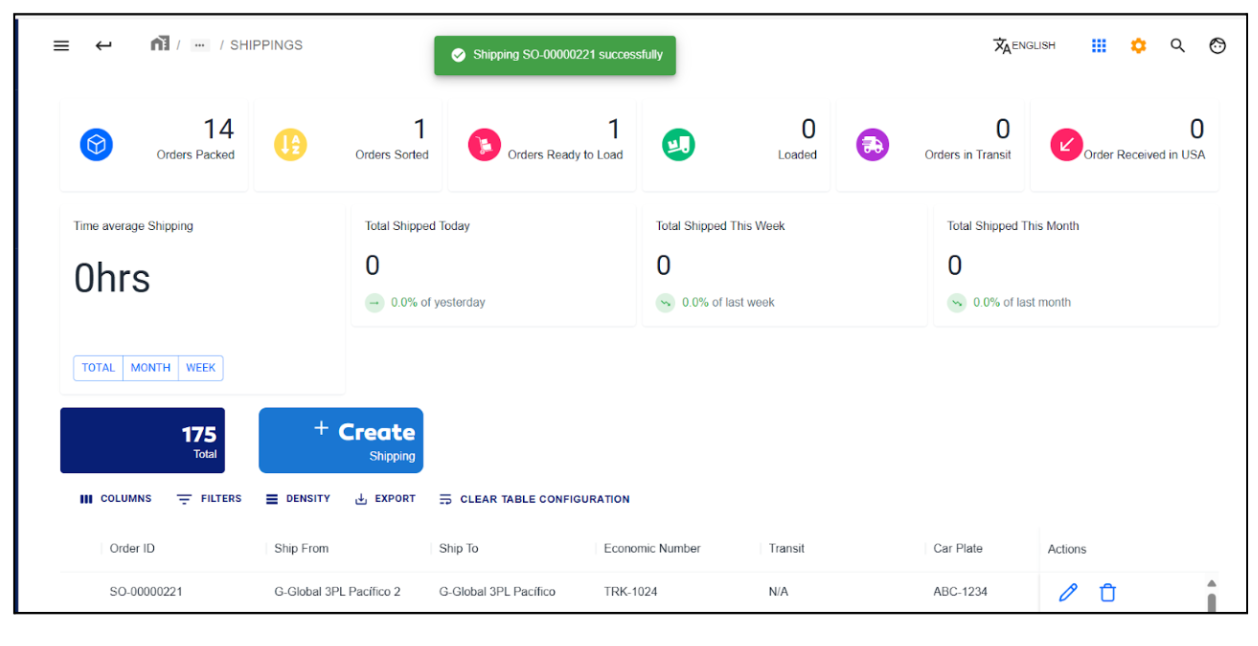
- A green message will appear indicating the operation was successful. The newly created shipping order will appear in the table, as shown in the image below.
Edit a Shipping Order
- Click on the pencil icon in the Actions column to edit a shipping order.
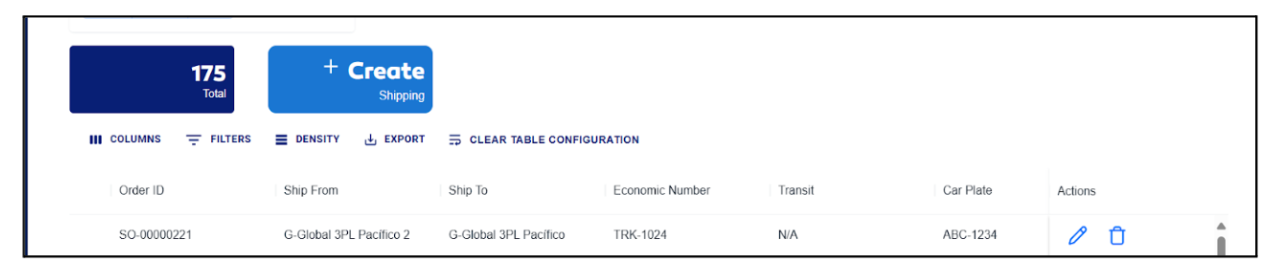
- A form will be displayed with editable fields, similar to those used during creation.
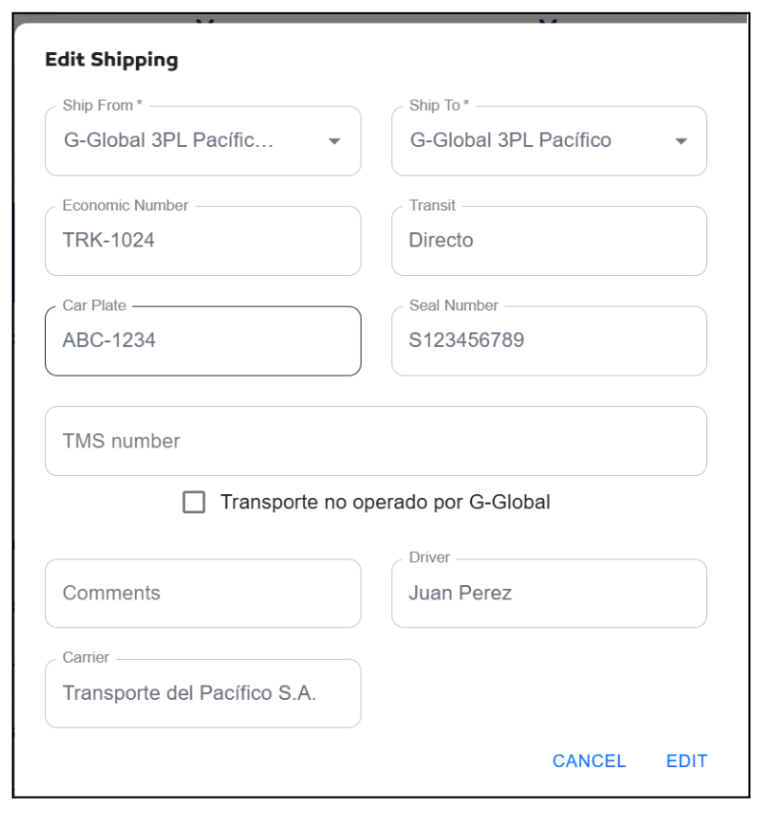
- When editing a shipping order, the TMS Number field is required if the transport is handled by the company. If it’s not, enable the checkbox to skip this field.
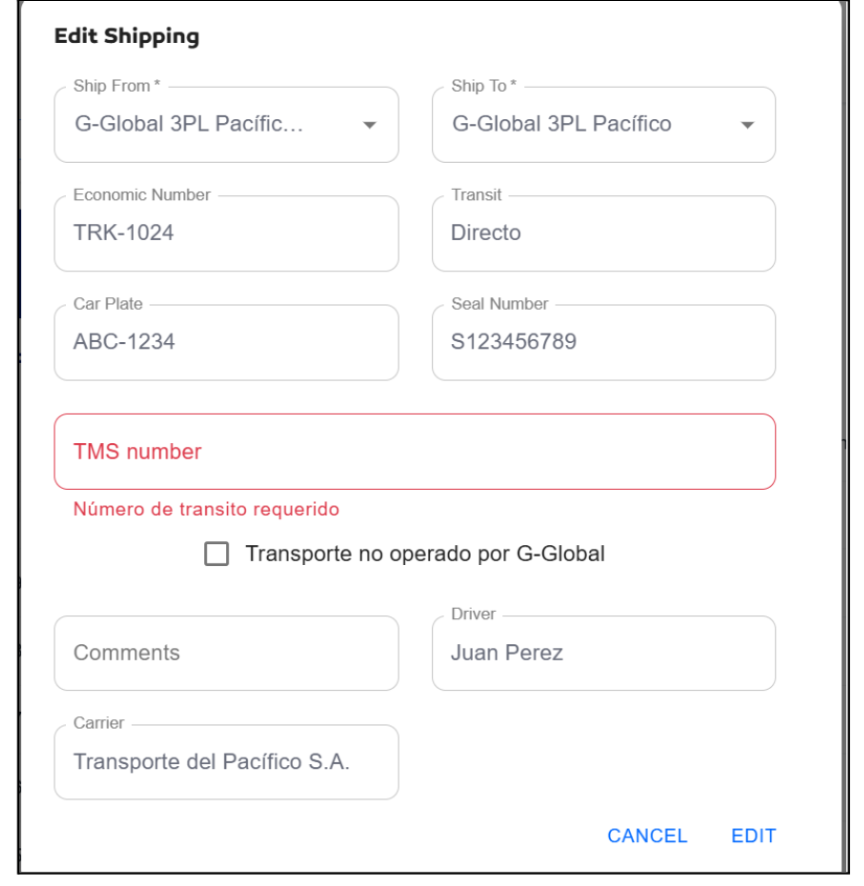
-
After making the necessary changes, click Edit to save the updated shipping order.
-
Once updated, if a TMS Number is assigned, a green dot will appear in the list, as shown below.

Delete a Shipping Order
- Click the delete icon in the Actions column of the shipping order you want to remove.
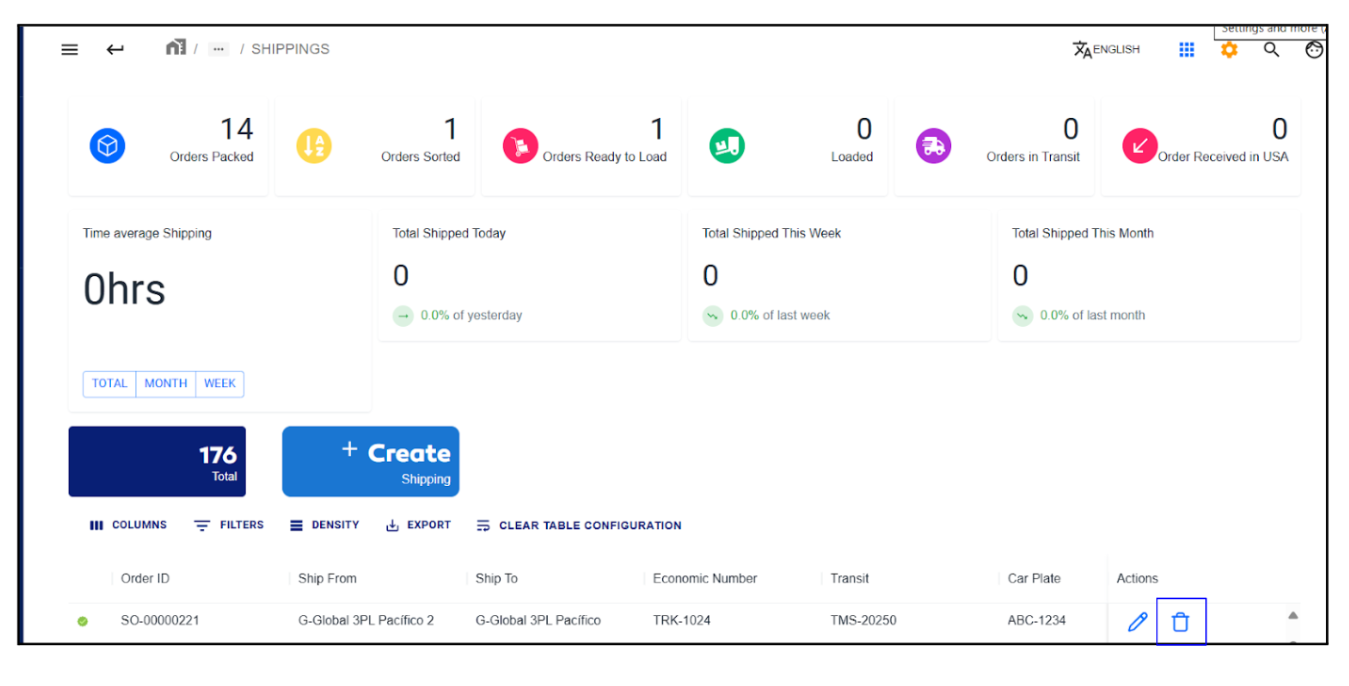
- A confirmation message will appear; click OK to proceed.
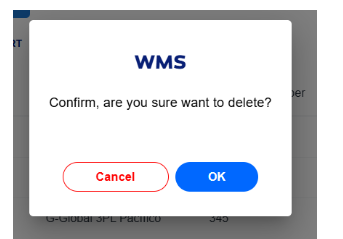
- The table will be updated, and the order will be removed.
warning
Only shipping orders with the status "Open" can be deleted. If you try to delete an order with the status "Load" or "In Transit", an error message will appear, indicating that only open shipments can be deleted.

Scan a Bin for a Shipping Order
- Double-click the previously created shipping order.
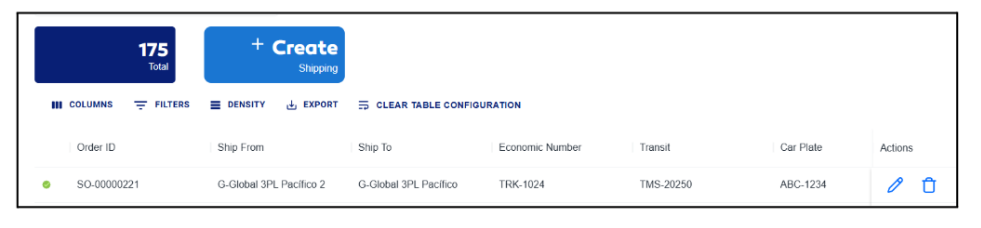
- This redirects you to a detail page showing the shipping order, options to add extra charges, and a table listing scanned bins.
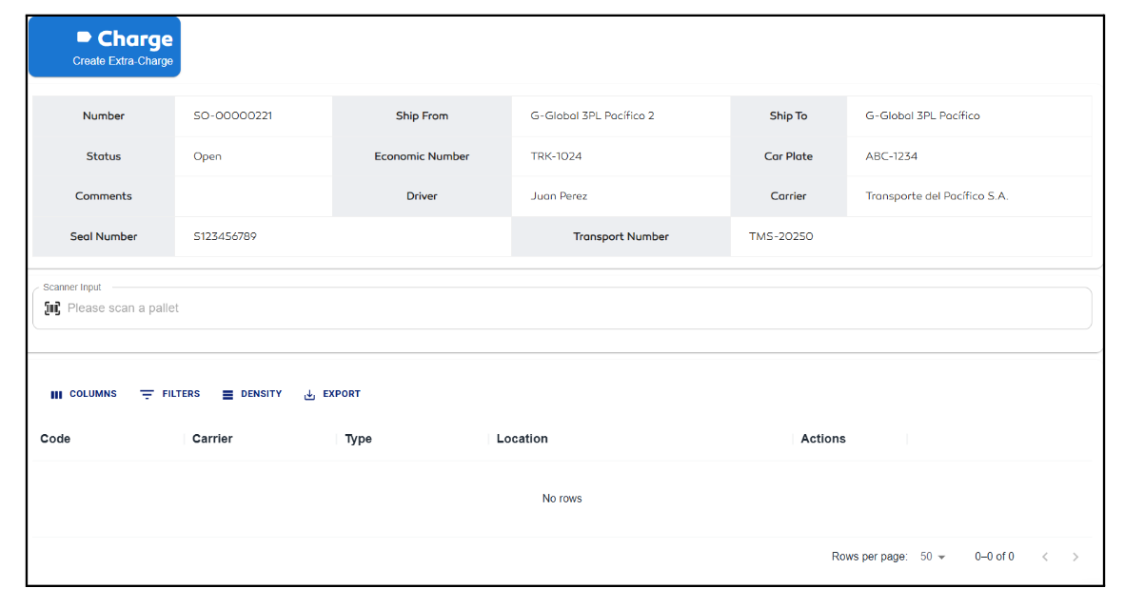
- To add a Bin to the shipping order, ensure the Bin has the status Close, then scan the Bin. If found, a blue message will appear prompting you to scan an outbound location.
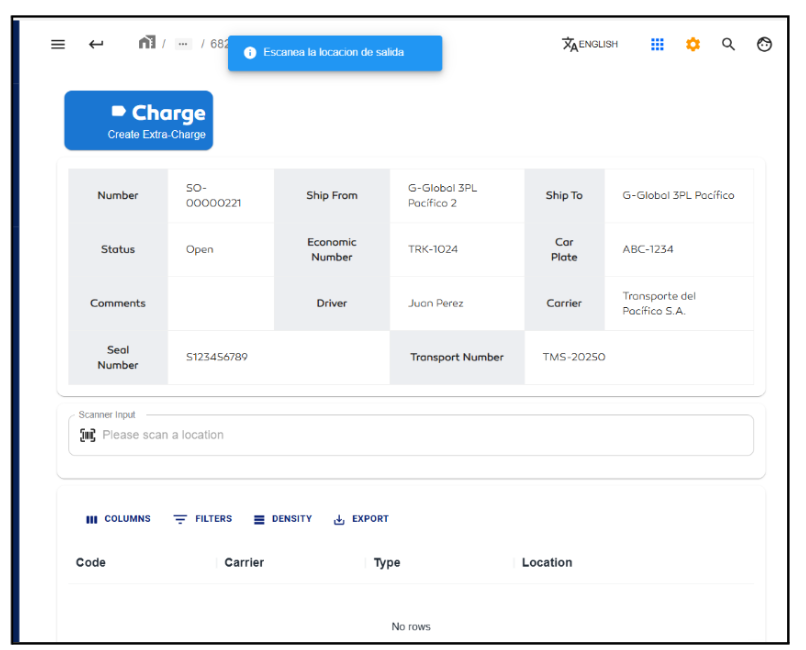
- Next, scan the outbound location indicated by your coach. If valid, a green message will confirm that the Bin was added, followed by another blue message prompting you to continue scanning.
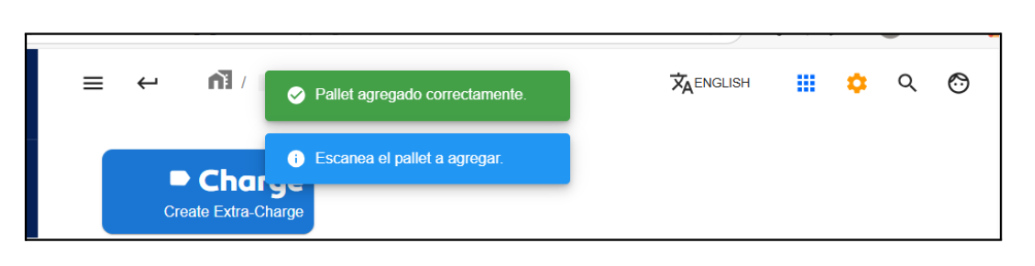
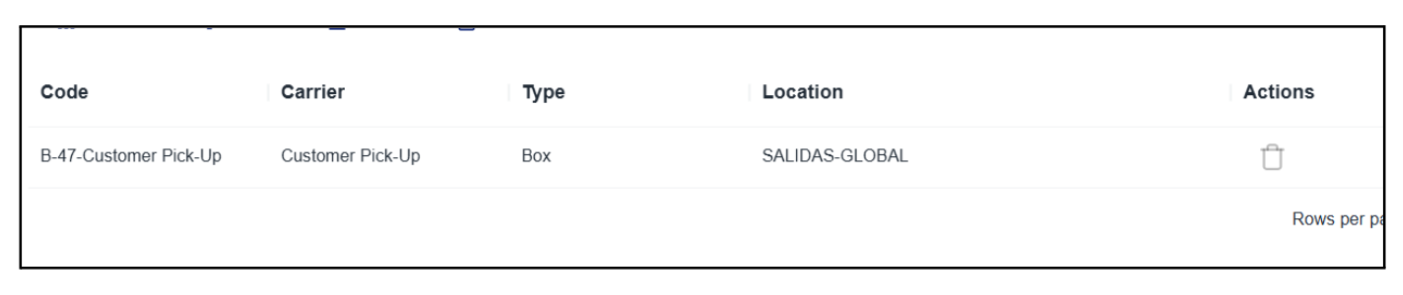
- The table displays information on scanned Bins, including type, code, shipping service, and outbound location name.

note
To remove a scanned Bin, simply click the delete icon in the Actions column for that Bin.
warning
If you scan a Bin whose import rule does not match the shipping order, the system will block the process and show an error indicating the mismatch.
Change Shipping Status to Load and In Transit
- When a shipping order is created, its initial status is Open. To change it to Load, click the option shown below.
- A sidebar with multiple options will open.
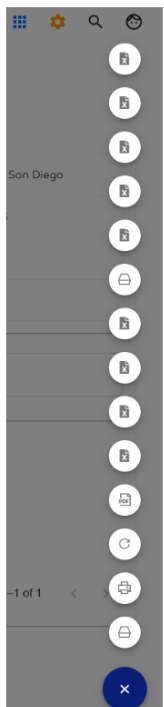
- In the sidebar, locate and click on Load Order.
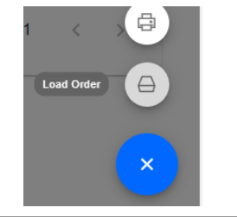
- A green message will confirm the update, and the new status Load will be reflected in the detail view.


- Once the order status changes to Load, associated Bins can no longer be removed.
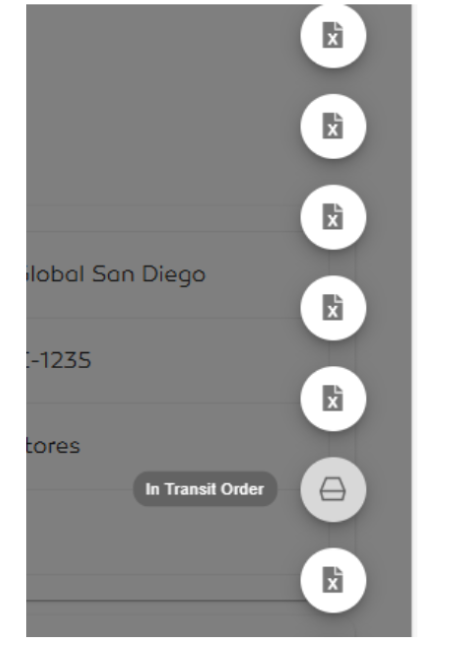
- To change from Load to In Transit, repeat the same steps: click the same button again.
- In the sidebar, select In Transit Order.
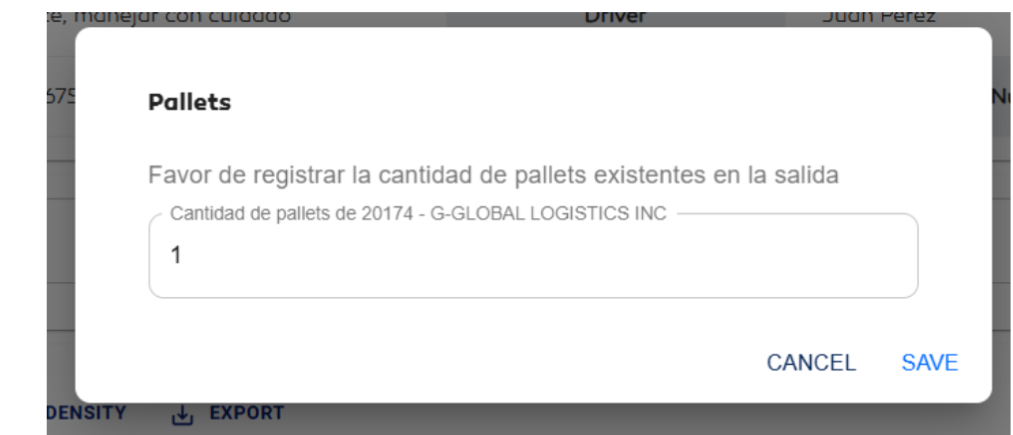
- A modal will appear asking for the number of pallets. In this example, enter 1 (the number of Bins). Click Save to continue.
- A green message will confirm the operation.
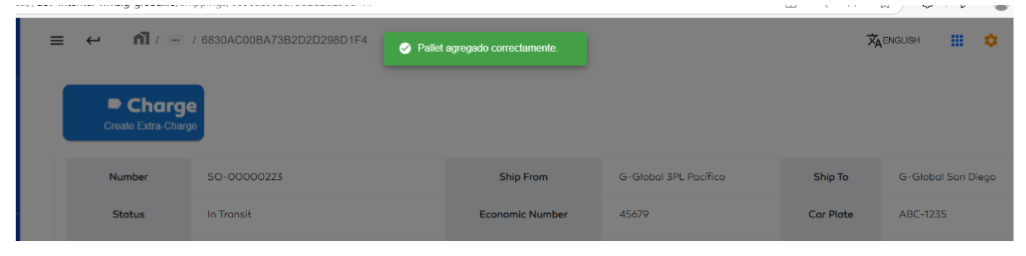
- In the shipping detail view, the status will now show In Transit.
