Picking Movements
The Movements module in the WMS mobile app allows efficient and controlled relocation of items within the warehouse, whether by box, piece, or through consolidations. This module is designed to facilitate the operational tasks of warehouse staff, enabling inventory movements with traceability, scan-based validation, and source/destination control.
This section describes the general interface of the module and details the three main available functionalities:
- Box Movement: Allows full boxes to be moved to Over Storage or Picking locations.
- Piece Movement: Facilitates the relocation of individual items to multi-SKU locations.
- Consolidations: Allows regrouping of products from picking locations into boxes or multi-SKU locations.
Each flow is supported by screenshots and practical recommendations to ensure the process is carried out correctly, complying with system validations and avoiding common errors like COO (Country of Origin) mismatches.
Movemnets Module View
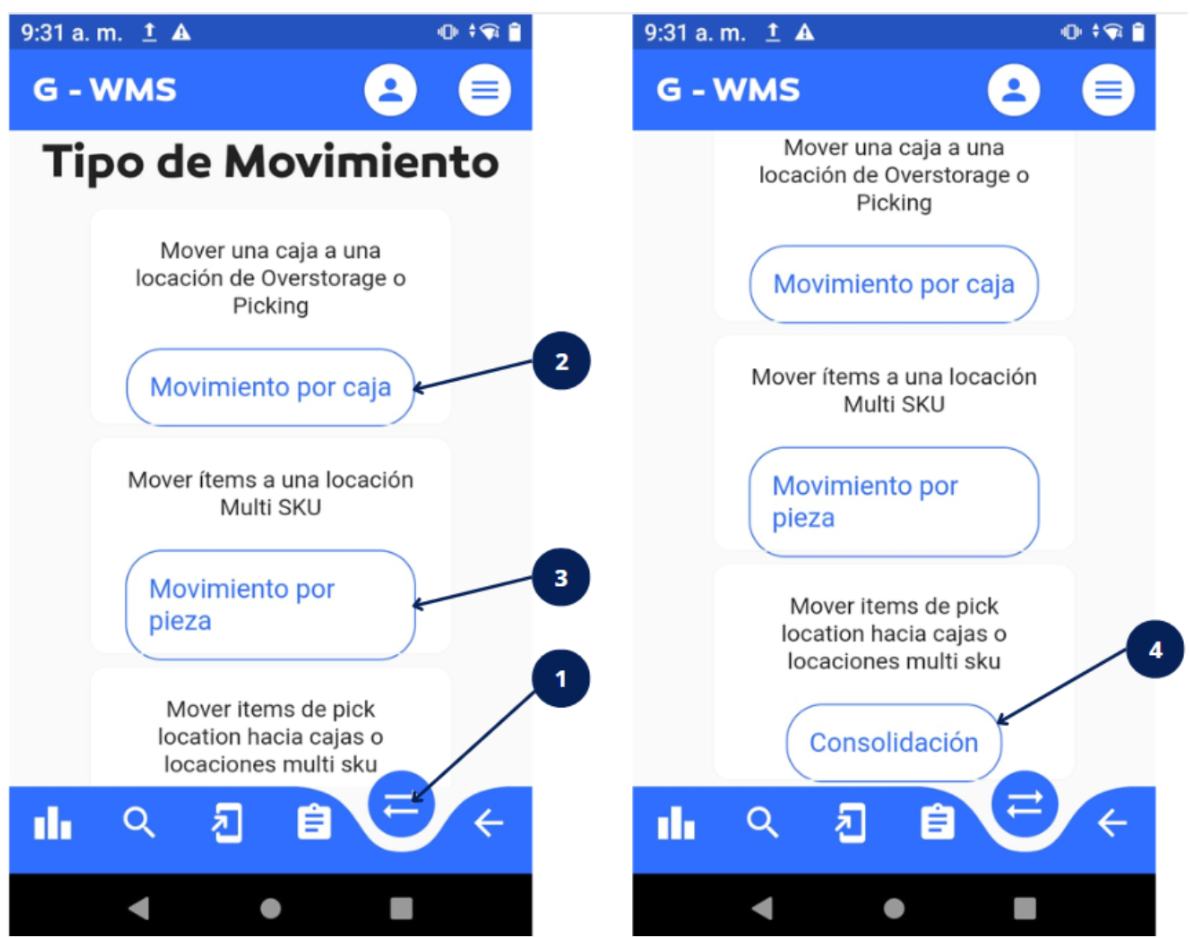
| No | Name | Description |
|---|---|---|
| 1 | Movement menu button | Displays the movement functions when tapped. |
| 2 | Box movement button | Allows you to move a box to an Over Storage or Picking location. |
| 3 | Piece movement button | Allows you to move individual items to a multi-SKU location. |
| 4 | Consolidation button | Allows you to move items from a picking location into boxes or multi-SKU locations. |
Box Movement
This function allows boxes to be moved from the warehouse to a client's Over Storage or Picking location.
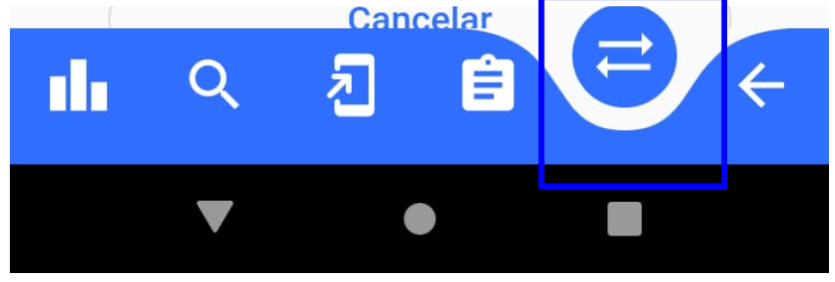
- Open the mobile app menu and tap on "Movements".
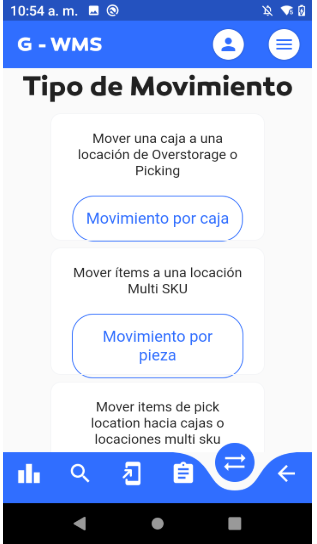
- From the options displayed, select "Box Movement".
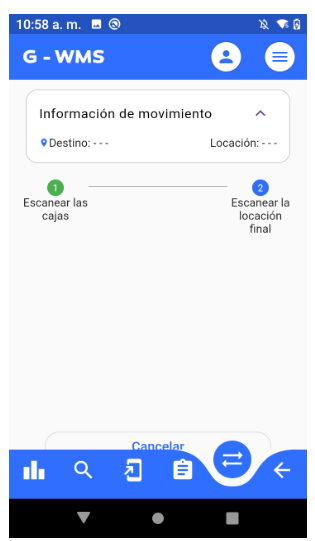
- A screen will appear prompting you to scan the box first.
- Locate and scan the QR code on the box as shown in the example image below.
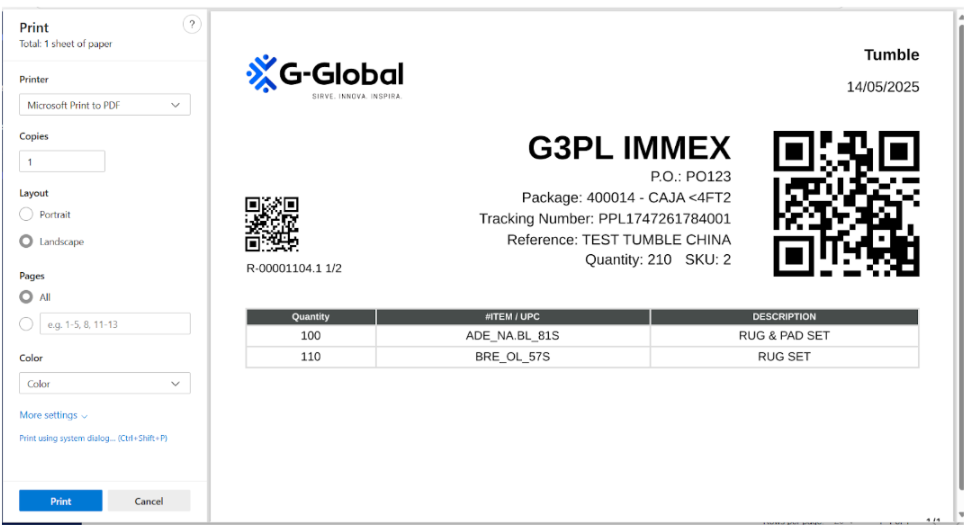
Only scan the large QR code on the right side of the label.
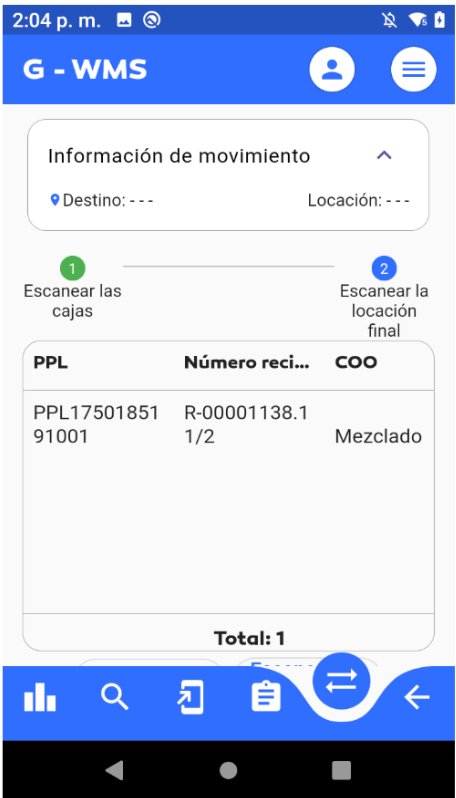
Once the box is scanned, the system will display relevant information such as the PPL number, receipt number, and COO (Country of Origin).
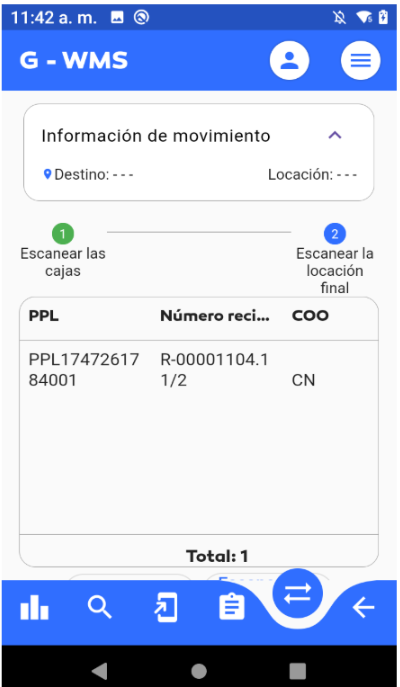
You can continue scanning more boxes before scanning the destination location.
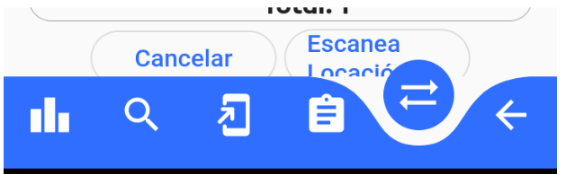
- Tap "Scan Location" to continue the movement process.
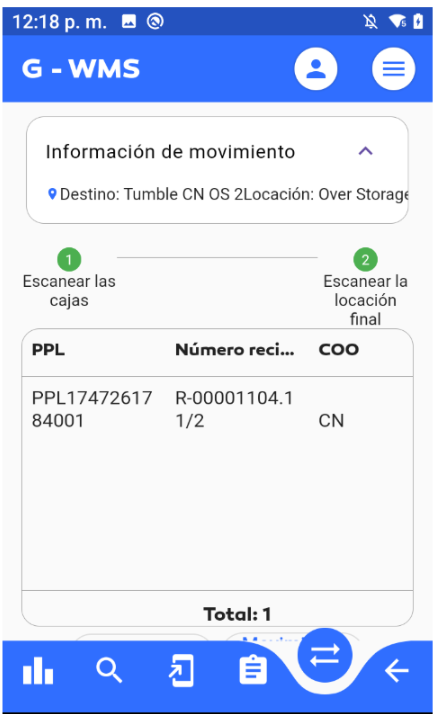
- Once the location is scanned, the system will show its name (either Over Storage or Pick Location), and the final destination indicator will activate.
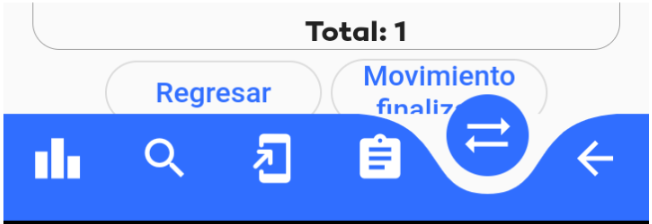
- Tap "Movement Completed" to finish the process.
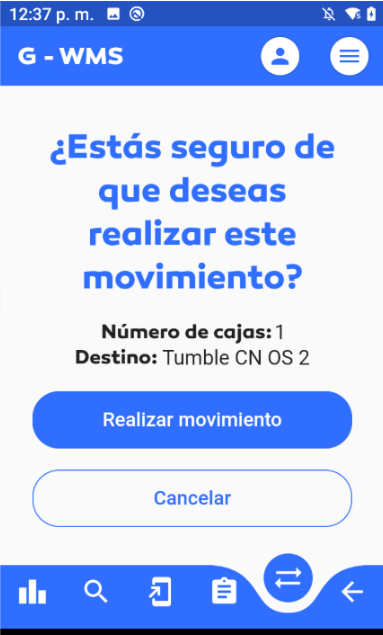
- A confirmation screen will appear; tap "Execute Movement" to proceed.
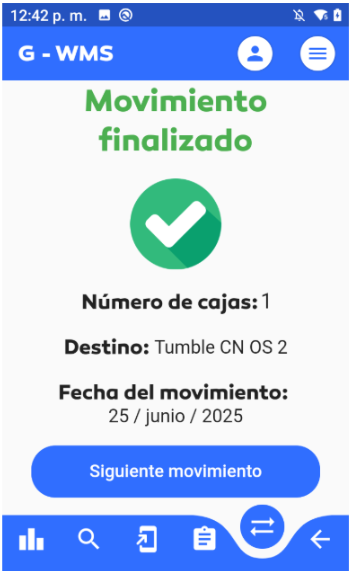
- A success message will appear. Tap "Next Movement" if you want to perform another.
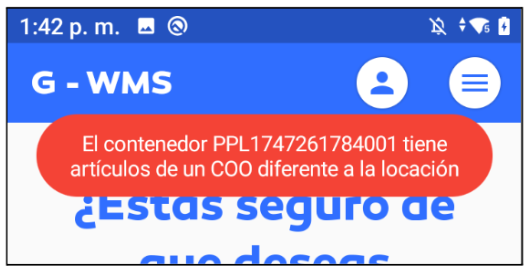
If you attempt to move a box to a location with a different COO, the system will trigger an error and prevent the process:
Or if the box contains Mixed COO (items from more than one country of origin):
Piece Movement
This option allows moving individual pieces to a multi-SKU location.
- Open the app menu and tap "Movements".
- Select "Piece Movement" from the available options.
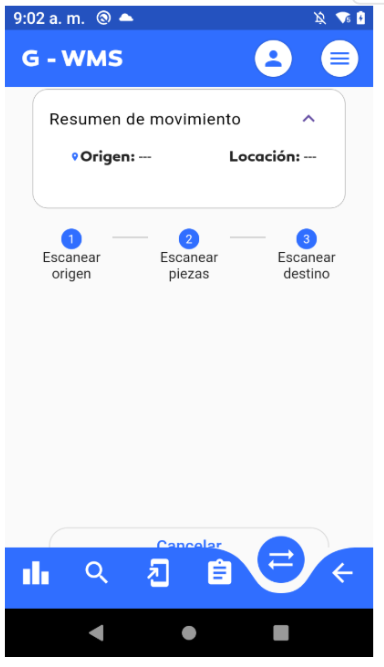
- A screen will appear prompting you to first scan the PPL code from the box.
- Locate and scan the QR code from the box, as shown:
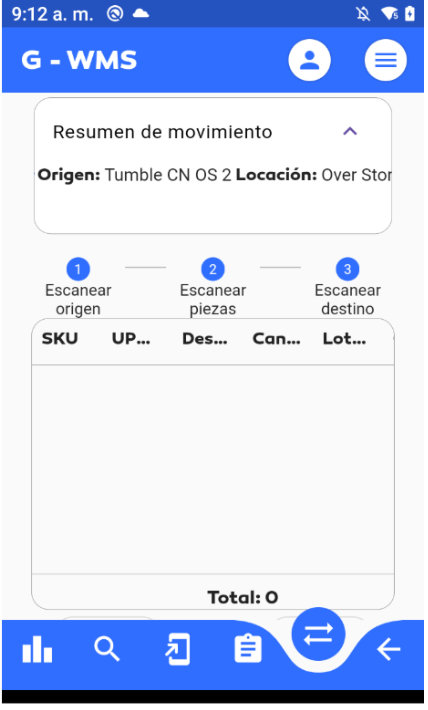
- Once scanned, the system will show the location name and type where the box currently is.
- Now scan each item using its SKU. The app will show details such as SKU, UPC, Description, Scanned Quantity, Lot Number, and COO.
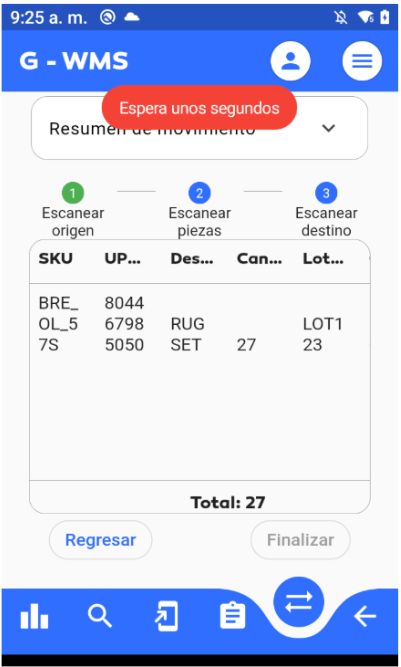
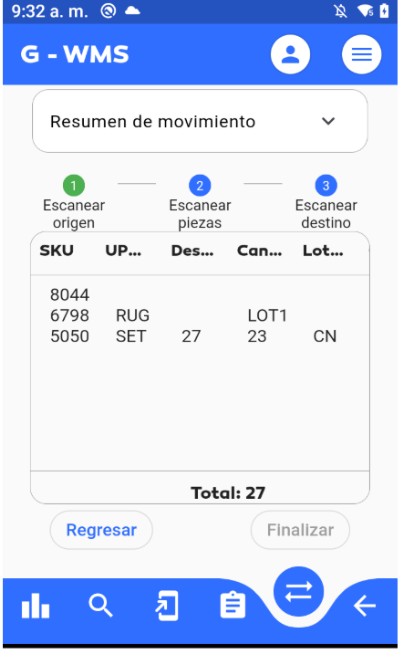
The number of pieces to scan depends on how many are being moved to a multi-SKU location.
- Scan the destination location. Once scanned, its name and type will be displayed.
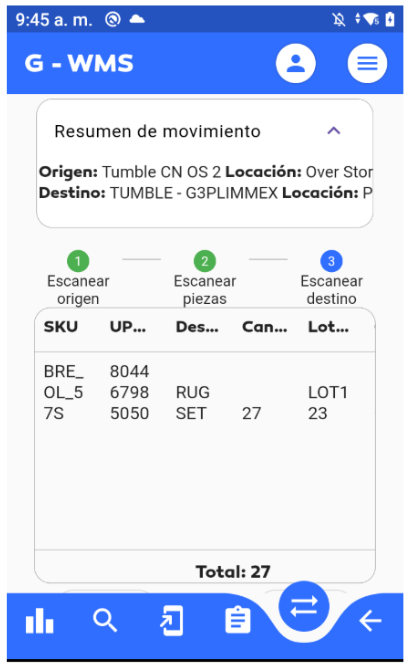
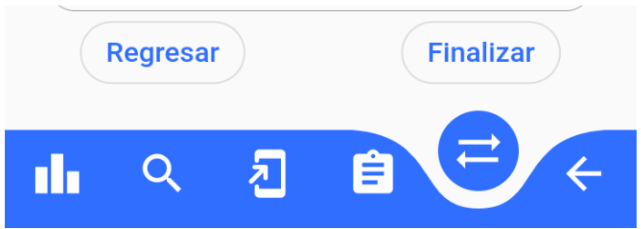
- Tap "Finish" to proceed.
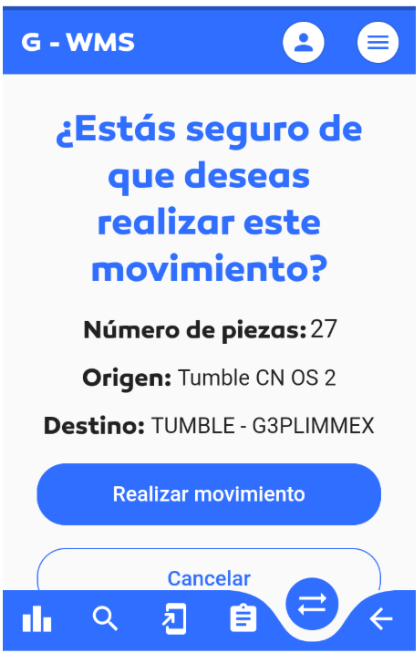
- A confirmation message will appear. If correct, tap "Execute Movement" to continue.
- A success message will appear with the option to perform another movement.
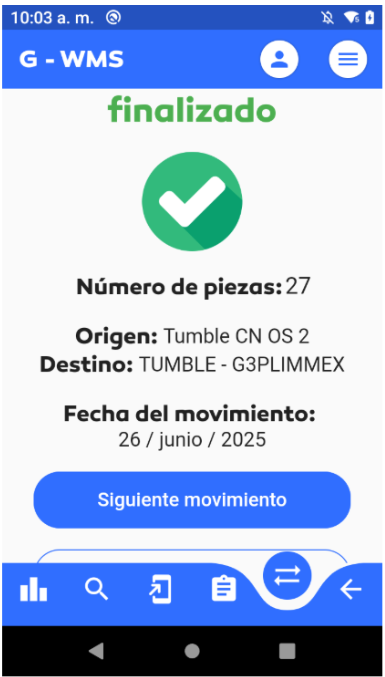
If you attempt to move pieces to a location with a different COO, an error will occur and the process will be blocked:
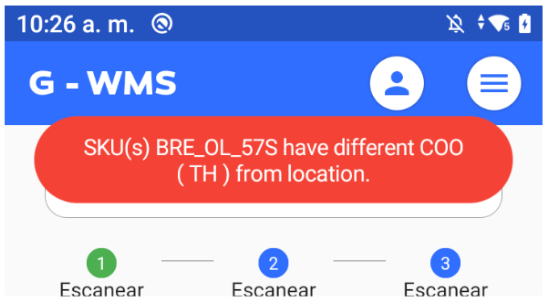
Error: Lot Mixing During Item Movement
If the following error appears during box movement:
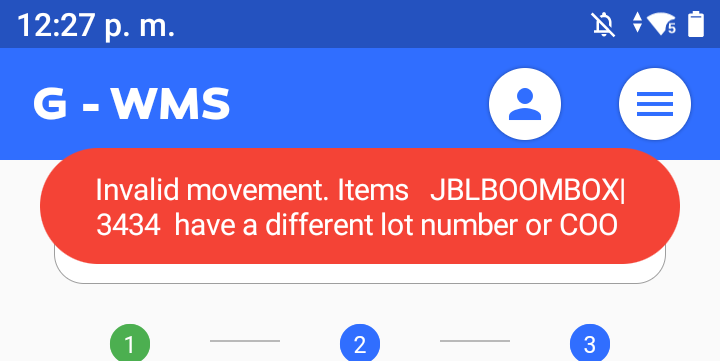
This happens because some clients, like Tumble, prefer to organize inventory in locations separated by lot number.
Therefore, items with different lots cannot be mixed during box movements in the picking module.
⚠️ This validation only applies to the Consolidation and Piece Movement modules. In those, the system checks that lot numbers match before allowing the move.
Recommendation
Before scanning a destination location, make sure that:
- The location is empty
- All items in the location have the same lot as those you're moving
This will help prevent interruptions in the picking/consolidation flow and ensure inventory integrity.
Consolidations
Allows item movements from pick locations to a box or multi-SKU location.
- Open the app menu and tap "Movements".
- Select "Consolidations" from the available options.
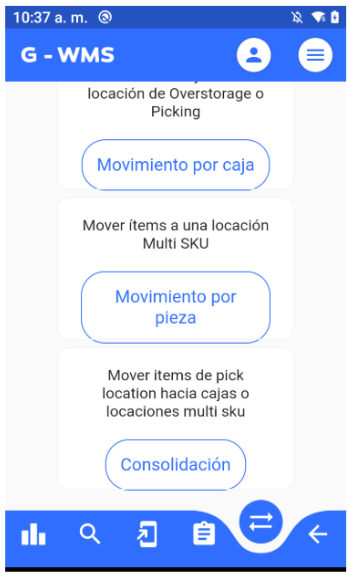
- A view will appear prompting you to first scan the QR code of the location.
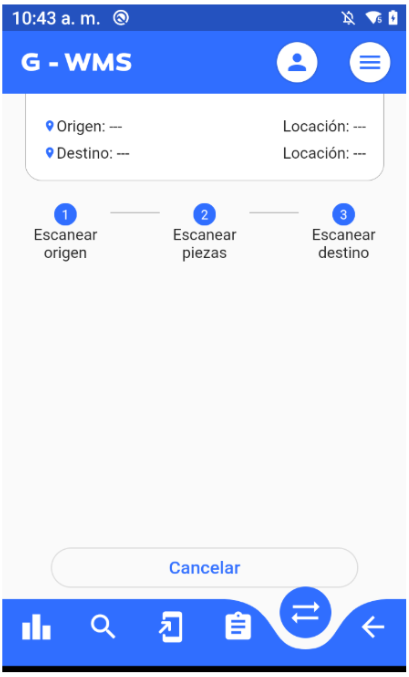
If you scan a location that is not of type Pick Location, the system will block the process.
- Once scanned, the origin location name and type will be displayed.
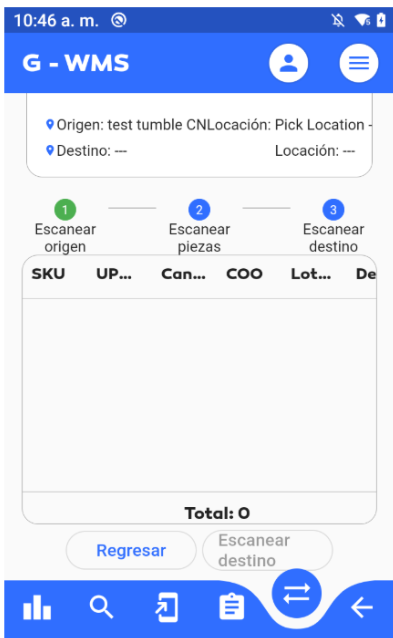
- Next, scan the SKUs of the items to be moved. You will see info like SKU, UPC, Description, Scanned Quantity, Lot Number, and COO.
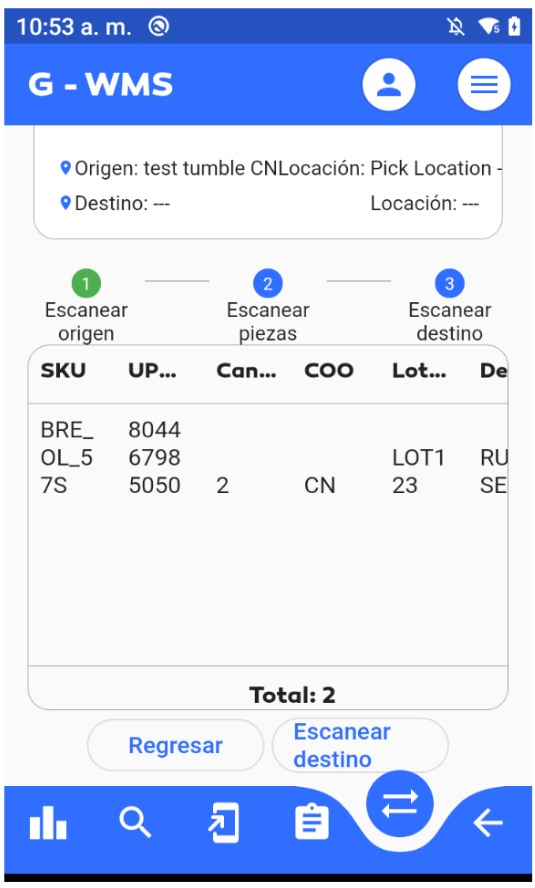
- Tap "Scan Destination", then scan a box or a multi-SKU location.
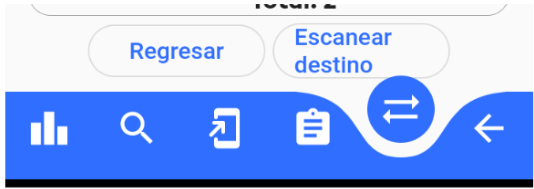
- For this example, a box PPL will be scanned:
- Once scanned, the box location's name and type will be shown as the destination.
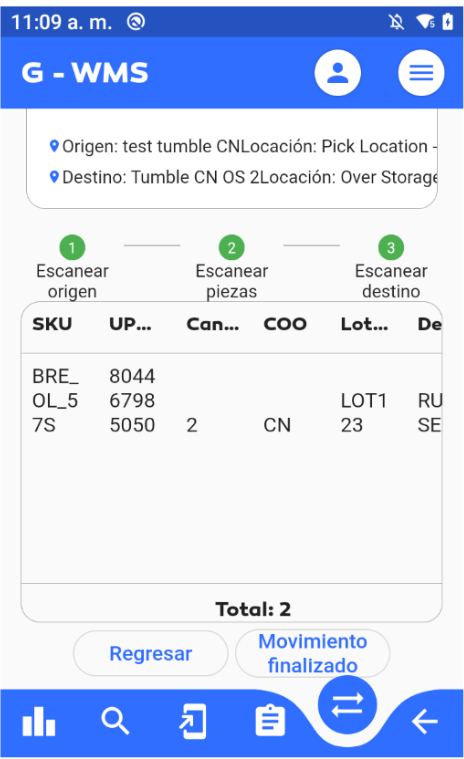
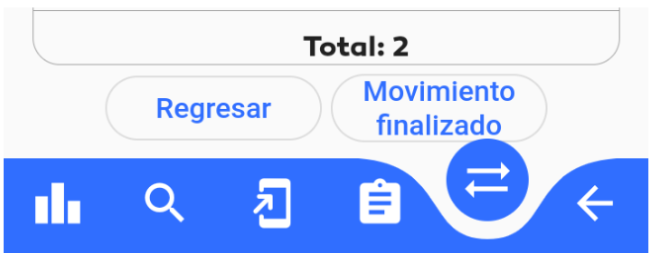
- Tap "Movement Completed" to proceed.
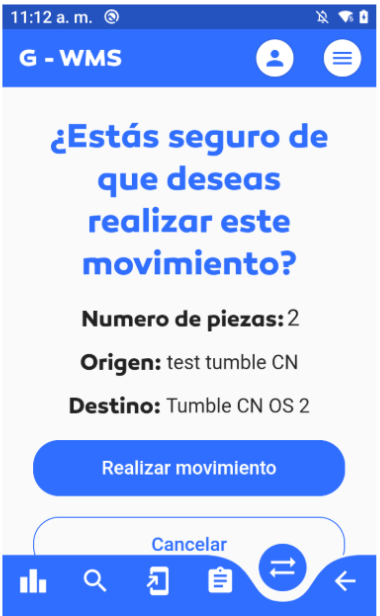
- A confirmation message will appear. Tap "Execute Movement" if everything is correct.
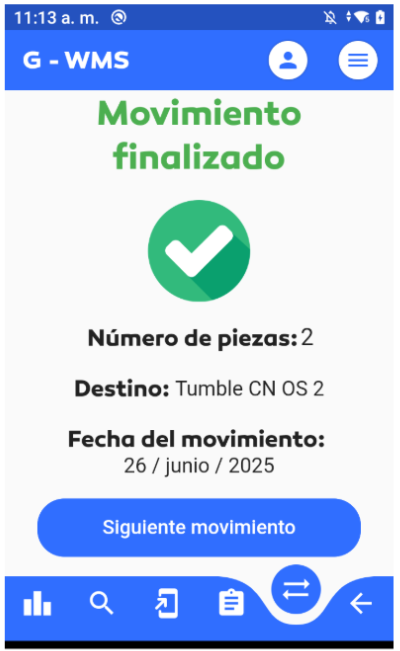
- A success message will appear, with the option to perform another movement.
If the following error appears:
Refer to the section Error: Lot Mixing During Item Movement to understand the cause and conditions that may trigger it.
This error is usually related to company-specific restrictions on lot handling during inventory movements.