Picking.
The Picking module is a key functionality within the WMS mobile application, designed for operational personnel with assigned roles to efficiently fulfill orders generated in the Order Monitor module.
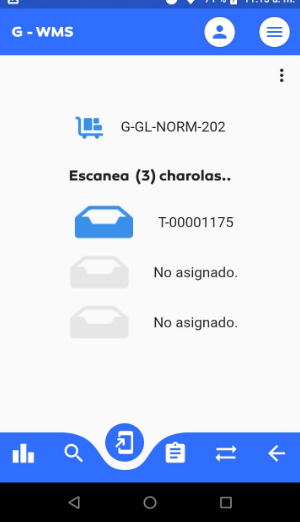
This process is carried out by scanning totes (carts) containing trays (picking trays), where the items required for each order are stored.
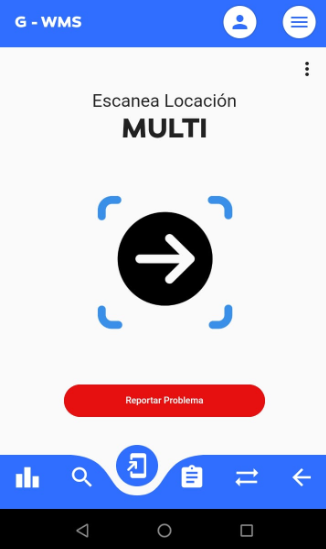
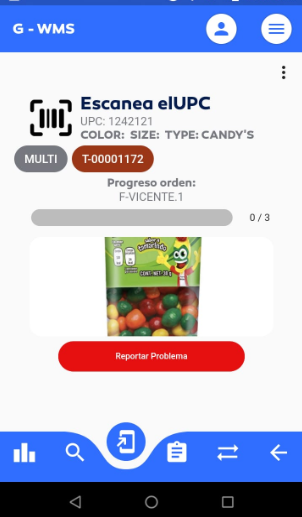
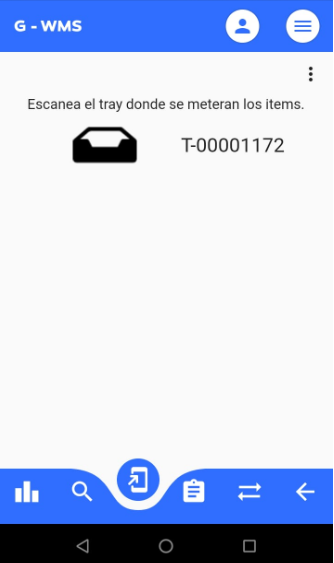
The application guides the user step by step: from assigning trays to a tote, scanning locations and items, to the final consolidation of products for delivery to the packing area.
Additionally, the module’s interface can be customized according to each client’s specific needs.
This allows displaying or hiding information such as the country of origin, lot number, UPC, images, and other relevant data, providing flexibility for different operational environments.
This section details the steps to correctly complete the picking process within the WMS system.
Picking Module Overview
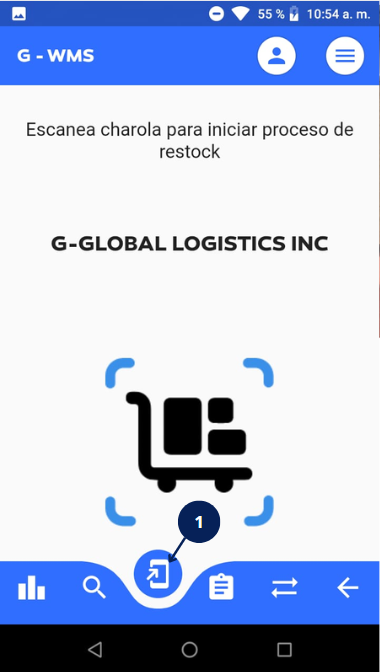
| No | Name | Description |
|---|---|---|
| 1 | Picking Button | Tapping this button accesses the picking section. |
How to Fulfill Orders via the Picking Module
🧾 Context |
|---|
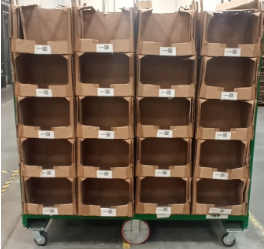
Totes or carts contain trays, which in turn store the items to be packed.
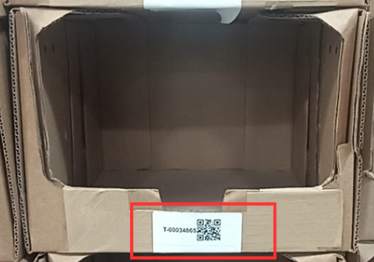
Trays are individual units that contain items. Each tray has a code that must be scanned to start the process in the Validator module.
|
✅ Steps |
|---|
🛠Display Configuration in Picker App Depending on client needs, the view shown above may be modified by specific configurations defined in the Company Settings section. From that section, it's possible to enable or disable different elements that determine what information will be visible in the picker application. These options are usually adapted to the particular requirements of each client — for example, companies like Tumble — and allow control over details such as whether the country of origin (COO), lot number, UPC, description, or product image are displayed, among others, as shown in the following image. 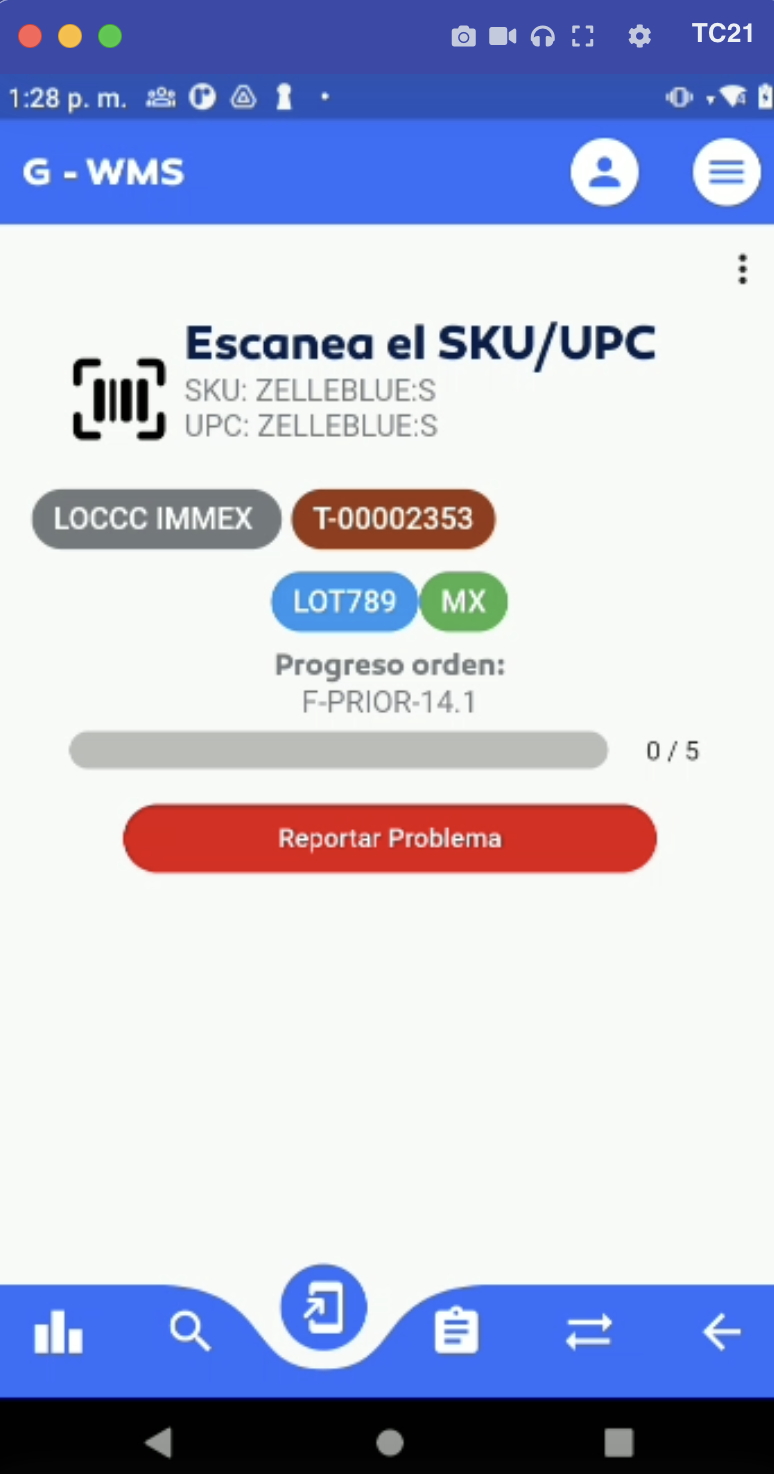 Additionally, if the client has COO and/or lot number display enabled, the application will show this information only if it exists in the item data.
|