Company Settings
This section details the configuration options available for registered WMS clients. These settings allow defining system behavior in fulfillment workflows (such as picking and packing operations), as well as enabling or disabling specific validations for inventory movements or picker processes, among other key adjustments.
Theme Configuration
This section defines the color theme and client logo, essential elements for the final design of the web portal. This configuration can be customized if required by the client, allowing the portal's appearance to match their visual identity.
🔍 How to access?
- Log in to the WMS web portal.
- Ensure you have access to the Companies module.
- Within the module, select a client by double-clicking their record in the table.
- Click the Theme tab to display available options.
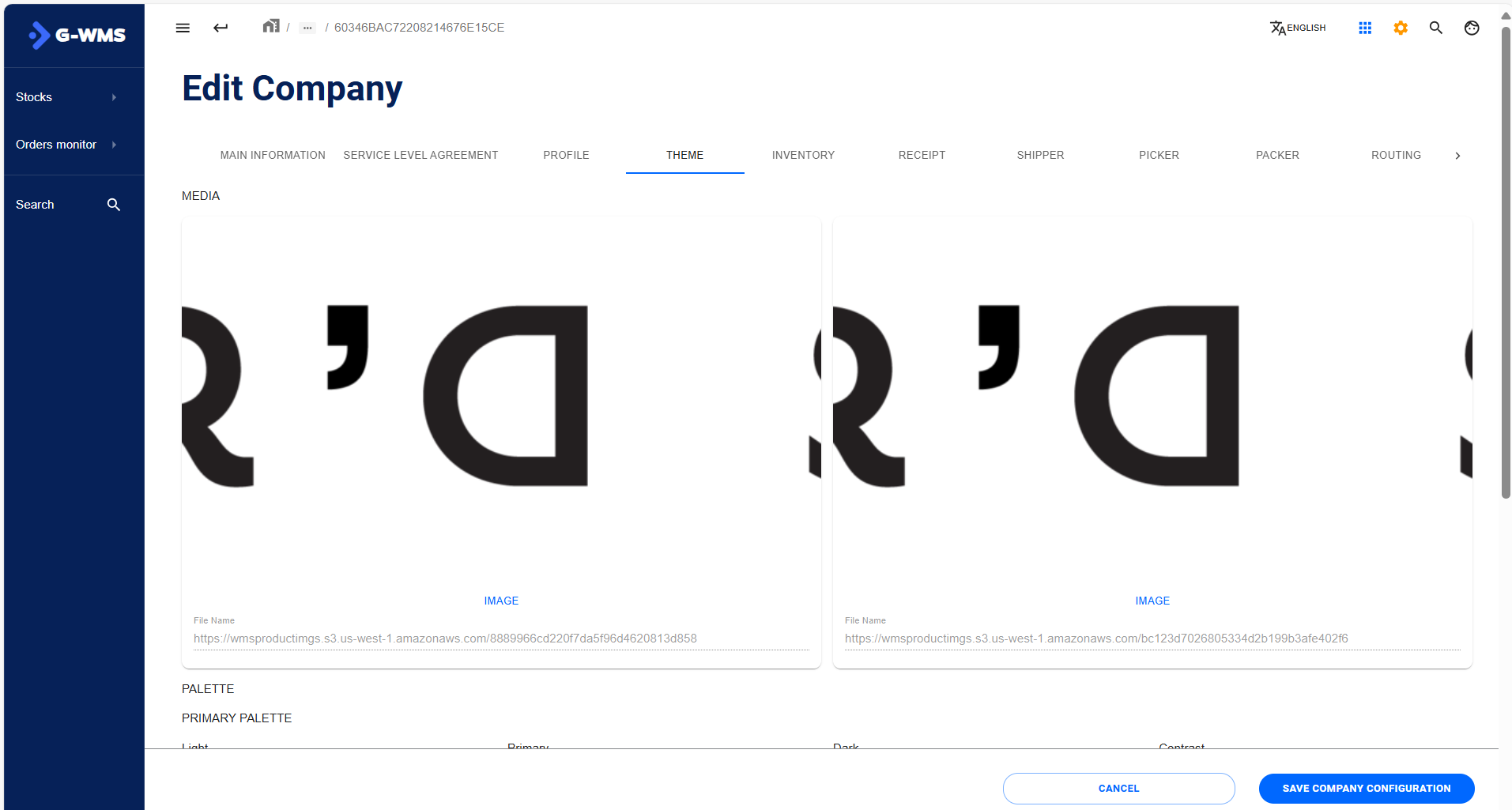
Below are the options you can modify in this section:
-
Client Logo:
At the top, you can assign or change the client's logo. The system requires at least two images to complete this configuration.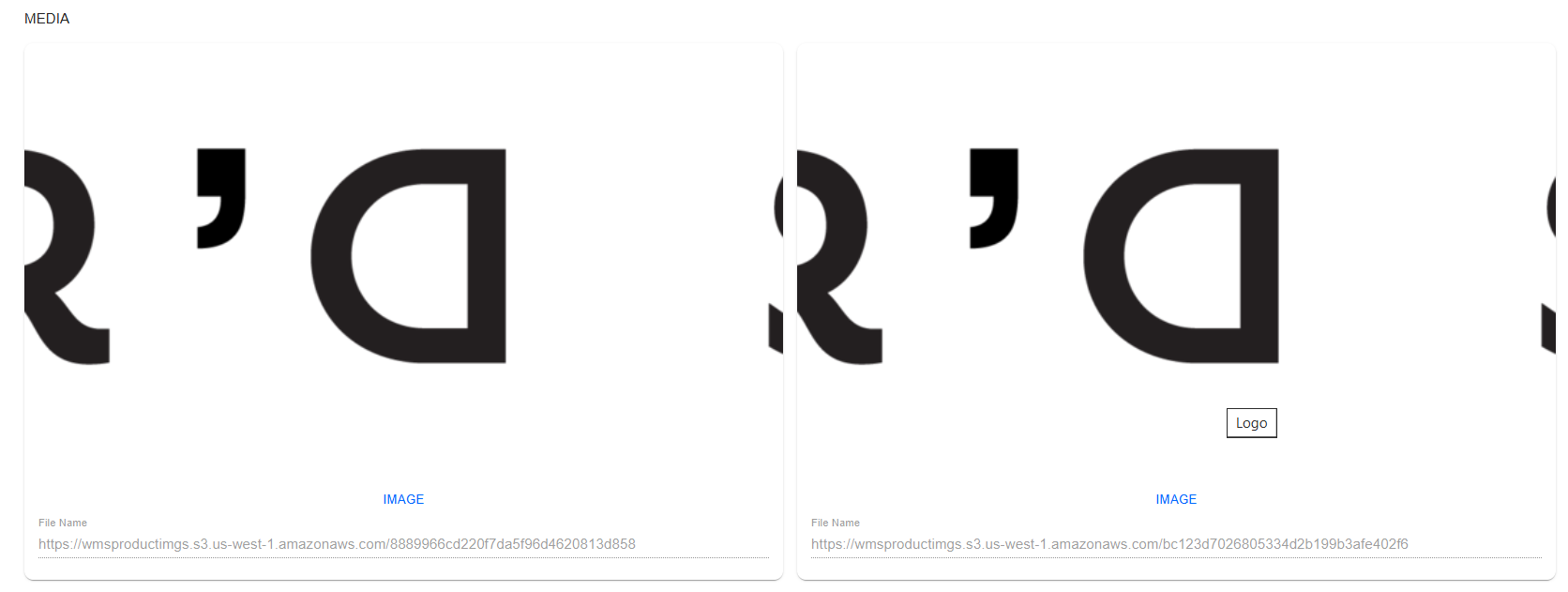
-
Color Palette:
Next, you must define a color palette. This option adapts the portal's visual design to the client's graphic style.
You need to configure primary and secondary colors for both light and dark themes.
Color selection is done via a color picker, which allows dragging within a visual scheme and provides the corresponding hexadecimal value in real time.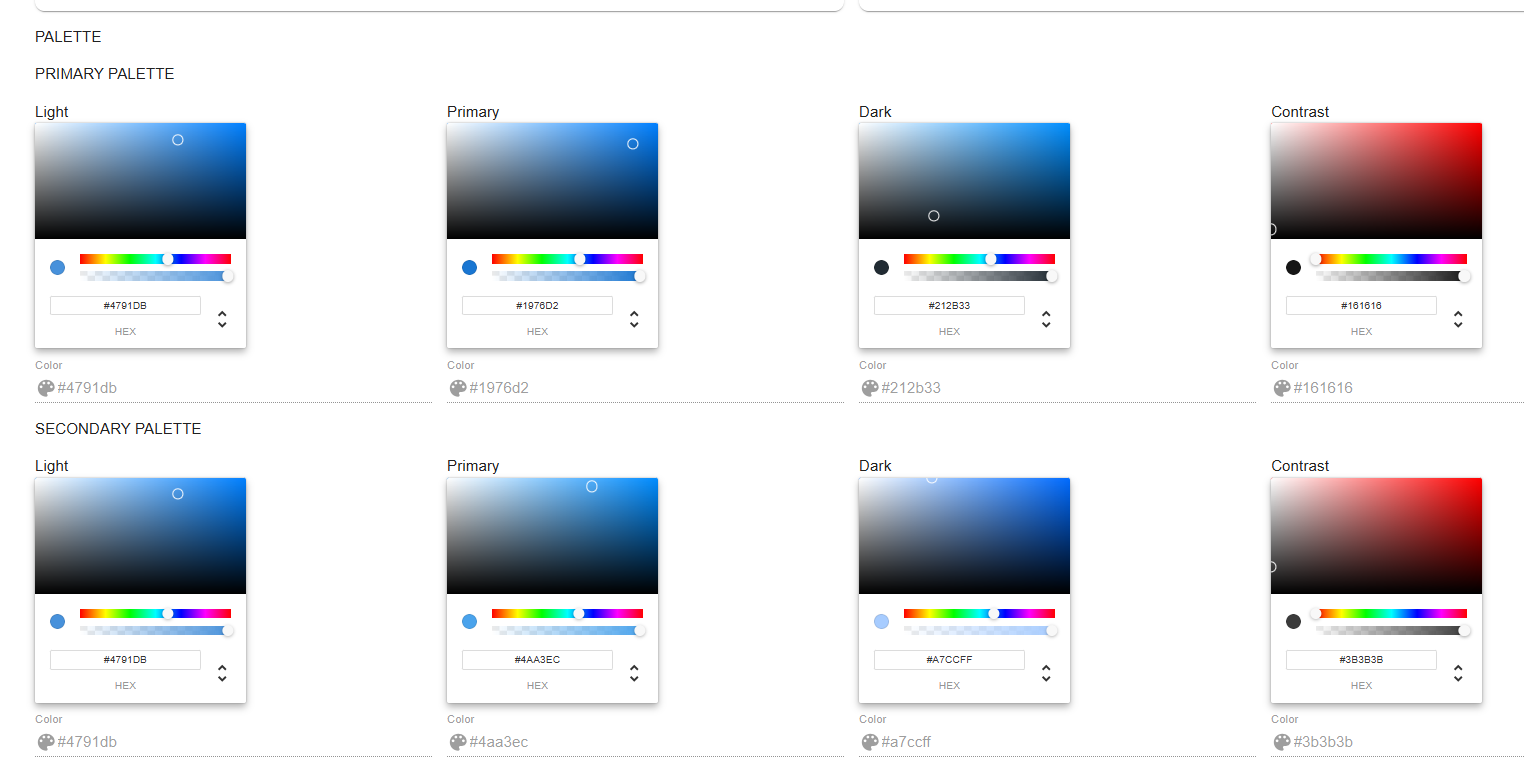
Inventory Configuration
This section lets you set key configurations for inventory behavior, specifically related to multiple SKUs per location, Country of Origin (COO) change rules, and replenishment priorities.
🔍 How to access?
- Log in to the WMS web portal.
- Ensure you have access to the Companies module.
- Within the module, select a client by double-clicking their record in the table.
- Click the Inventory tab to display available options.
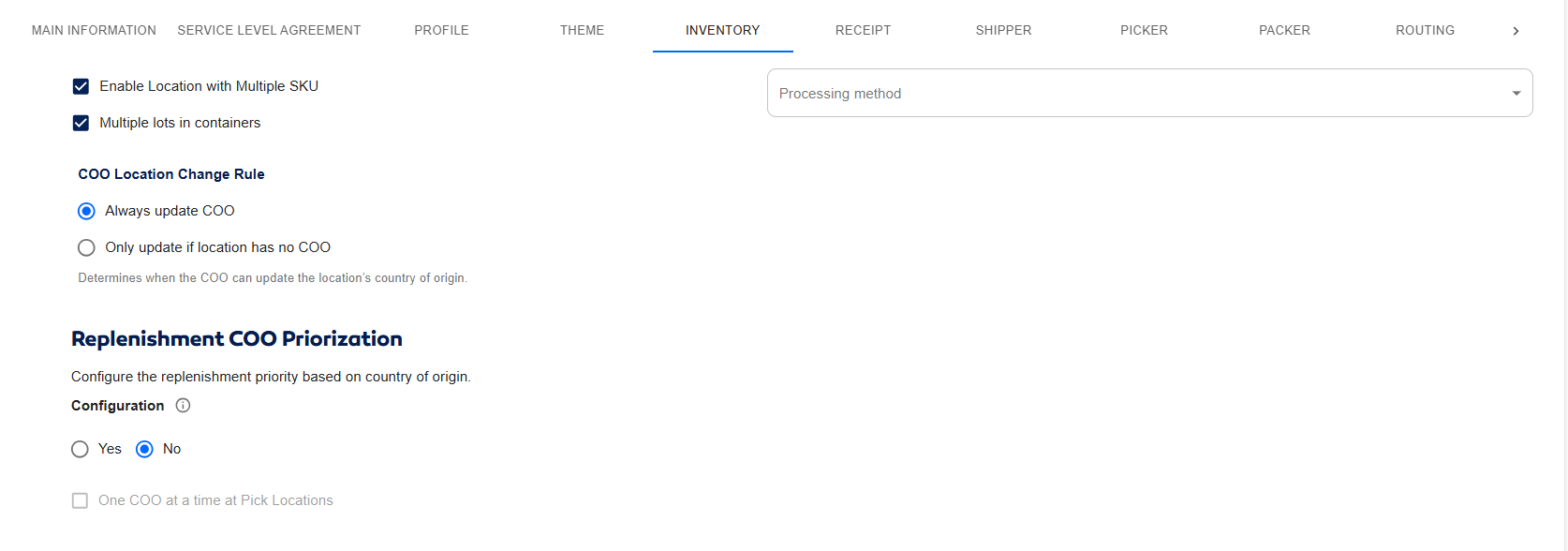
Below are the adjustable configurations:
🔹 Enable Location with Multiple SKU
This option allows a location to contain multiple distinct SKUs.
Useful for multi-SKU locations or consolidations (enable if needed).
🔹 Multiple Lots in Containers
Allows storing more than one lot number per container. If you handle products with different lots, this option helps manage them from the same location.
🔸 COO Location Change Rule
Defines system behavior when updating a location's Country of Origin (COO):
- Always update COO: Always updates the location's COO, regardless of whether it already has one.
- Only update if location has no COO: Only assigns a COO if the location doesn't have one yet.
🔸 Replenishment COO Prioritization
Sets a priority order for inventory replenishment based on Country of Origin.
-
Configuration: Yes / No
Enable this option to activate prioritization.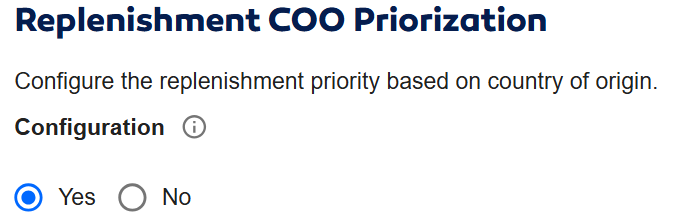
-
Select a Country
Use the search bar to add countries by name or code (e.g., China (CN), Thailand (TH)).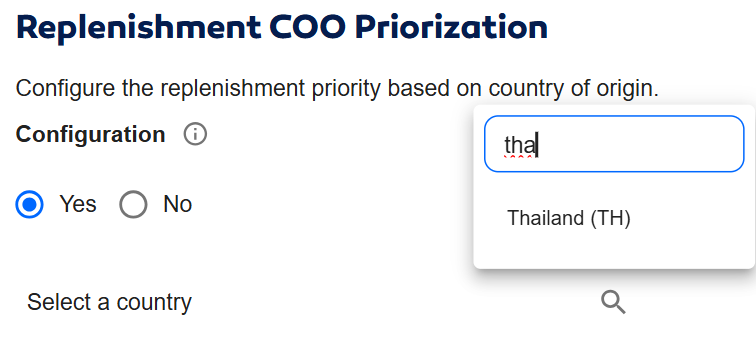 warning
Selecting "Any Country" tells the system that if insufficient inventory exists in the Priority Order list, it can pull products from any available country in the warehouse. This also applies if packages are received from a country not on the list.
-
Priority Order
Arrange countries by desired replenishment priority. The system will prioritize countries higher on the list. tip
tipDrag and drop items to reorder the list based on client needs.
-
One COO at a Time at Pick Locations
If enabled, each picking location can only contain products from one COO at a time, preventing non-compliant combinations that may affect traceability.
Picker Configuration
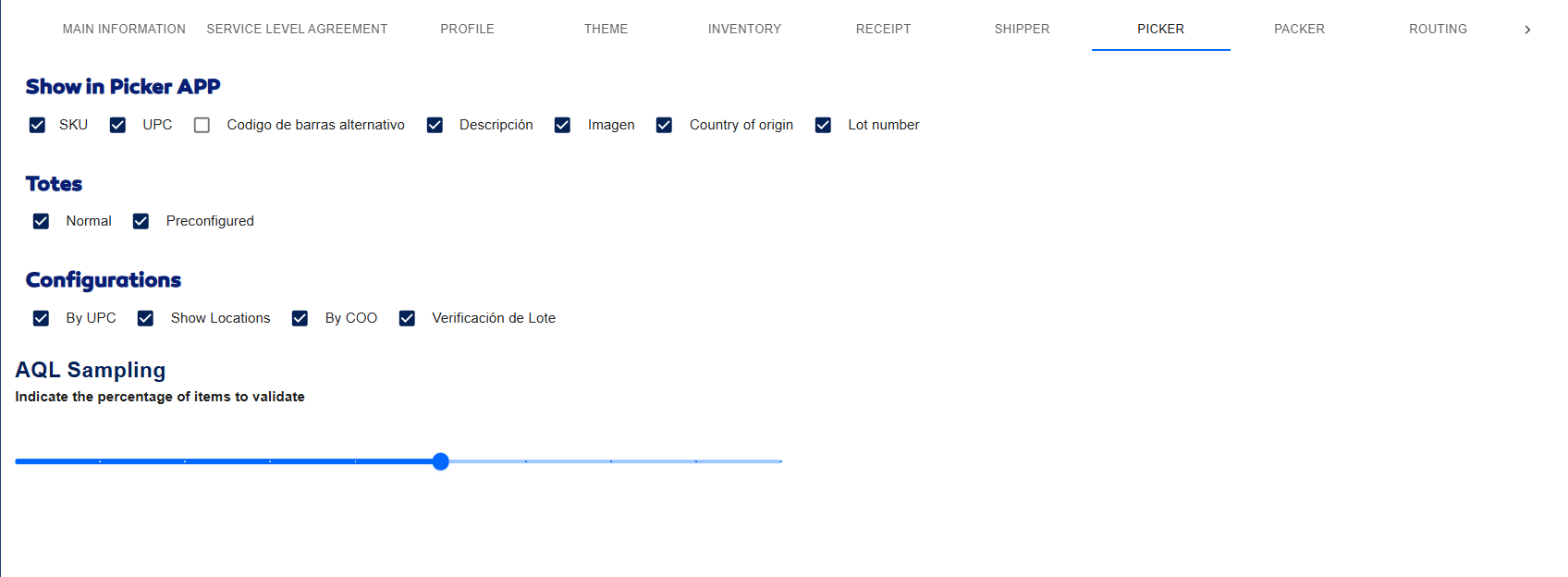
This section customizes the visibility and behavior of the Picker App for a specific client. Here, you can define displayed information, assignable tote types, validations, and AQL (Acceptable Quality Limit) sampling.
🔍 How to Access?
- Log in to the WMS web portal.
- Ensure you have access to the Companies module.
- Within the module, select a client by double-clicking their record in the table.
- Click the Picker tab to display available options.
🔸Show in Picker APP
Defines which information is visible to the operator in the Picker App. Toggle the following elements based on client needs:
- SKU: Displays the item's identification code.
- UPC: Shows the Universal Product Code.
- Alternative Barcode: Enables display of an additional barcode if applicable.
- Description: Shows the item description.
- Image: Displays the product image.
- Country of Origin: Shows the item's COO.
- Lot Number: Displays the lot number for traceability.

🔸Totes
Select the tote (container) types the picker can use during operations:
- Normal: Regular totes available for picking.
- Preconfigured: Totest with predefined configurations.

🔸Configurations
Defines additional rules to control app behavior:
- By UPC: Enables UPC-based validation or search.
- Show Locations: Displays available warehouse locations.
- By COO: Allows assigning picking locations based on product COO, following the priority order set in Inventory Configuration.
- Lot Verification: Requires lot number verification during picking.

🔸 AQL Sampling
This slider configures the percentage of items to be validated via AQL (Acceptable Quality Limit) sampling.

Example: A 50% value means the system will prompt validation for half of the items scanned by the picker.