Cycle Counting App
This module is used to perform stock counts or inventory of items in locations. These counts follow a 3-round cycle: if the first count doesn't match the system quantities, a second count is performed to verify the first one, and if it still doesn't match, a third and final count is conducted.
This cycle counting can be performed for both over storage locations and picking locations.
General Useful View of the Module
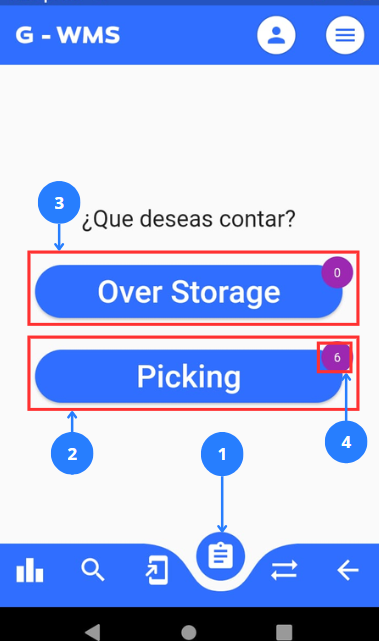
| No | Name | Description |
|---|---|---|
| 1 | Cycle Count Menu Button | Provides access to cycle counting functions |
| 2 | Button for cycle counting of picking locations | If there's a pending cycle count, it displays the picking locations cycle count flow. |
| 3 | Button for cycle counting of over storage locations | If there's a pending cycle count, it displays the over storage locations cycle count flow. |
| 4 | Pending cycle counts counter | Represents the pending or queued cycle counts. |
Process an Over Storage Cycle Count
Steps |
|---|
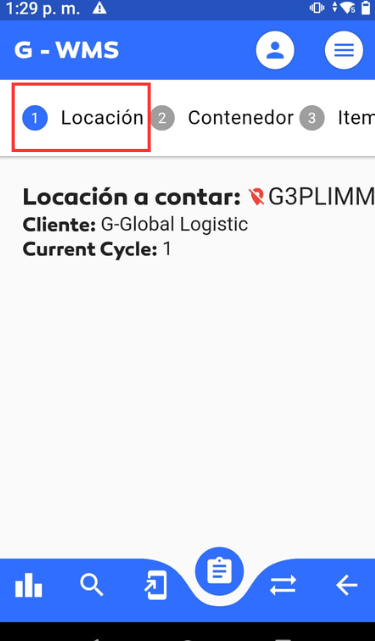
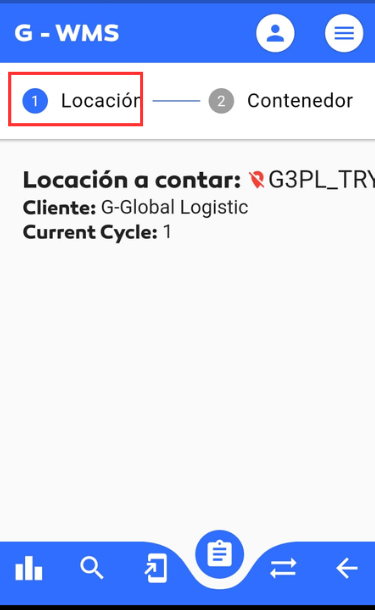
Click on 1 in the general interface to enter the cycle counts section. To start a count, there must be pending counts in the queue, which can be verified by checking the quantity in 4 the counter. If the counter shows at least one pending count, proceed to click on the button for 3 over storage. When starting the cycle count process, step 1.Location is displayed where you scan a location to count. 2 steps are repeated for each pre-programmed location registered in the WMS cycle count.
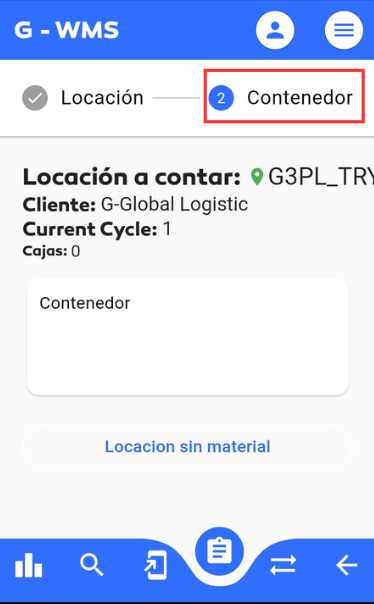
After scanning the location, proceed to add the containers found in the locations.
To add the containers, you need to scan the PPLs of the containers located in the assigned location.
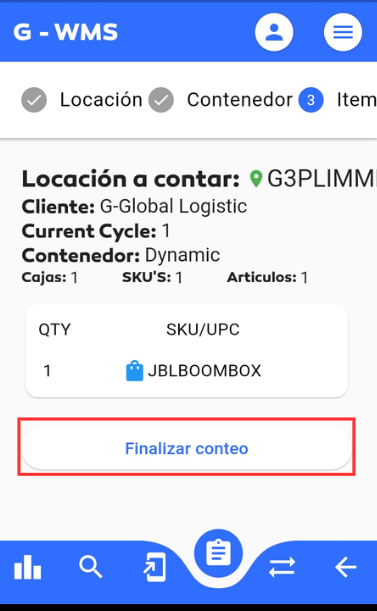
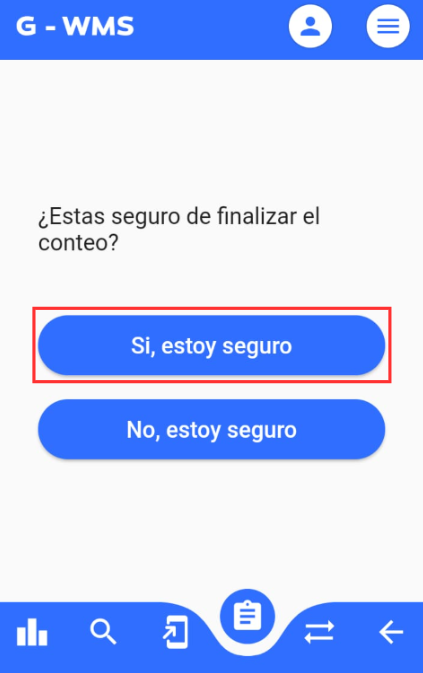
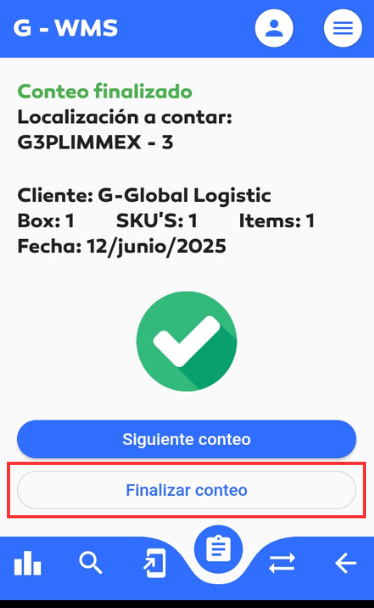
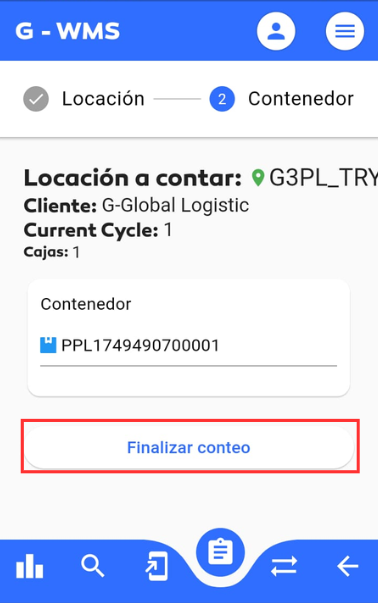
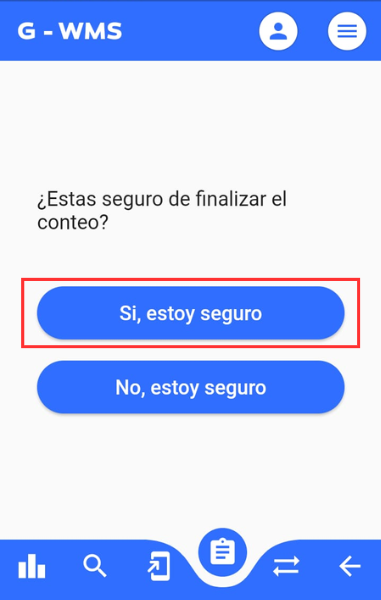
After completing the location count, tab on Finish count. and then confirm the count actions.
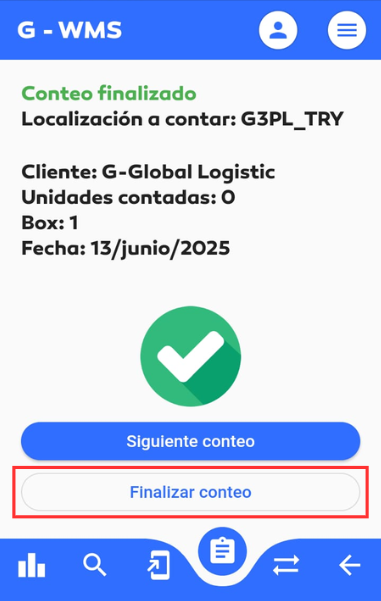
Finally, the count is completed and closed.
|
Process a Picking Cycle Count
Steps |
|---|
Click on 1 in the general interface to enter the cycle counts section. To start a count, there must be pending counts in the queue, which can be verified by checking the quantity in 4 the counter. If the counter shows at least one pending count, proceed to click on the button for 2 picking. When starting the cycle count process, step 1.Location is displayed where you scan a location to count. 3 steps are repeated for each pre-programmed location registered in the WMS cycle count.
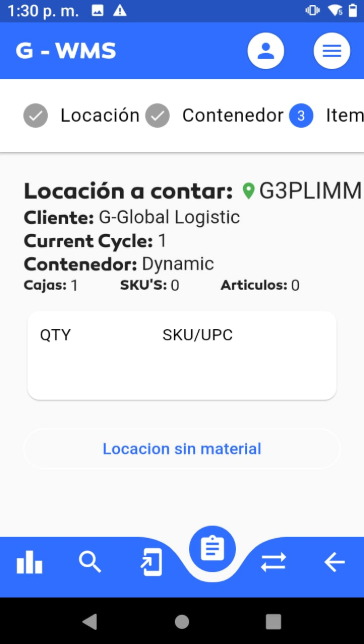
After scanning the location, proceed to step 2.Container which auto-completes since it's a picking zone, assigning the corresponding dynamic container. This leads to the next step. In step 3.item, scan the items in the location
You can scan multiple different items found in the location for the location count.
After completing the item count, click on Finish count.
After completing the location count, verify the count accuracy and if sure, tab on Yes, I'm sure.
To complete the count, tab on finish count to finalize the count. |