Receive Orders Picking
In this module, you scan the PPLs (Packing List Labels) previously generated in the Receive Orders module. Its main purpose is to validate the item information inside received packages, ensuring it matches what was recorded, and to facilitate accurate receiving control within the WMS system.
Scan the PPLs
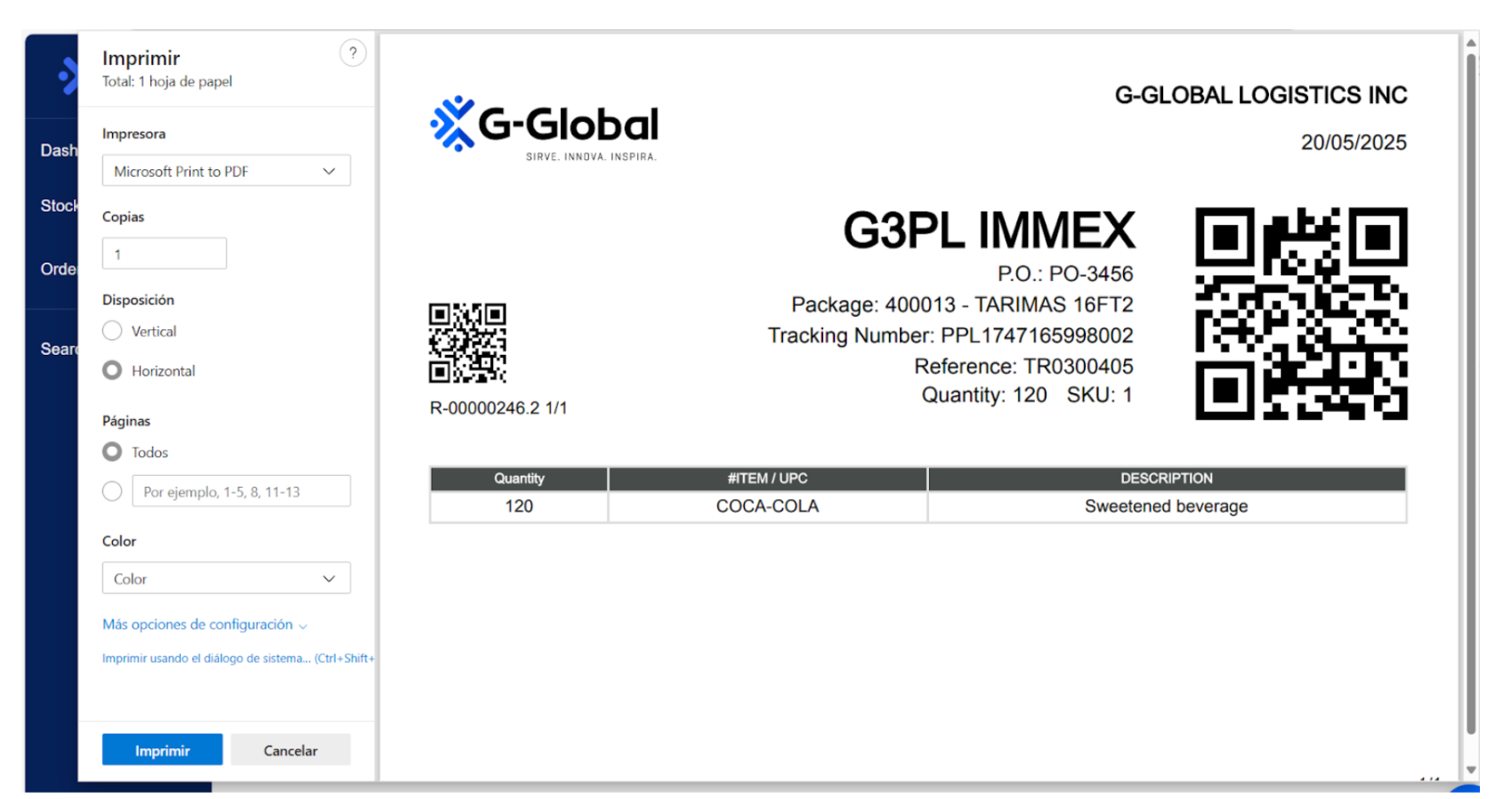
- After generating and printing the PPLs from the Receive Orders module, as shown in the image below, make sure you have all the documents ready for scanning.
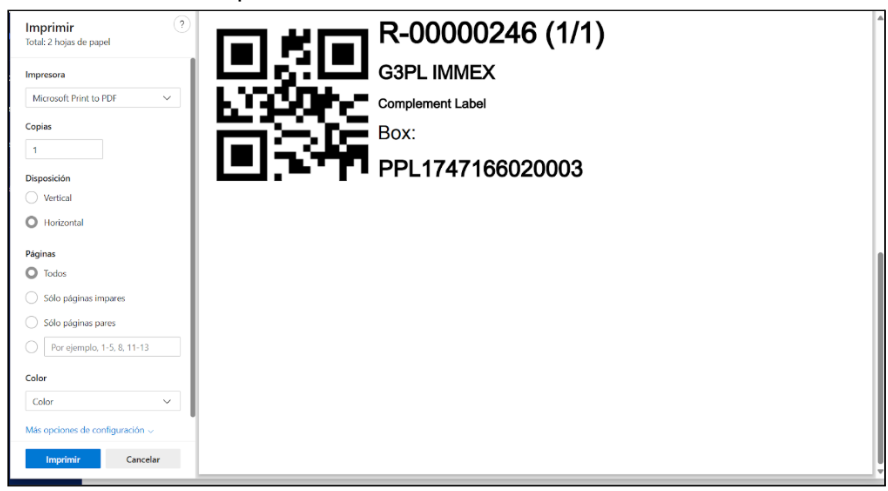
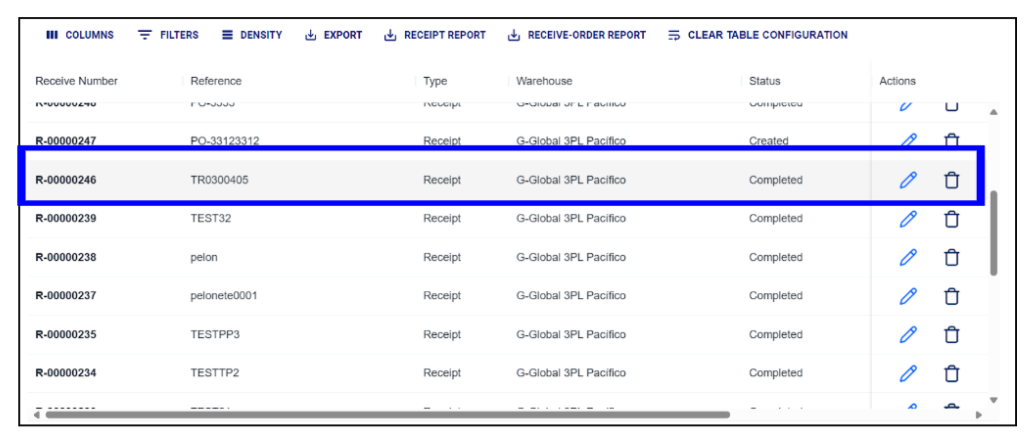
- Use the scanner provided to you as a work tool and scan the QR code printed on each PPL. In this example, the package PPL 1747166020003 associated with receipt R-00000246 will be scanned.
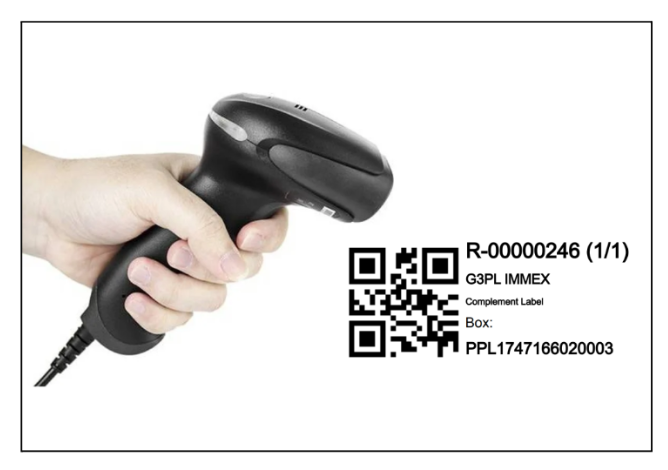
- Next, the system will validate the existence of the PPL in the database. If the information is correct, the associated receipt details will be displayed, along with a form requesting the following data to continue the process.
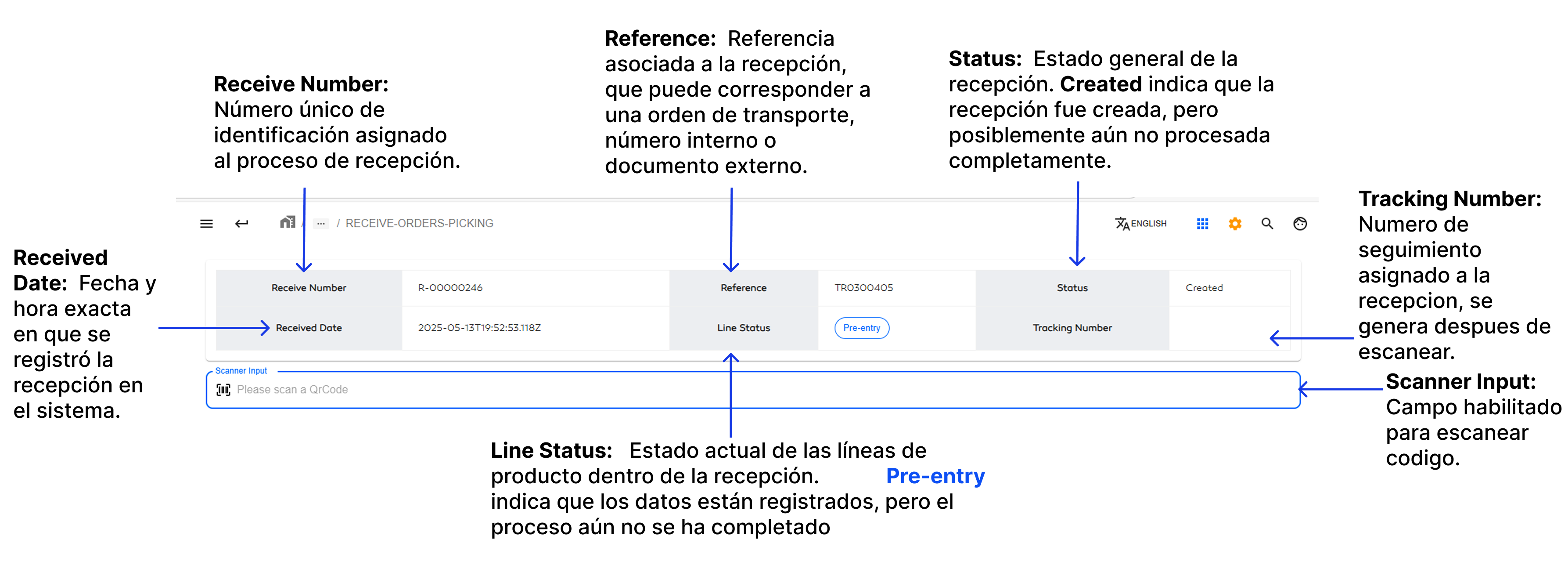
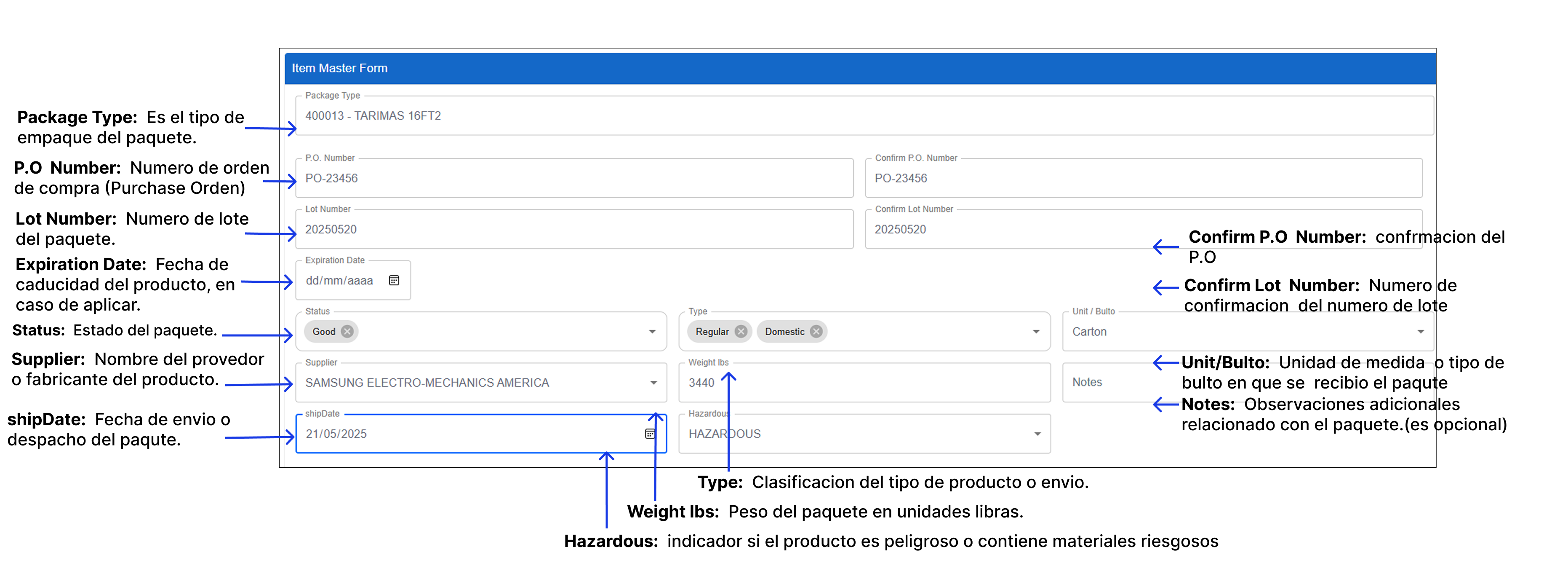
- Before completing the process, you must select the SKU to indicate what is contained in the package. Click the ADD button located at the bottom of the Item Master Form.

- Several fields will then be displayed, which must be filled in with information related to the SKU.
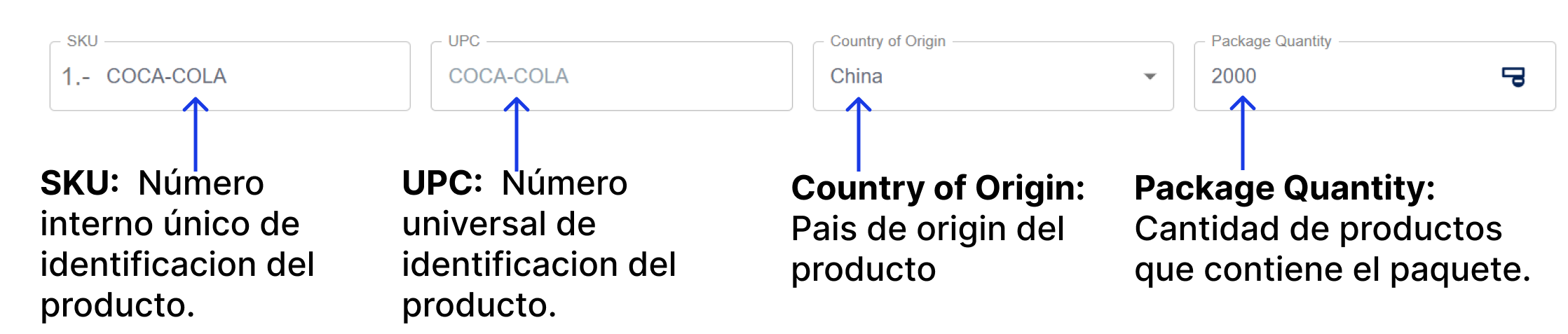
- Finally, click the SAVE button to save the package information.

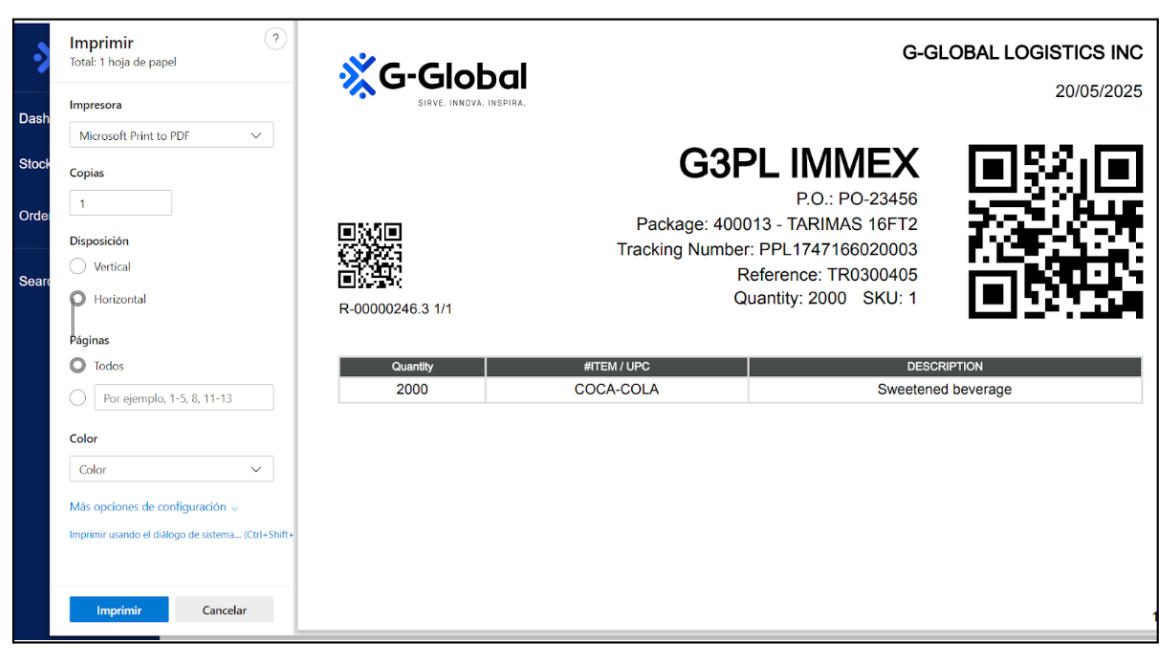
- Afterward, a QR code will be generated including the Tracking Number and other relevant package data. This code will be used to identify the package inside the warehouse. Print the label and attach it directly to the scanned package.
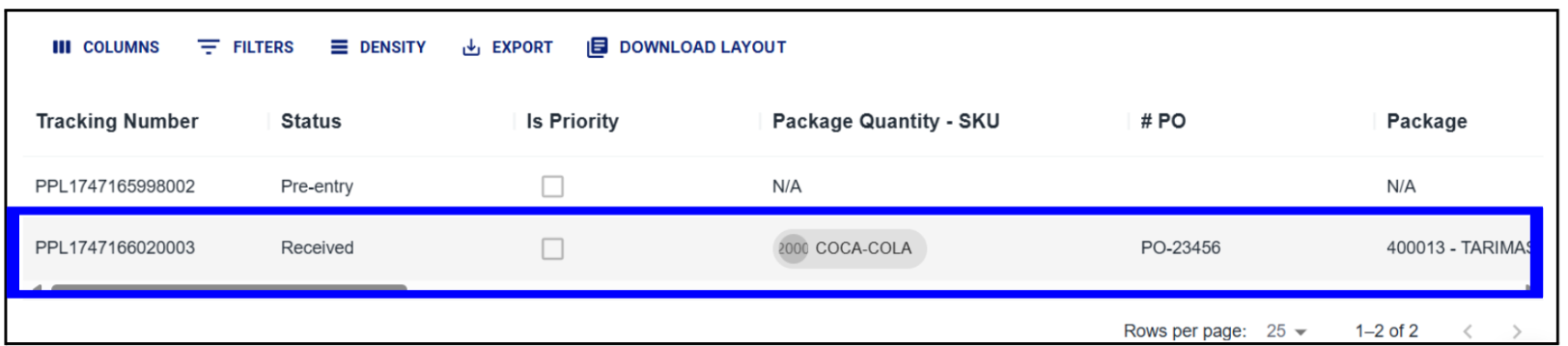
- To validate that the changes were successfully saved, go to the Receive Orders module and select the corresponding receipt. Then, review the PPL section and make sure the scanned PPL contains the correct registered information, as shown below.
Reprint QR Labels for Each Tracking Number
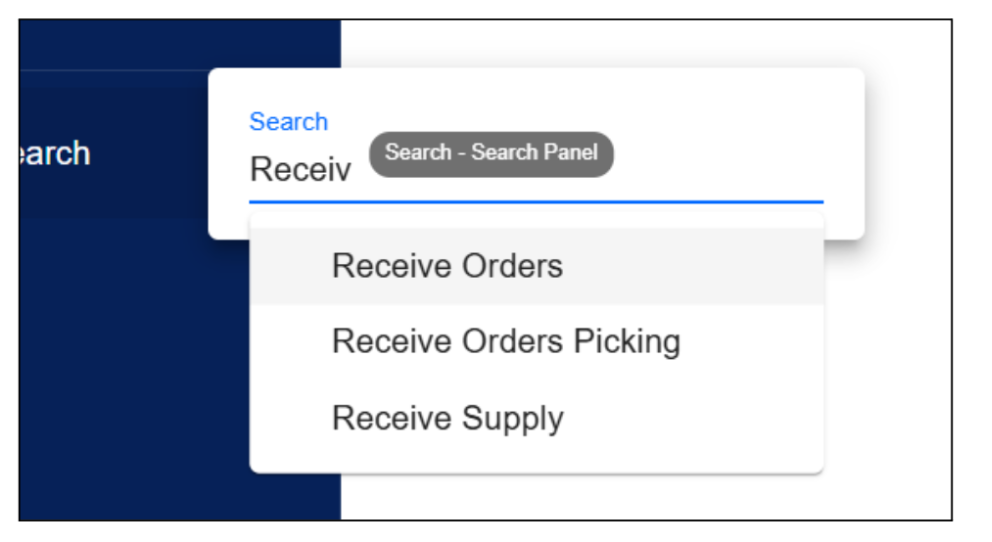
- Go to the Receive Orders module from the system’s main menu.
- Double-click on the receipt that contains the previously scanned PPLs to display its details.
- In the receipt details, locate the table listing the scanned PPLs and look for the Actions column.
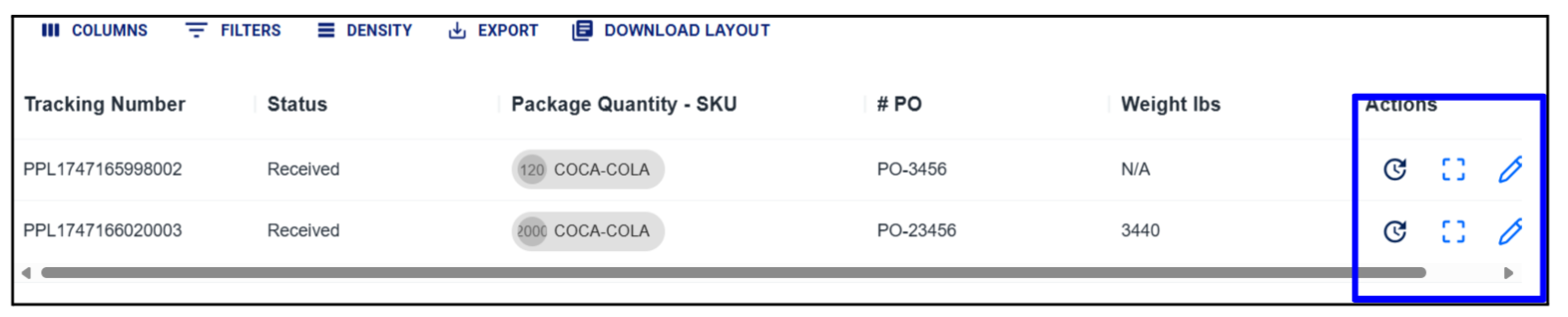
- Click on the "Print Labels" option of the PPL you want to reprint. This will open a browser pop-up window allowing you to send the QR label of the package to the printer.