Cycle Counting
This module is used to perform stock counts or inventory of items in locations. These counts follow a 3-round cycle: if the first count doesn't match the system quantities, a second count is performed to verify the first one, and if it still doesn't match, a third and final count is conducted.
This cycle counting can be performed for both over storage locations and picking locations.
General Useful View of the Module
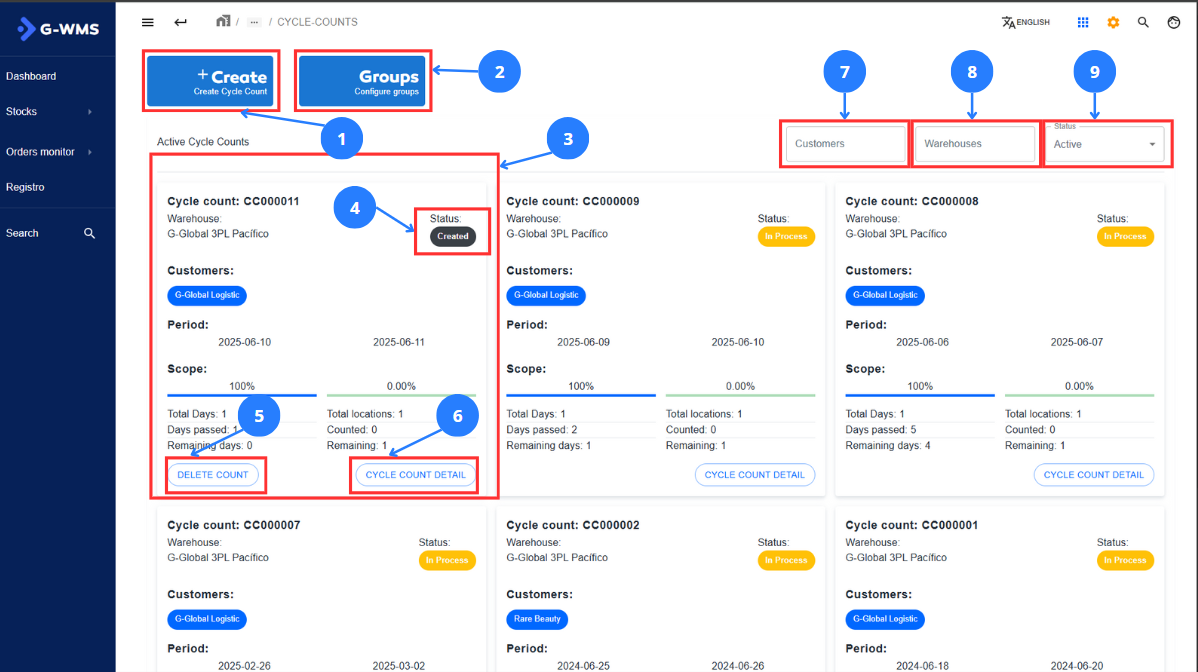
| No | Name | Description |
|---|---|---|
| 1 | Create Cycle Count Button | Clicking this button displays a form to enter data for a new cycle count |
| 2 | Groups Button | Clicking this button shows the group configuration for performing cycle counts. |
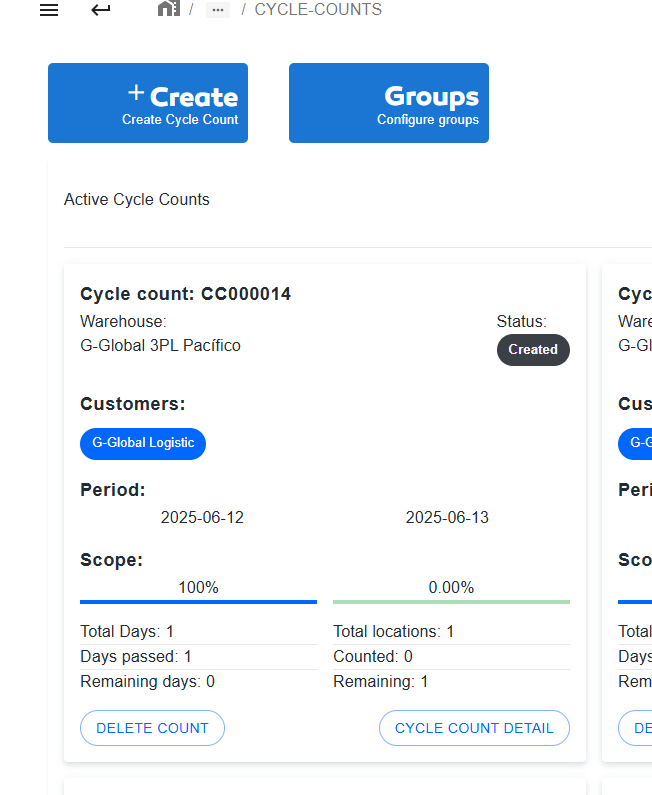
| 3 | Cycle Count | All cycle counts are represented by a square containing information about the count and its progress. |
| 4 | Count Status | The count status represents the current state of the count. |
| 5 | Delete Count Button | This button is used to delete a cycle count. |
| 6 | Cycle Count Details Button | This button shows count details when used |
| 7 | Customer Count Filter | This interface filters counts by customer. |
| 8 | Warehouse Count Filter | This interface filters counts by warehouse. |
| 9 | Status Count Filter | This interface filters counts by status. |
Create a Cycle Count
Steps |
|---|
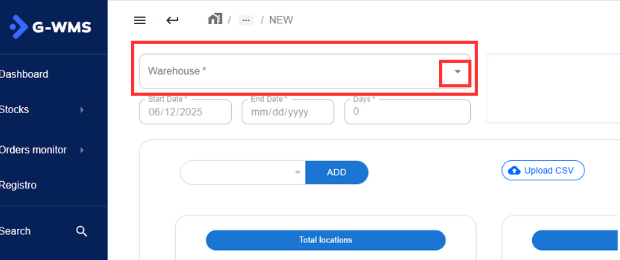
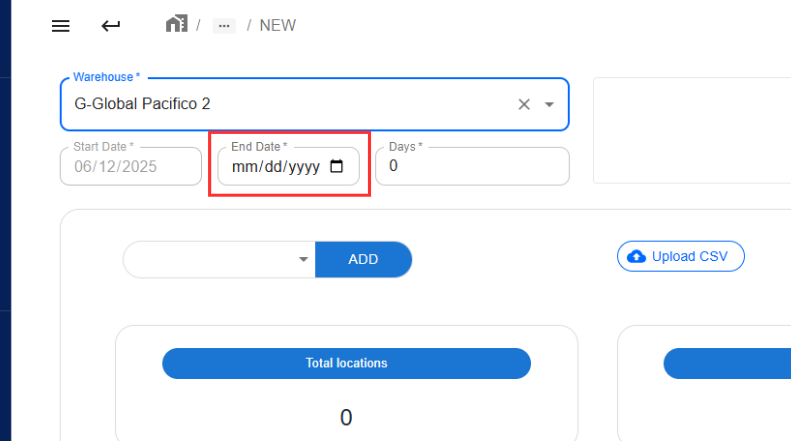
Click on 1 in the general interface and a page will open to create the count. The first thing to add for a cycle count is the warehouse where the action will take place.
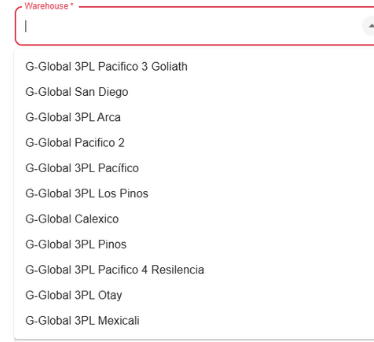
Click on the arrow in the rectangle to display the warehouses.
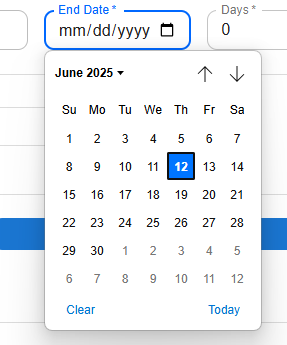
Next, add the end date for completing the count, which must be at least one day after the start date.
Click on the end date box and select the count completion day.
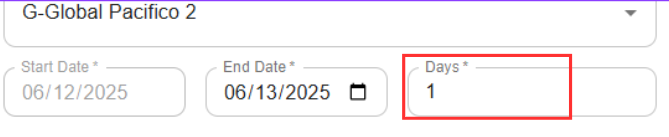
After selecting the end date, you'll see the number of days allocated for the count.
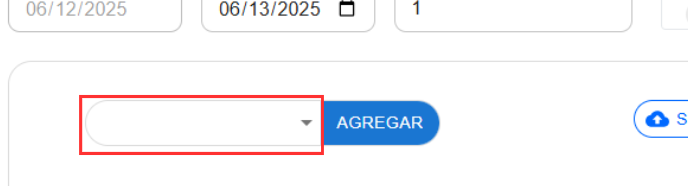
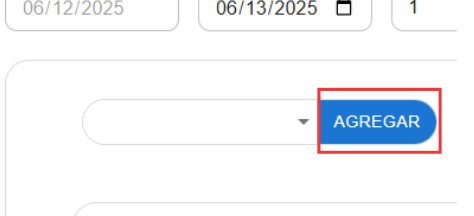
The next step is to add the locations to be counted. Click on the blank space next to the ADD button.
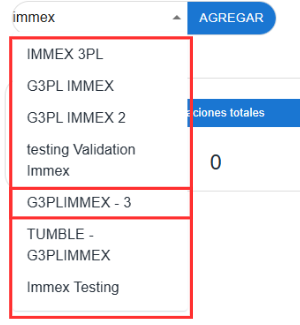
Enter the location name as accurately as possible. After entering the name, wait a few seconds for the search results to appear.
Select the location by clicking on the name and then click ADD.
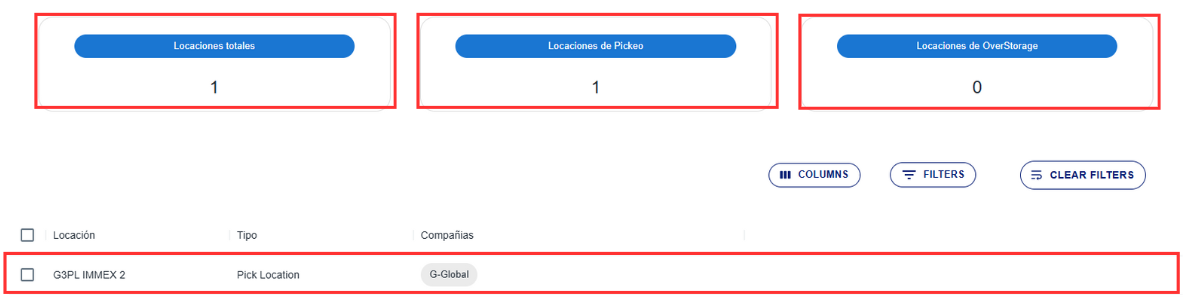
This will update the total locations, picking locations, and over storage locations, along with the table showing the location counting tasks.
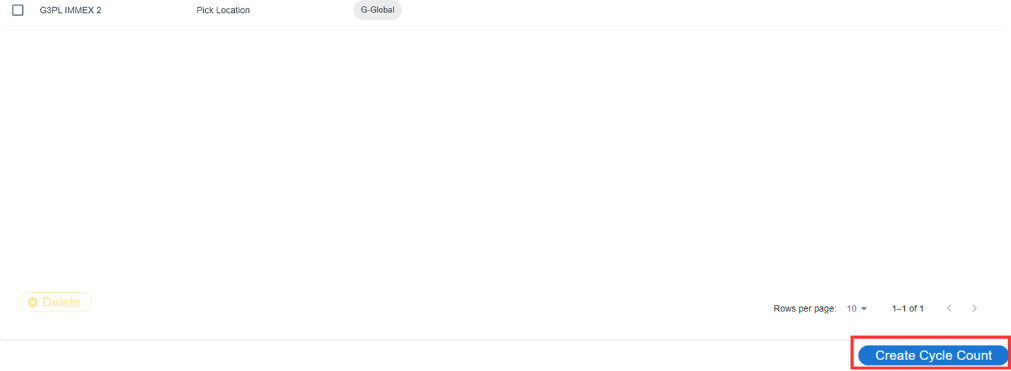
Repeat these steps to add multiple locations to the count. To finish assigning locations, click create cycle count.
The new cycle count will then be displayed.
|
Delete a Cycle Count
Steps |
|---|
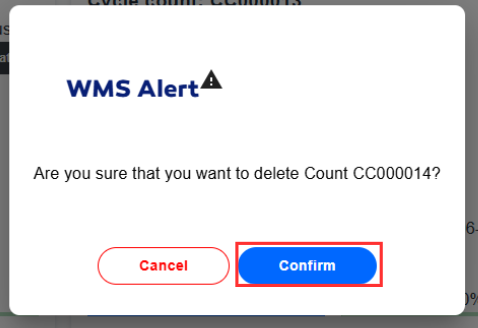
To delete a cycle count, there must have been no interaction with the count (no counts performed in the assigned locations). To delete a cycle count, click on 5 in the general interface. This will launch a confirmation window - if you're sure about deleting, click confirm.
The count's deletion will be confirmed by its absence from the interface. |
View Count Details
Steps |
|---|
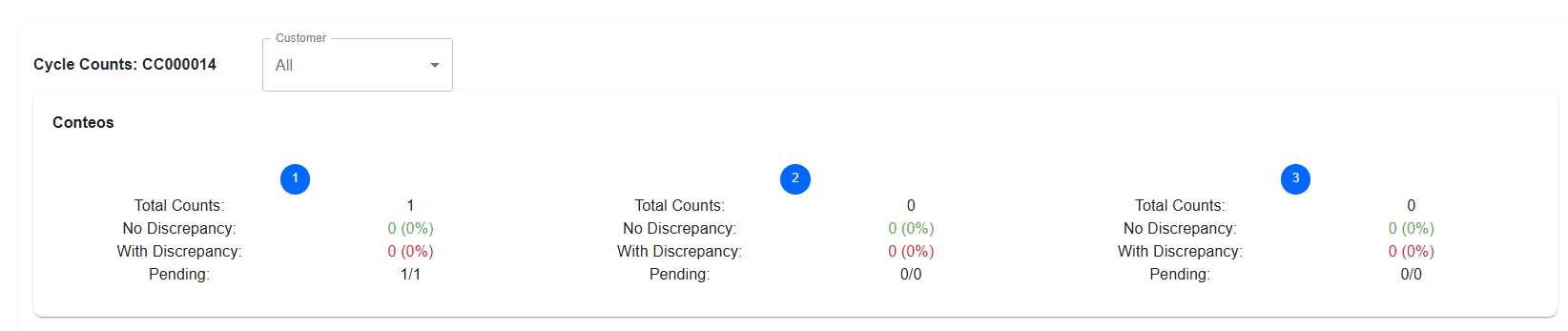
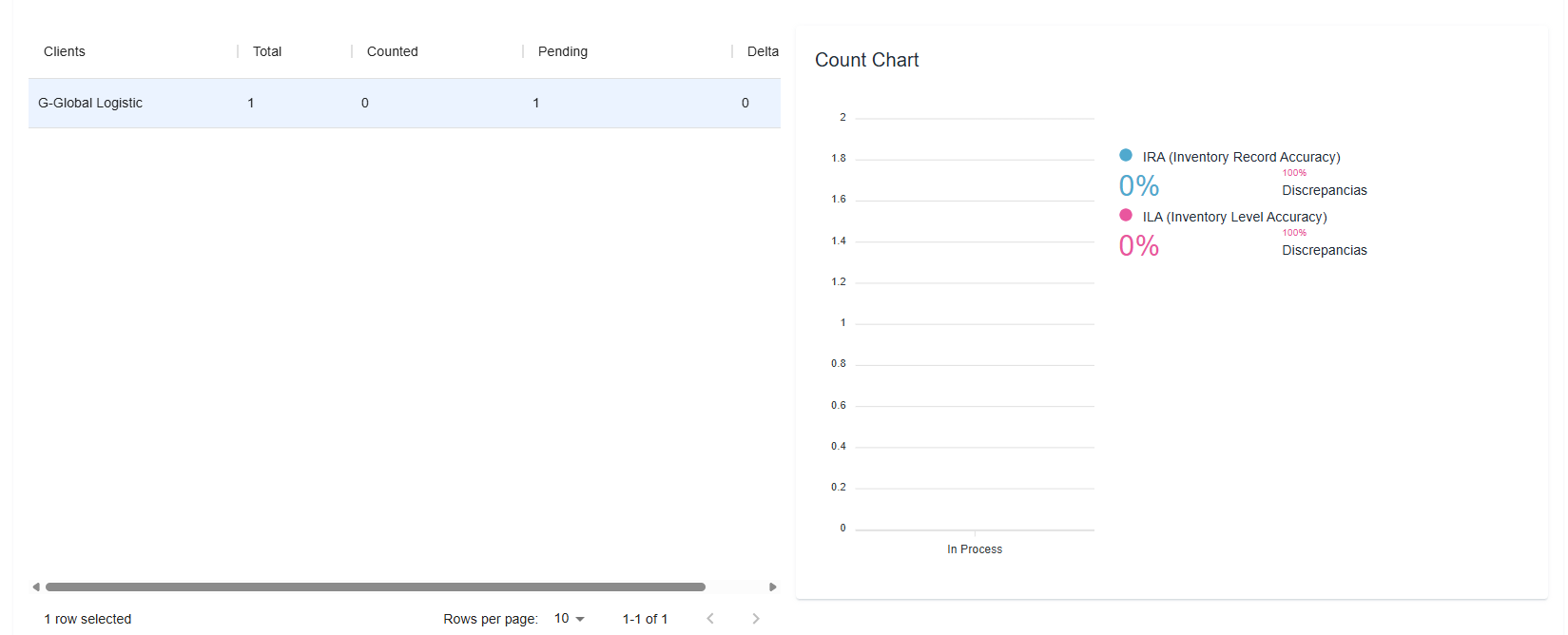
To view count details, click on 6 in the general interface (the cycle count details button). This opens a window showing various count metrics. Data will be displayed for 1-3 counting cycles performed in cycle count order.
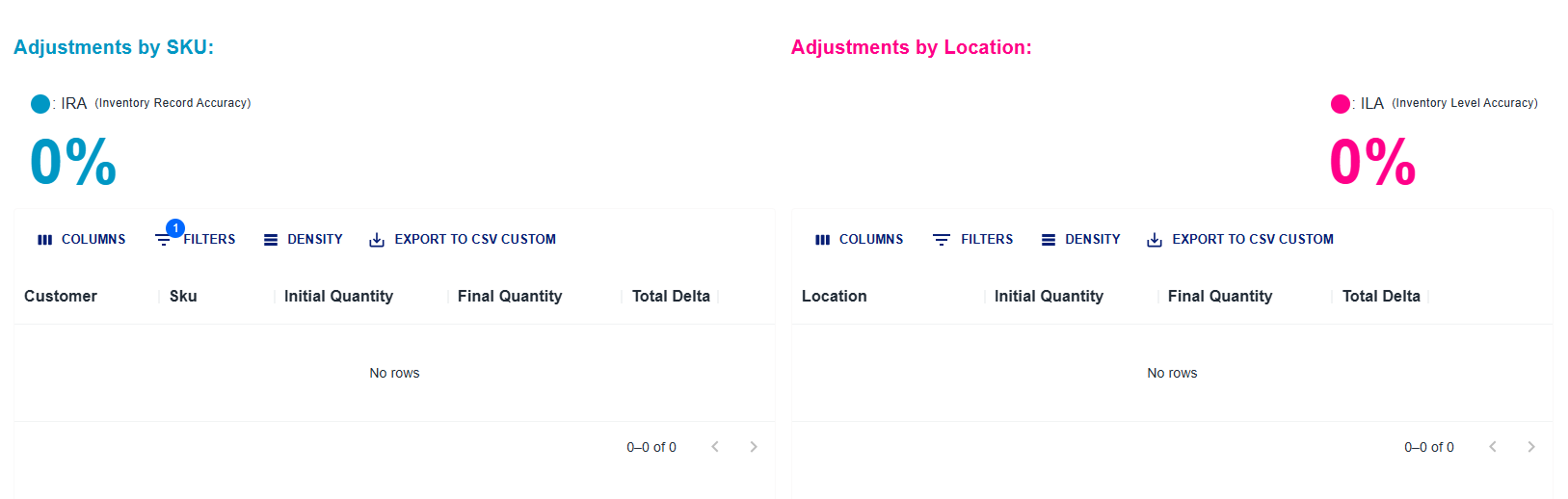
Graphical data for IRA and ILA is then displayed.
Inventory adjustment tables are also shown.
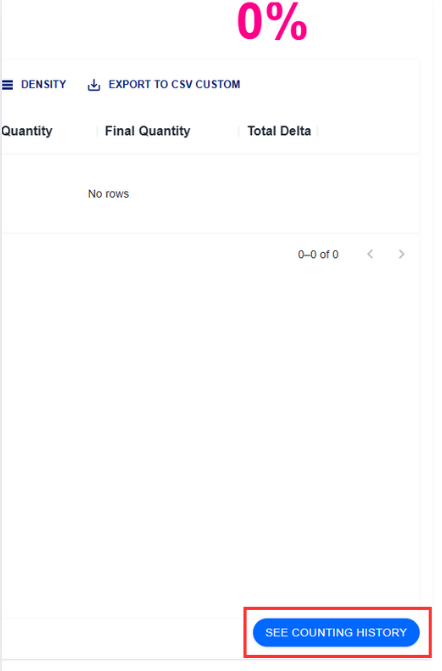
You can view count history by clicking the SEE COUNTING HISTORY button located at the bottom right below the adjustments by location table.
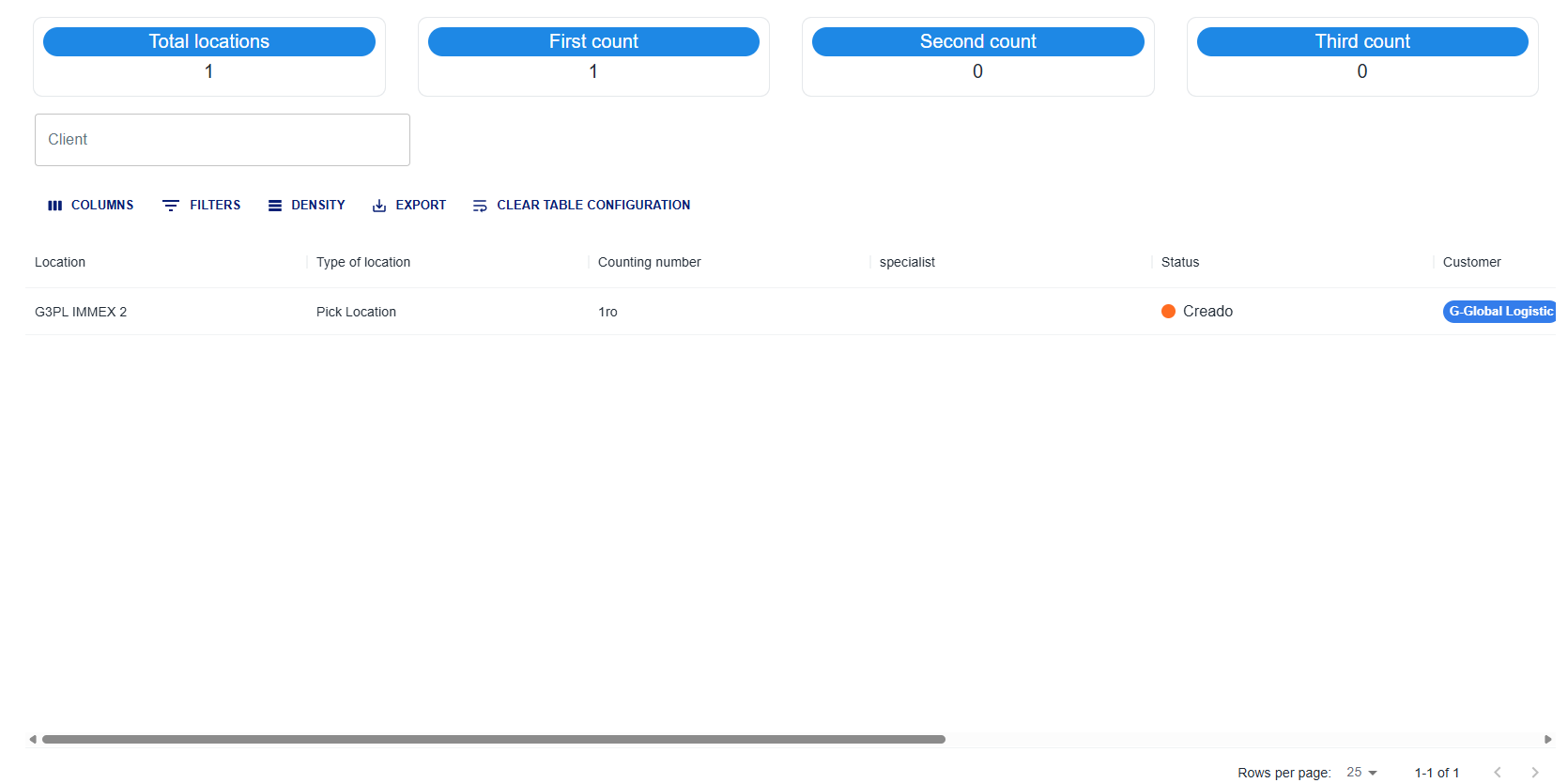
Clicking this displays the count history with activity records.
|
Add a User to a Counting Group
Steps |
|---|
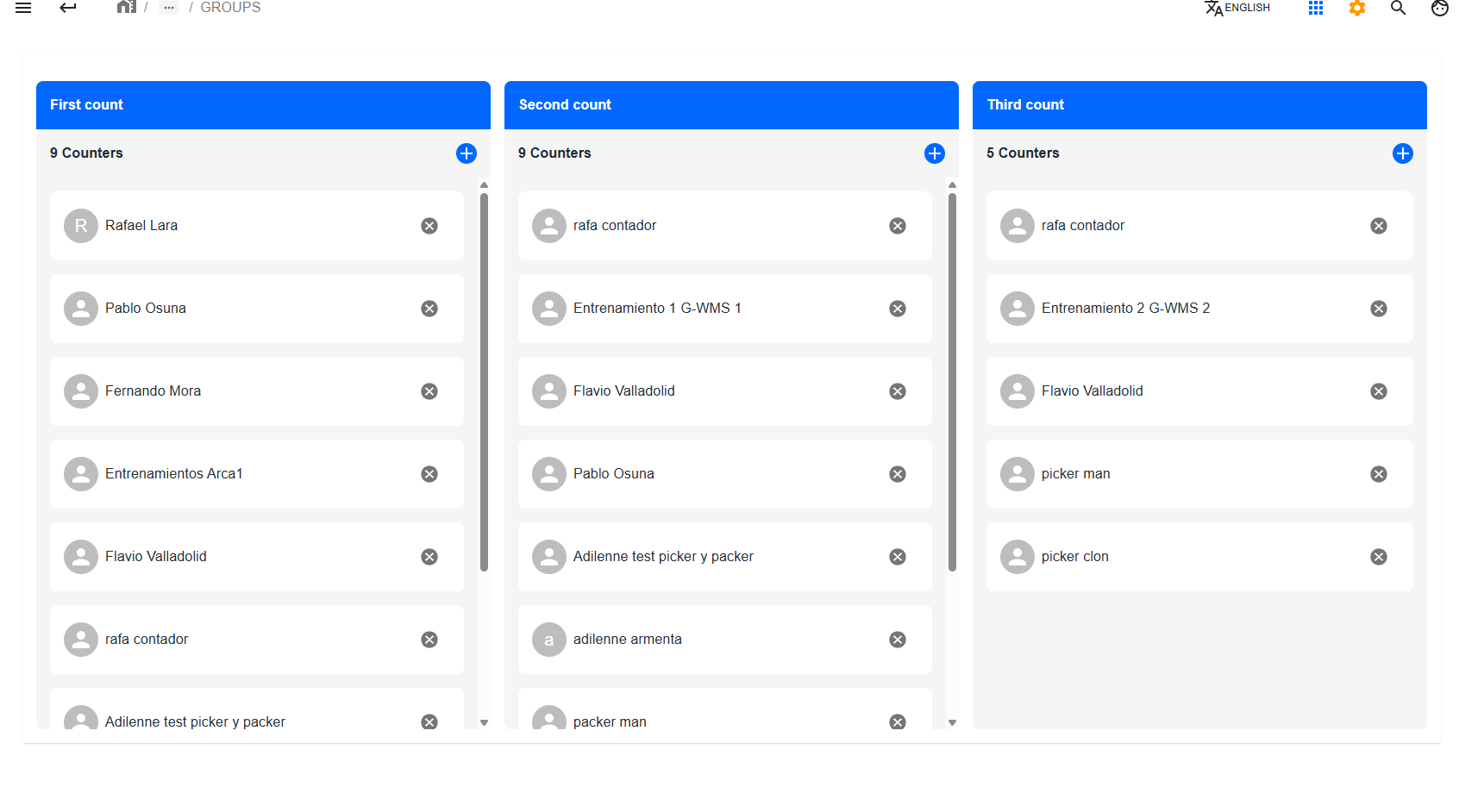
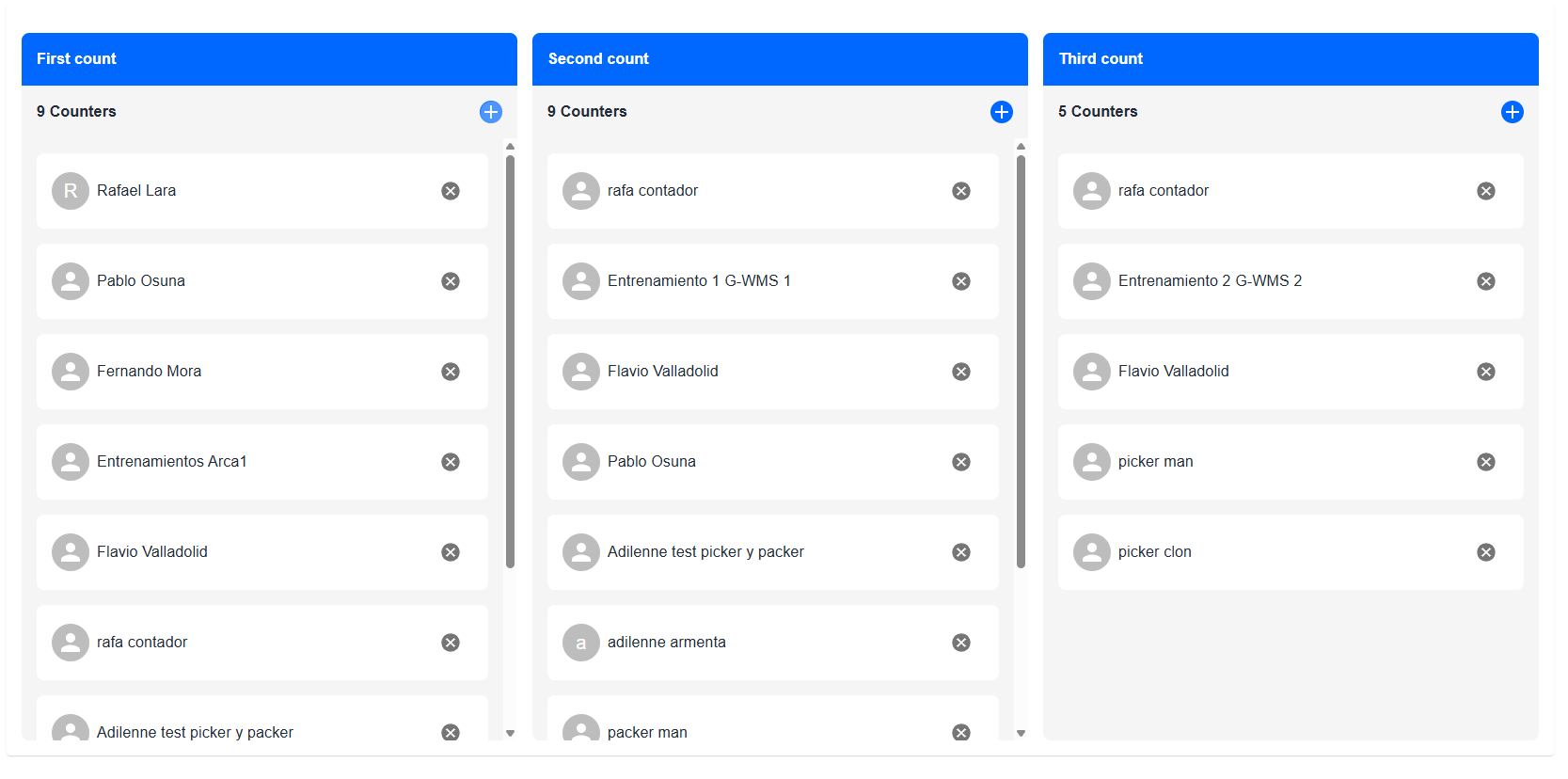
To add a user to one of the 3 counting groups, click on 2 in the general interface. This takes you to the groups section, which looks like this:
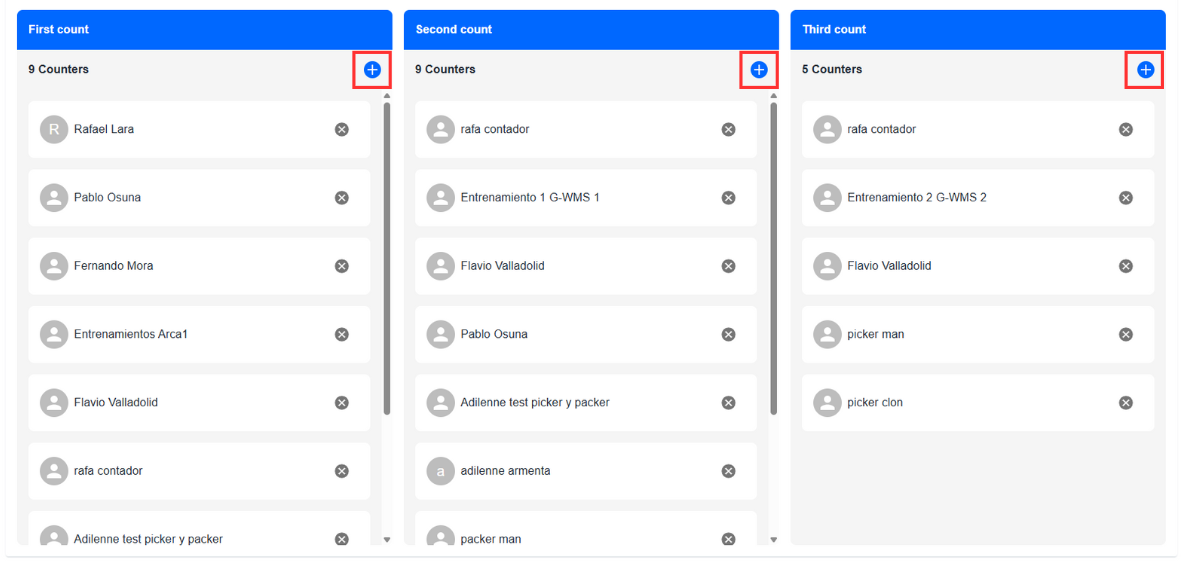
Add users to any group by clicking the blue (+) sign in the upper right corner of each group rectangle.
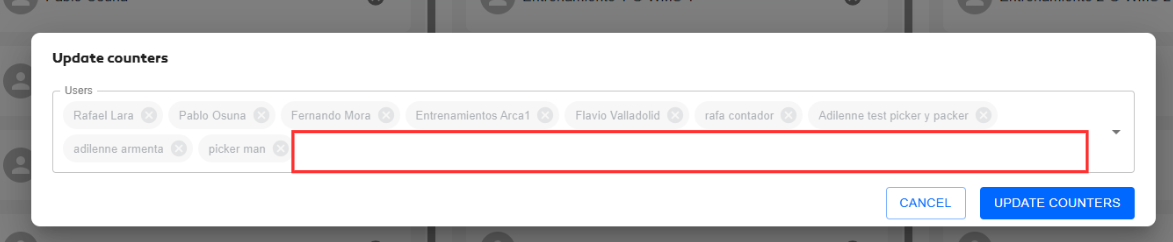
After selecting a group, add a user:
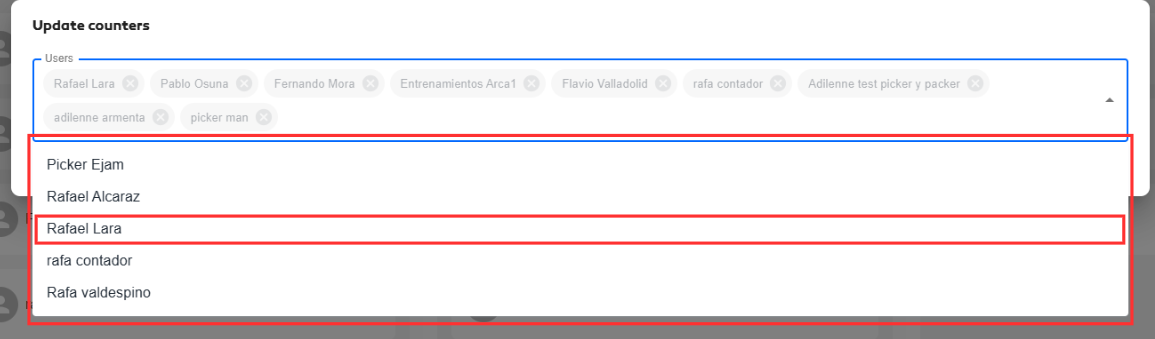
Click in the blank space of the white box, type the user's first name, and wait a few seconds for options to appear.
Select the user by clicking on them, then click the update counters button.
The name will then appear in the lists.
|